How to forward alerts to another host
Alert Forwarding to another host adds an extra layer of monitoring and management for critical systems, helping to ensure timely detection and resolution of potential issues.
The following steps explain how to configure alert forwarding:
Authentication
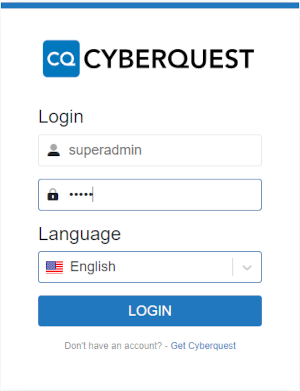
To access the web interface, open a browser and enter the application's IP address or DNS name (for example, https://CyberquestIPAddress). The browser redirects to the CYBERQUEST authentication page.
Navigate to Settings
Go to Settings > Application Settings and select AlertForwarding.
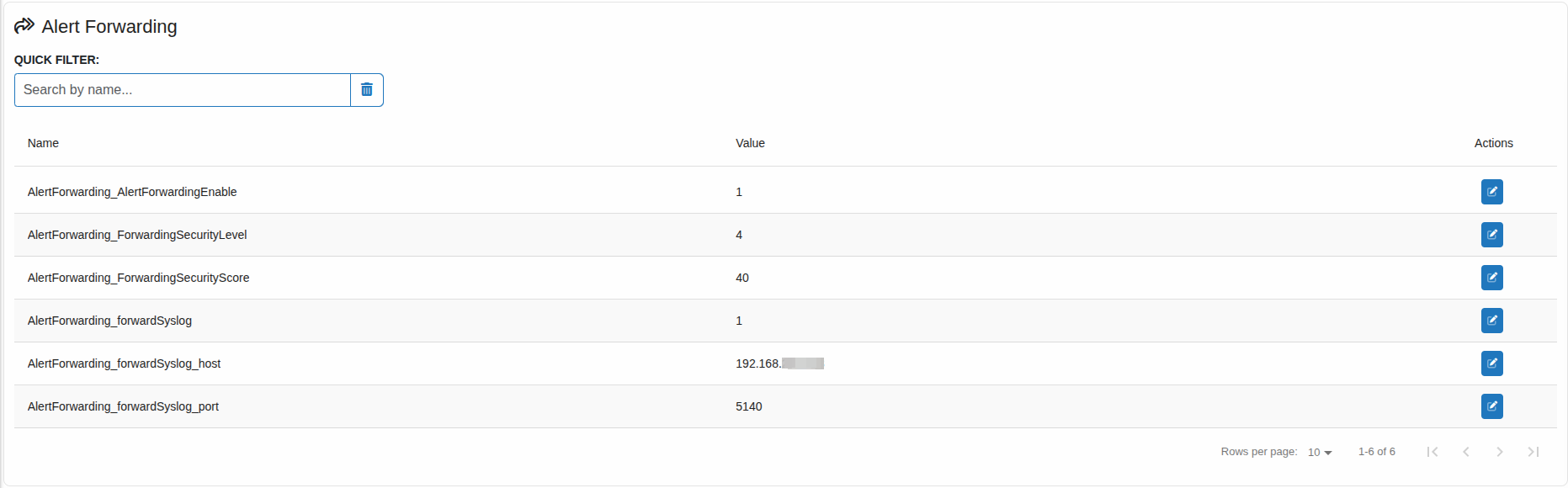
Configure the following parameters:
- AlertForwarding_AlertForwardingEnable - set
1to enable alert forwarding,0to disable - AlertForwarding_ForwardingSecurityLevel - minimum security level for alerts to be forwarded
- AlertForwarding_ForwardingSecurityScore - minimum security score for alerts to be forwarded
- AlertForwarding_forwardSyslog - set
1to enable Syslog-based forwarding,0to disable - AlertForwarding_forwardSyslog_host - destination host (IP or DNS) that receives alerts
- AlertForwarding_forwardSyslog_port - destination Syslog port
After saving the settings, restart the Data Correlation service to apply changes.
Go to Settings > Application Settings > Data Correlation:

Enter 1 to restart the service. When the restart completes, the value returns to 0.