How to export data from dashgroup
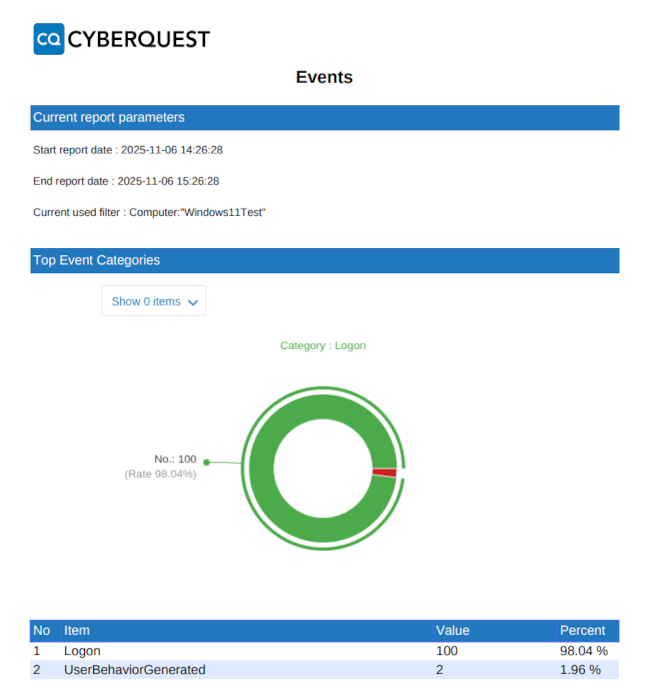
Export a graphical report (PDF) based on aggregated events or alerts from any dashgroup.
Authentication
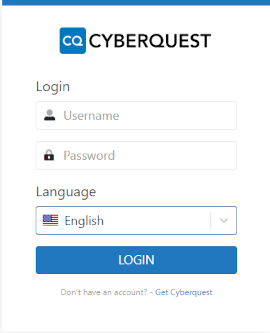
To access the web interface, open a browser and enter the application's IP address or DNS name (for example, https://CyberquestIPAddress). The browser redirects to the CYBERQUEST authentication page.
Navigate to Dashboards
- Open the Dashboards page and click the expand control to show Search and Filter:
-
Choose the dashgroup to export (for example, Events, Network, Alerts) or a custom dashgroup
-
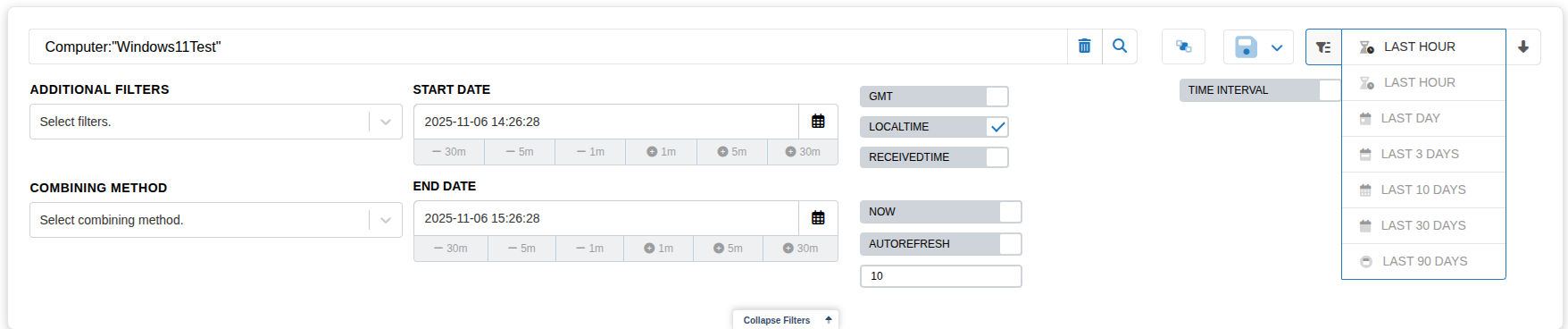
Optionally, apply filters (for example,
EventID,UserName,Computer) using search and additional filters
Click the Export button:
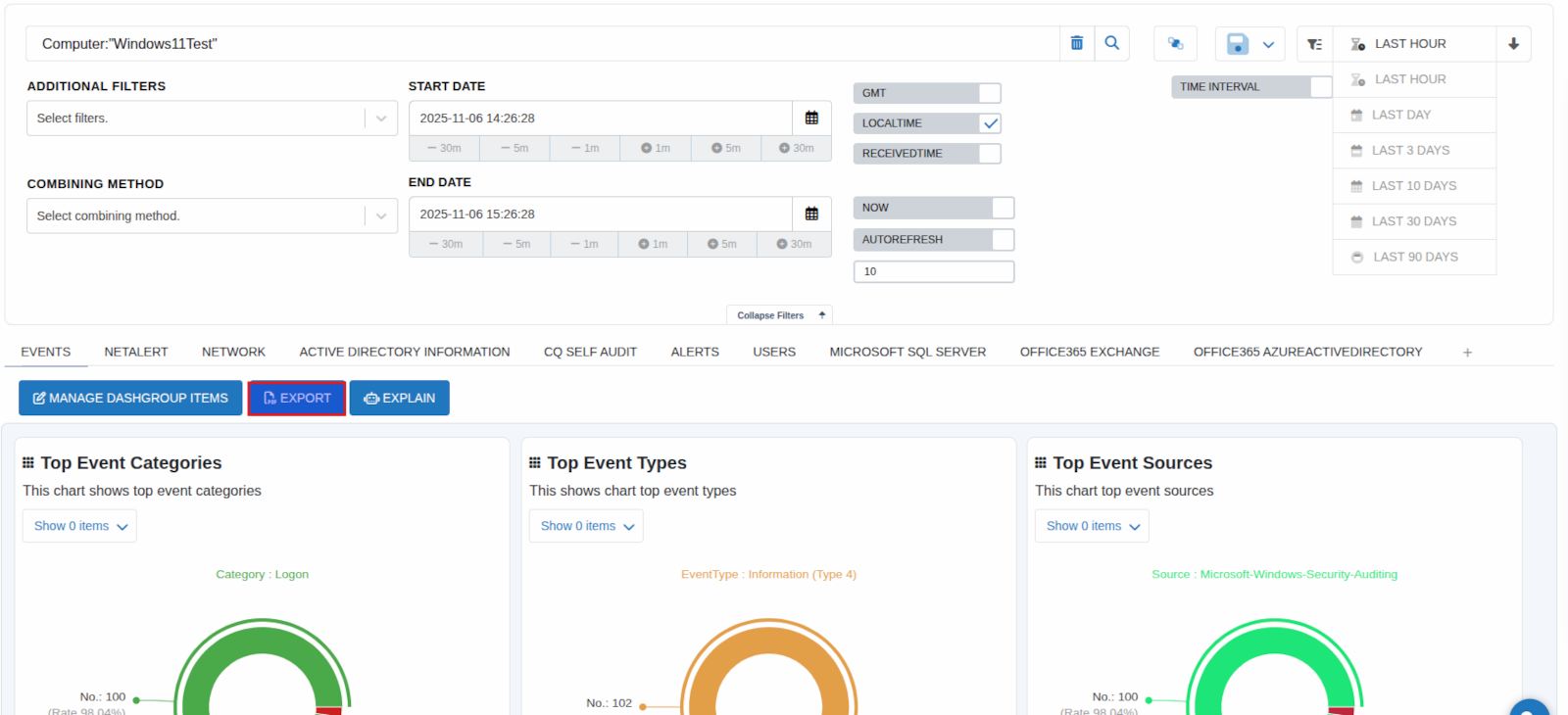
Export the dashgroup
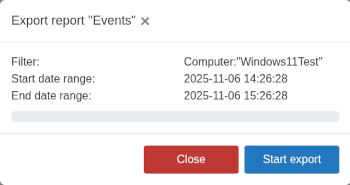
Start the export by clicking Start export (or click Close to cancel).
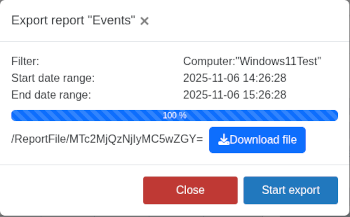
When the export completes, click Download file to save the PDF locally.
Example of a downloaded PDF report: