How to Add a New Asset
Overview
Assets in CYBERQUEST represent data source generators that automatically collect and process information from various sources. When data is collected, asset details are automatically populated by the system. Assets can be manually defined or existing asset details modified to ensure proper categorization and management.
Create Tenant
Tenants are used in CYBERQUEST instances that host multiple organizations or customers. To access tenant management, navigate to Settings > Application Settings > Tenants.

The Tenants page displays all configured tenants with the following options:
- Edit - Update or modify the details of an existing tenant.
- Delete - Remove a tenant from the system
- NEW TENANT - Add a new tenant to the instance.
- Active/Inactive - Enable or disable a tenant to control its active status.
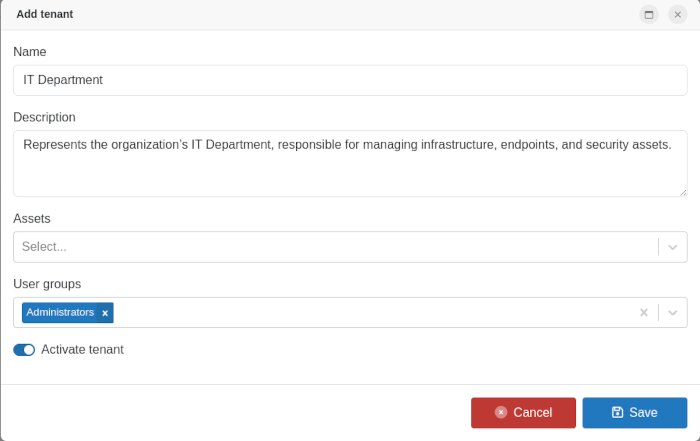
To add a new tenant, click the  button, complete the tenant form with the required information, and then click Save to confirm or Cancel to discard the changes.
Create Owner
Owners represent the individuals or departments responsible for managing and overseeing assets. To access and manage owners, navigate to Settings > Application Settings > Owners.

The Owners page shows all configured owners with management options: - NEW OWNER - Create a new owner and assign ownership to assets. - Edit - Update existing owner information. - Delete - Remove an owner from the system when no longer required.
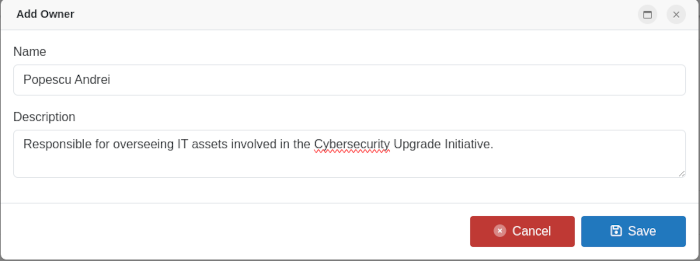
To add a new owner, click the Add button , complete the form with the owner’s details (name, description), and click Save to confirm.
Create Project
Projects organize assets according to business initiatives, departments, or functional areas. To manage projects, navigate to Settings > Application Settings > Projects.

The Projects page lists all configured projects and provides options to manage them:
- NEW PROJECT - Create a new project and assign relevant assets.
- Edit - Update the details of an existing project.
- Delete - Remove a project from the system when it is no longer needed.
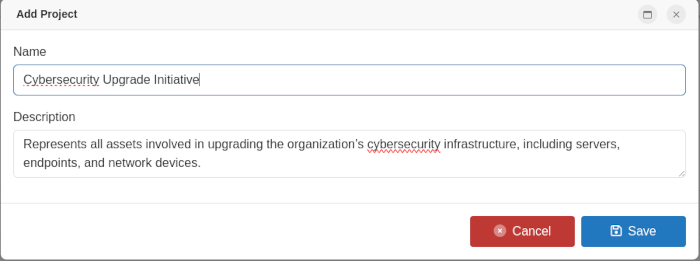
To add a new project, click the Add button  and complete the project form with the required details.
Create Application
Applications allow assets to be categorized by their function or software type. To manage applications, navigate to Settings > Application Settings > Application.

The Applications page lists all configured applications and provides options to manage them:
- Add - Create a new application category to organize assets.
- Edit - Update the details of an existing application.
- Delete - Remove an application from the system when it is no longer needed.
To add a new application, click the Add button  and complete the form with the application details.
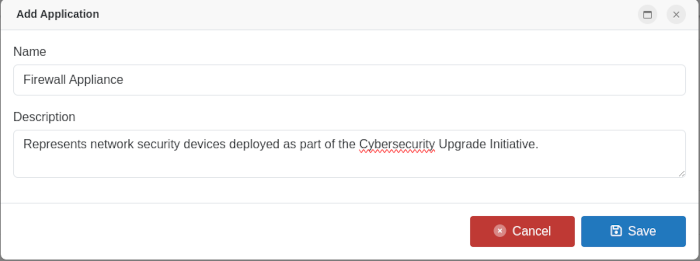
Create Site
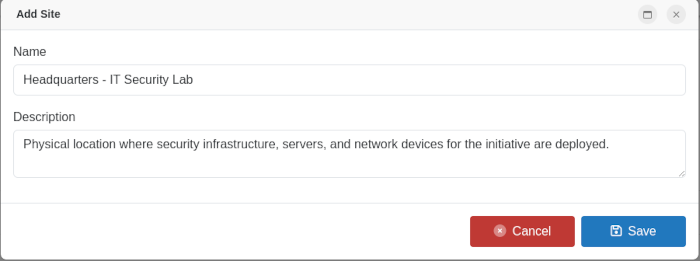
Sites represent physical locations, data centers, or logical environments where assets are deployed. To manage sites, navigate to Settings > Application Settings > Sites.

The Sites page lists all configured sites and provides options to manage them: - Add - Create a new site to organize assets by location or environment. - Edit - Update details for an existing site. - Delete - Remove a site from the system when it is no longer needed.
To add a new site, click the Add button  and complete the form with the site details.
Add New Asset
Once all prerequisites are configured, assets can be added to the system. To manage assets, navigate to Settings > Application Settings > Assets.
To add a new asset, click the Add button  to open the asset configuration window.
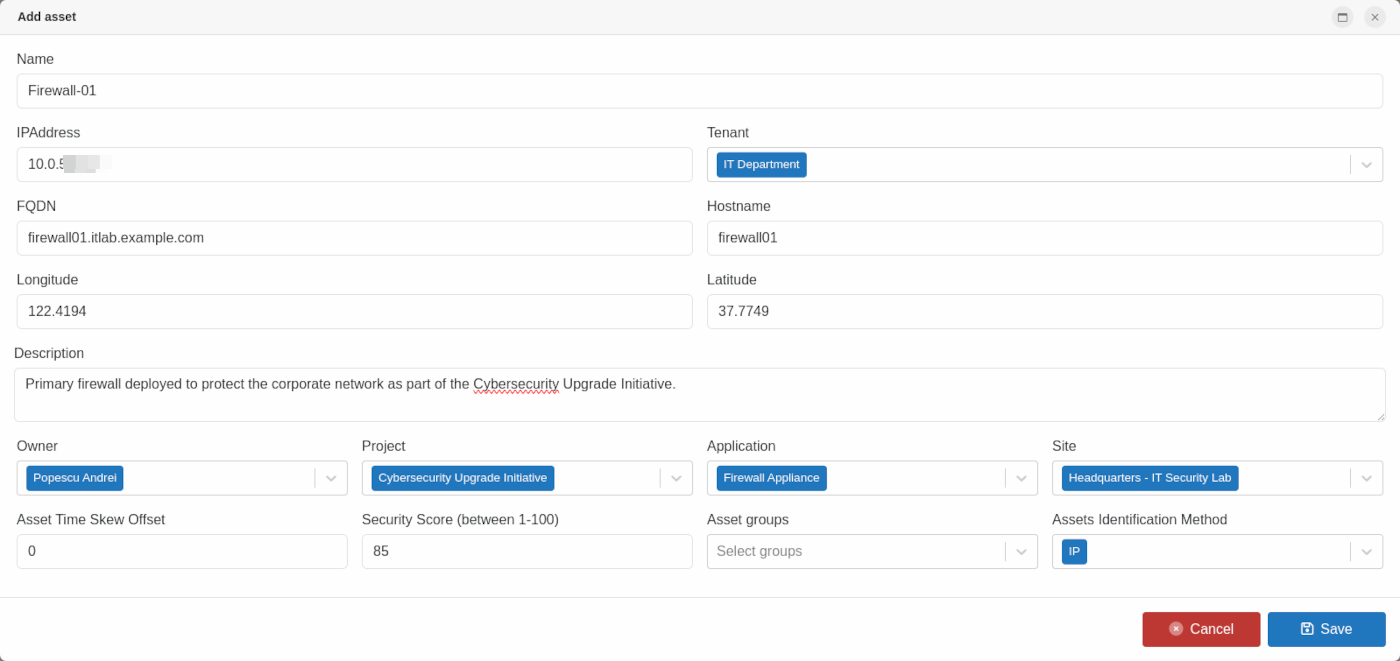
The asset configuration form includes the following fields:
- Name - The asset identifier. Can be automatically assigned by CYBERQUEST during data collection or manually defined by the user
- Description - Detailed information about the asset's purpose and function
-
FQDN - Fully Qualified Domain Name (e.g., server.example.com) - the complete domain name for a specific computer or host
-
Hostname - The short domain name assigned to a host computer (e.g., server)
- Longitude - Geographic longitude coordinate of the asset's location
-
Latitude - Geographic latitude coordinate of the asset's location
-
Tenant - Assign the asset to a specific tenant (for multi-tenant deployments)
- Owner - Select the owner responsible for this asset
- Project - Choose the project associated with this asset
- Application - Select the application category for this asset
- Site - Specify the site where this asset is located
-
Asset Time Skew Offset - Time difference in seconds between the asset's clock and the CYBERQUEST server clock. Important for accurate timestamp correlation
-
Security Score (1-100) - A numerical representation of the asset's security posture
- Asset Groups - Groups that the asset belongs to, used for bulk operations and policy management
- Assets Identification Method - How the asset will be identified: IP address, FQDN, or Hostname
Assets can be created using default values for Owner, Project, Application, and Site, or customized according to the configuration steps outlined in the prerequisites.
Assets assigned to the DEFAULT category are those that cannot be accurately categorized at the time of creation. This typically includes:
- Assets with incomplete configuration details
- Newly discovered assets awaiting proper classification
- Assets that do not match any existing organizational structures