
Documentation
Overview
Vulnerability Assessment Module: CYBERQUEST integrates with OpenVAS (https://www.openvas.org/), a comprehensive vulnerability scanner that provides detailed…
Vulnerability Manager
The Vulnerability Manager module allows users to scan, assess, and manage vulnerabilities identified across infrastructure assets. CYBERQUEST integrates with OpenVAS (https://www.openvas.org/), a vulnerability scanner used to detect vulnerabilities, exposed services, misconfigurations, and other security-relevant findings.
The scanner uses vulnerability tests from an updated feed, allowing new detection checks to be applied as they become available.
The Vulnerability Manager provides access to the main components required to configure and run vulnerability scans, including Assets, OS, Tasks, Targets, Schedules, Credentials, Reports, Preferences, Configs, and Scanners.

Targets
Before a vulnerability scan can be executed, one or more scan targets must be defined. A target specifies the hosts that will be scanned and the credentials or scanning options that should be used.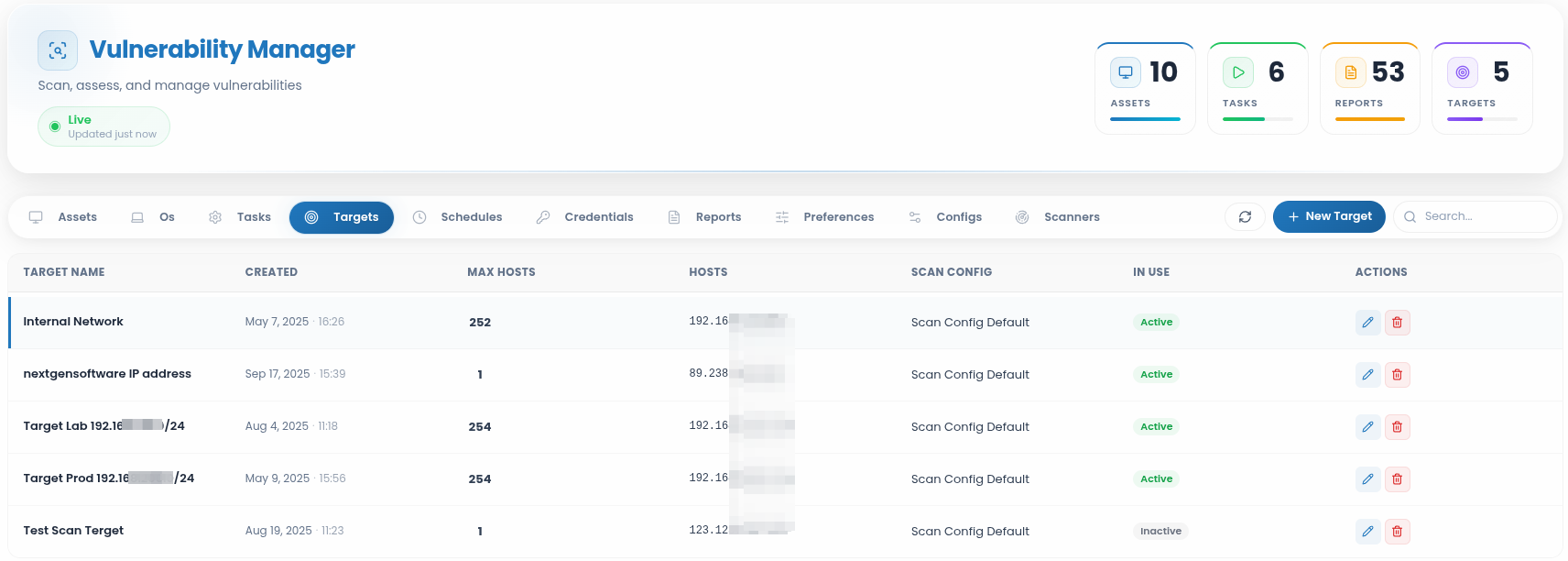
Available actions include:
- Edit targets - Modifies an existing scan target configuration.
- Delete targets - Removes the selected scan target. This action is irreversible and requires confirmation.
To create a new scan target, click the  button:
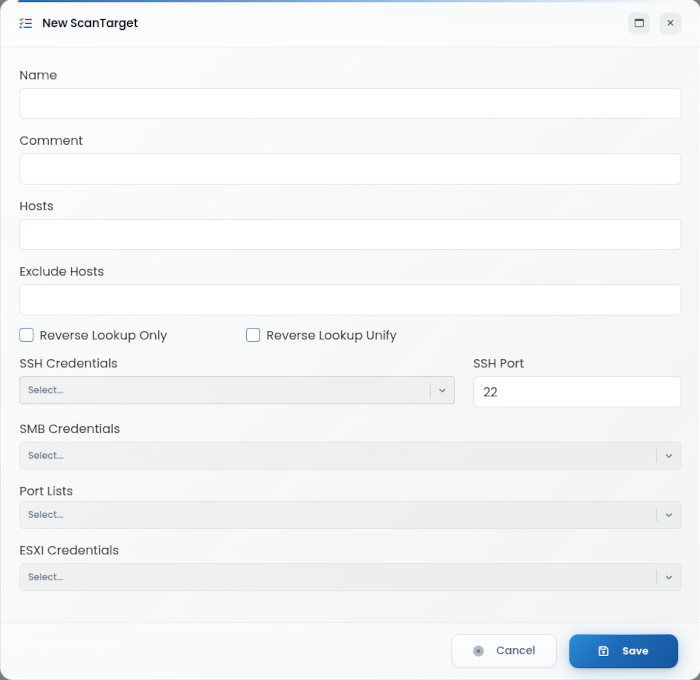
The following fields are available:
Name: Defines a unique name for the scan target.
Comment: Provides optional notes or details about the target.
Hosts: Specifies the hosts to be scanned. This field supports IP addresses, hostnames, comma-separated values, hyphenated ranges, or CIDR notation.
Exclude Hosts: Defines hosts that must be excluded from the scan.
- Reverse Lookup Only: Enables reverse DNS lookup for the specified hosts.
- Reverse Lookup Unify: Normalizes and groups reverse lookup results.
SSH Credentials:Selects the credentials used for SSH authentication.
SSH Port: Defines the SSH port used during authenticated scanning. The default value is 22
SMB Credentials: Selects the credentials used for SMB authentication.
Port Lists: Selects the port profile used during scanning.
- All IANA assigned TCP
- All IANA assigned TCP and UDP
- All TCP and Nmap top 100 UDP
ESXI Credentials: Selects credentials used for ESXi systems, if applicable.
After completing the required fields, click Save to create the target.
Tasks
The Tasks section defines the actual vulnerability scan jobs. A task combines the scan target, scan configuration, scanner engine, schedule, and execution options.
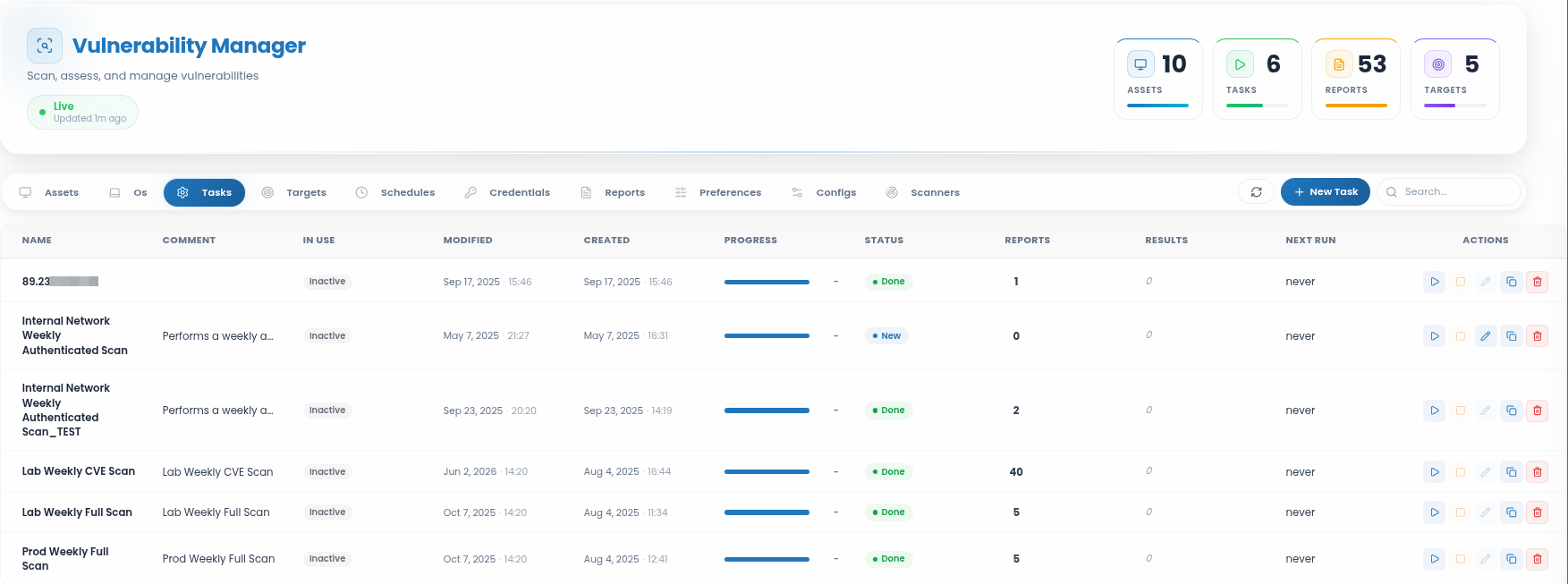
Start task
 - Starts the selected scan task manually.
Stop task
 - Stops a running scan task.
Edit task
 - Modifies the selected scan task.
Clone task
 - Creates a copy of an existing task.
Delete tasks
 - Removes the selected task and associated data, where applicable. This action requires confirmation.
To create a new task, click the  button.
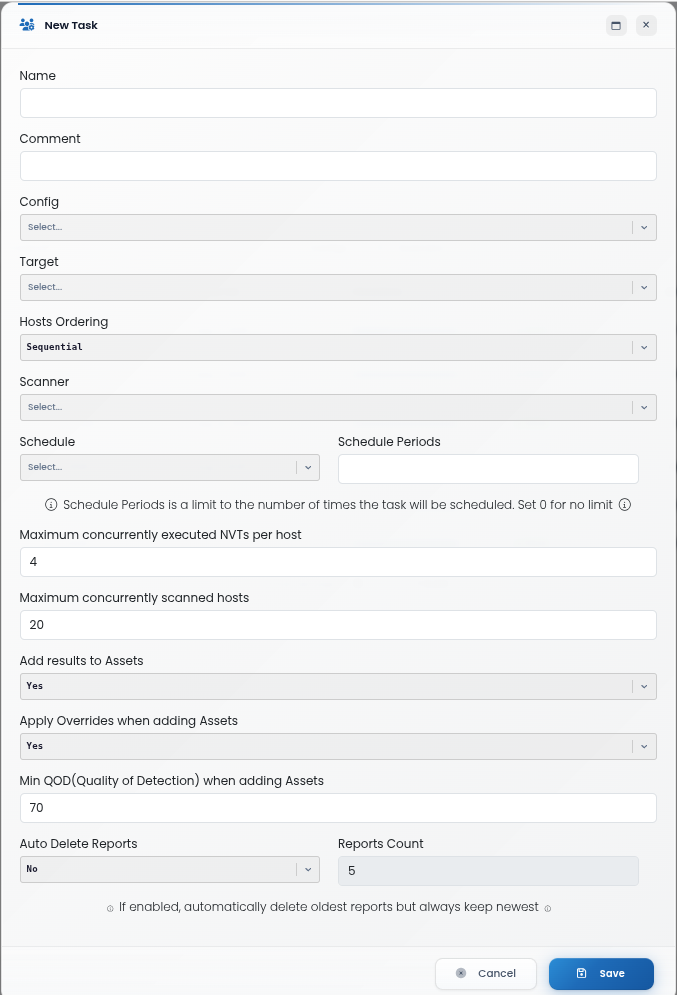
The following fields are available:
Name: Defines the task name.
Comment: Provides optional information about the task.
Config: Selects the scan configuration profile used by the task.
Target: Selects the target hosts to be scanned.
Hosts Ordering: Defines the order in which hosts are scanned.
- Sequential: Scans hosts in the listed order.
- Random: Scans hosts in random order.
- Reverse: Scans hosts in reverse order.
Scanner: Selects the scanner engine used for the task.
Schedule: Selects a predefined schedule for automatic execution.
Schedule Periods: Defines how many times the task should run according to the selected schedule. A value of 0 means no execution limit.
Maximum concurrently executed NVTs per host: Defines the maximum number of Network Vulnerability Tests that can run at the same time on each host.
Maximum concurrently scanned hosts: Defines how many hosts can be scanned in parallel.
Add results to Assets: Enables or disables adding scan results to the asset inventory.
Apply Overrides when adding Assets:Enables or disables applying overrides when adding scan results to assets.
Min QOD (Quality of Detection) when adding Assets: Defines the minimum QoD value required for results to be added to asset records.
Auto Delete Reports: Enables or disables automatic deletion of older reports.
Reports Count: Defines how many reports should be kept when automatic deletion is enabled.
After completing the configuration, click Save.
Once a task is created, it can be started manually from the task list, or automatically if a schedule is assigned.
Configs
The Configs section contains scan configuration profiles that define how vulnerability scans are executed. A scan configuration determines which vulnerability tests are used and how the scanner performs the assessment.
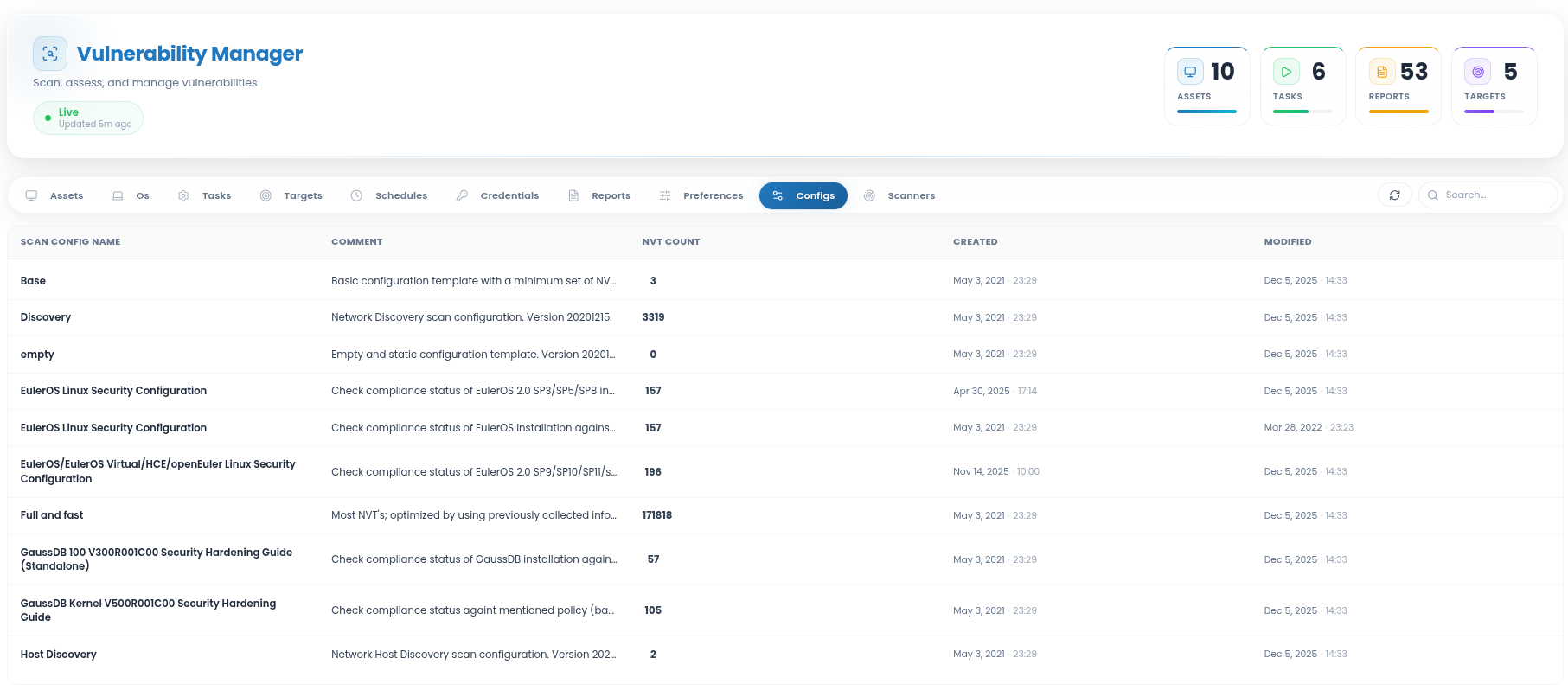
Common scan configurations include:
- Discovery - Collects information about the target system, such as open ports, services, software, certificates, and hardware details. This configuration is used for inventory and discovery and does not perform vulnerability detection.
- Host Discovery - Detects whether target hosts are reachable. This configuration is useful for identifying live systems before running more detailed scans
- Full and fast - This scan configuration is ideal for most environments as a starting point, offering comprehensive coverage while minimizing potential system impact.
This scan configuration is based on the information gathered in the previous port scan and uses almost all VTs. Only VTs that will not damage the target system are used. VTs are optimized in the best possible way to keep the potential false negative rate especially low. The other “Full” configurations only provide more value in rare cases but with much higher effort.
The VT families are dynamic, i.e., new VTs of the chosen VT families are added and used automatically.
- Empty - This scan configuration is an empty template containing no VTs. It can be cloned and used for a completely individual created scan configuration.
The VT families are static, i.e., new VTs of the chosen VT families are not added and used automatically.
EulerOS Linux Security Configuration - Offers hardening practices and security recommendations specifically for EulerOS Linux systems to reduce vulnerabilities and improve system defenses.
GaussDB 100 V300R001C00 Security Hardening Guide (Standalone) - Provides security configuration guidance for GaussDB 100 V300R001C00 standalone deployments, covering best practices to secure database operations.
GaussDB Kernel 100 V500R001C00 Security Hardening Guide - Details security hardening procedures for the GaussDB Kernel 100 V500R001C00 to strengthen protections at the database kernel level.
Huawei Datacom Product Security Configuration Audit Guide - Describes methods and recommended settings to audit and secure Huawei Datacom products, ensuring compliance with security best practices.
Credentials
The Credentials section manages authentication details used by the scanner during authenticated scans. Credentials can improve scan accuracy by allowing the scanner to access additional system information.
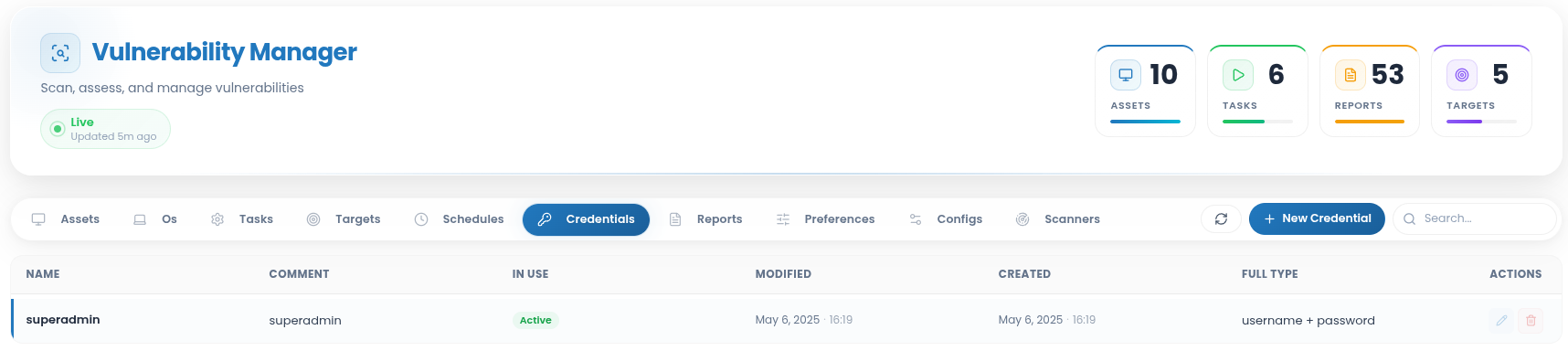
Available actions include:
- Edit Credential - Updates an existing credential.
- Delete Credential - Removes a credential from the system. This action should be performed carefully because it may affect scan tasks that depend on that credential.
To create new credentials, click the  button. The following fields are available, depending on the selected credential type:
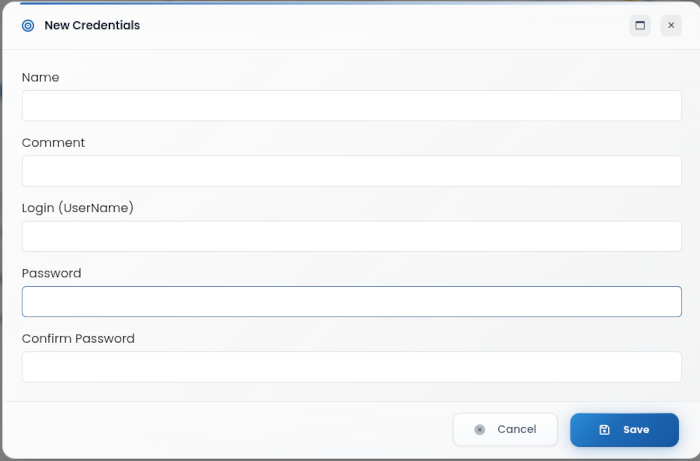
The fields below are also available in the Edit Credentials configuration page. Available options may vary depending on the selected credential type:
Name - Defines the credential name.
Comment - Provides optional information about the credential.
Login / Username - Specifies the username used for authentication.
Password - Defines the password for the selected account.
Confirm Password - Confirms the password value.
After completing the required fields, click Save to create the credential.
Schedules
The Schedules section allows users to define when vulnerability scan tasks should run. Schedules can be used for one-time scans or recurring scans.
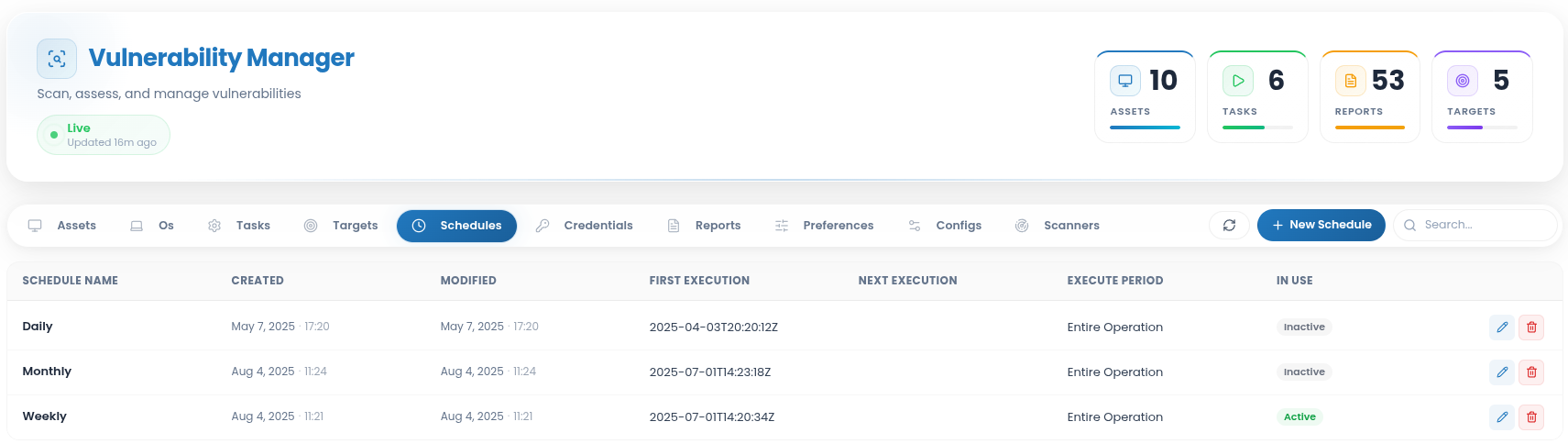
Available actions include:
Edit Schedule - Updates an existing schedule.
Delete Schedule - Removes a schedule. This action is irreversible and requires confirmation.
To create a new schedule, click the  button. The following fields are available:
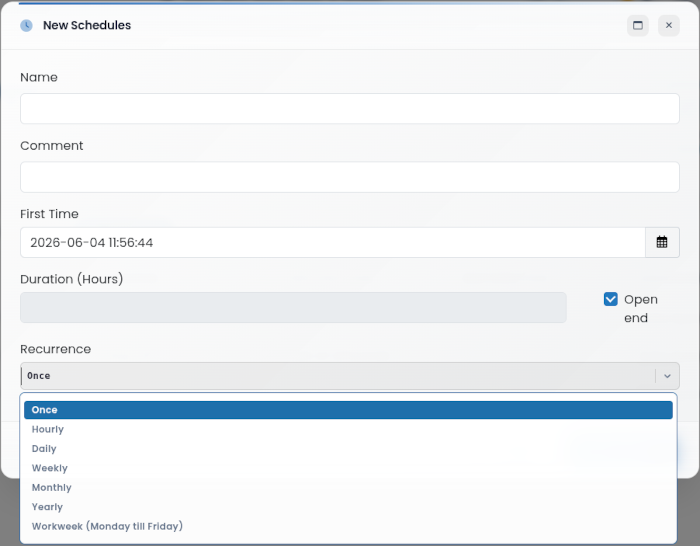
The attributes listed below are also available in the Edit Schedules configuration page. Options may vary depending on the selected schedule type:
Name: Defines the schedule name.
Comment: Provides optional information about the schedule.
First Time: Sets the first execution date and time.
Duration (Hours): Defines how long the scheduled task is allowed to run.
Recurrence:Defines how often the task should repeat. Available recurrence options include:
Once - Runs the task one time.
Hourly - Runs the task every hour.
Daily - Runs the task once per day.
Weekly - Runs the task once per week.
Monthly - Runs the task once per month.
Yearly - Runs the task once per year.
Workweek - Runs the task from Monday to Friday.
After configuring the schedule, click Save.
Reports
When a scan task is executed, the results are stored in the Reports section. Reports provide a summary of completed scans, including task name, owner, report name, number of detected vulnerabilities, number of scanned hosts, scan start time, scan status, and available actions.
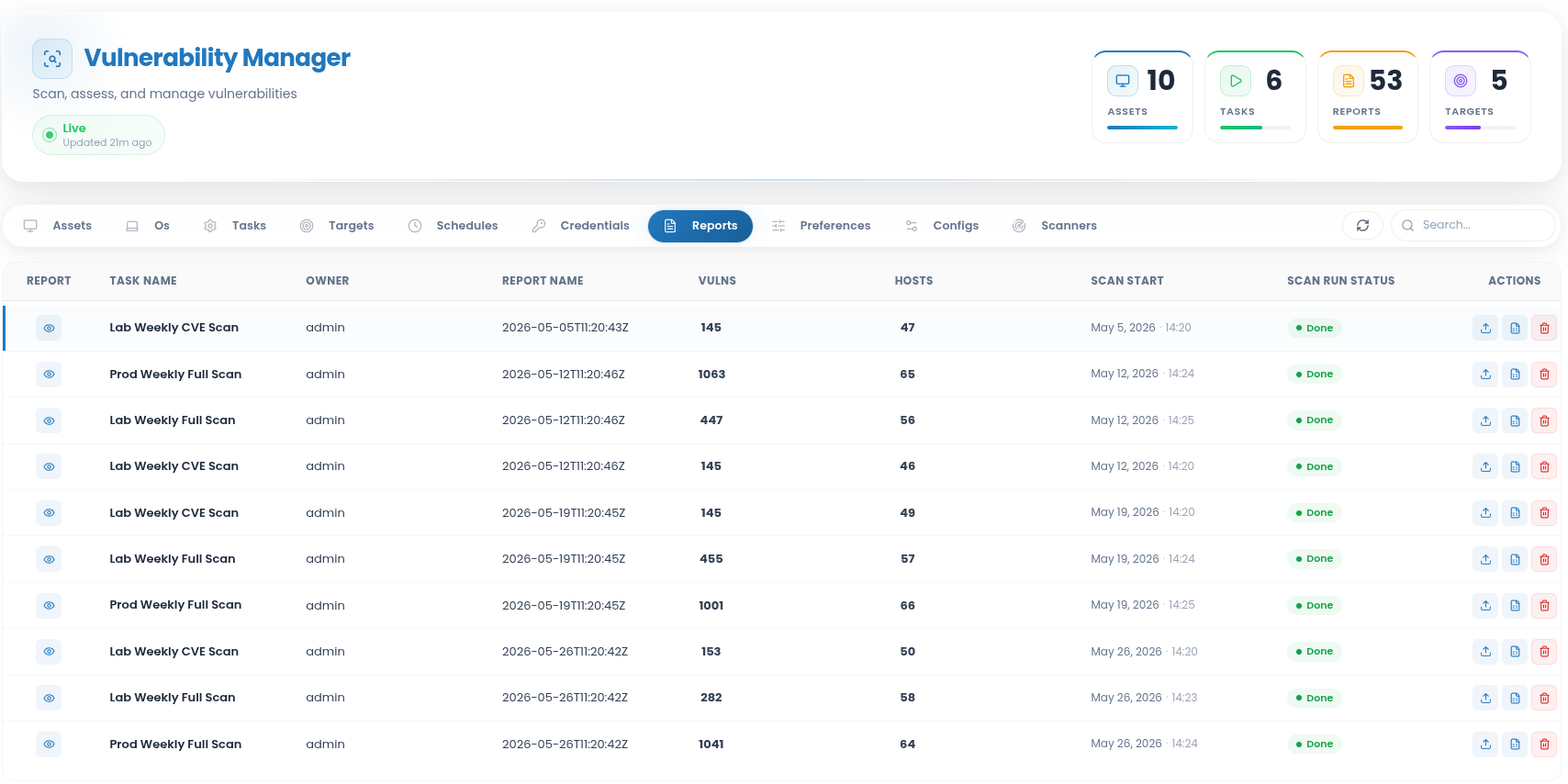
Available actions include:
- Export reports: Exports scan results in the available format.
- Delete reports: Removes the selected report. This action requires confirmation.
- Generate Events: Sends scan-related events to CYBERQUEST for further analysis in dashboards, reports, and event investigation workflows.
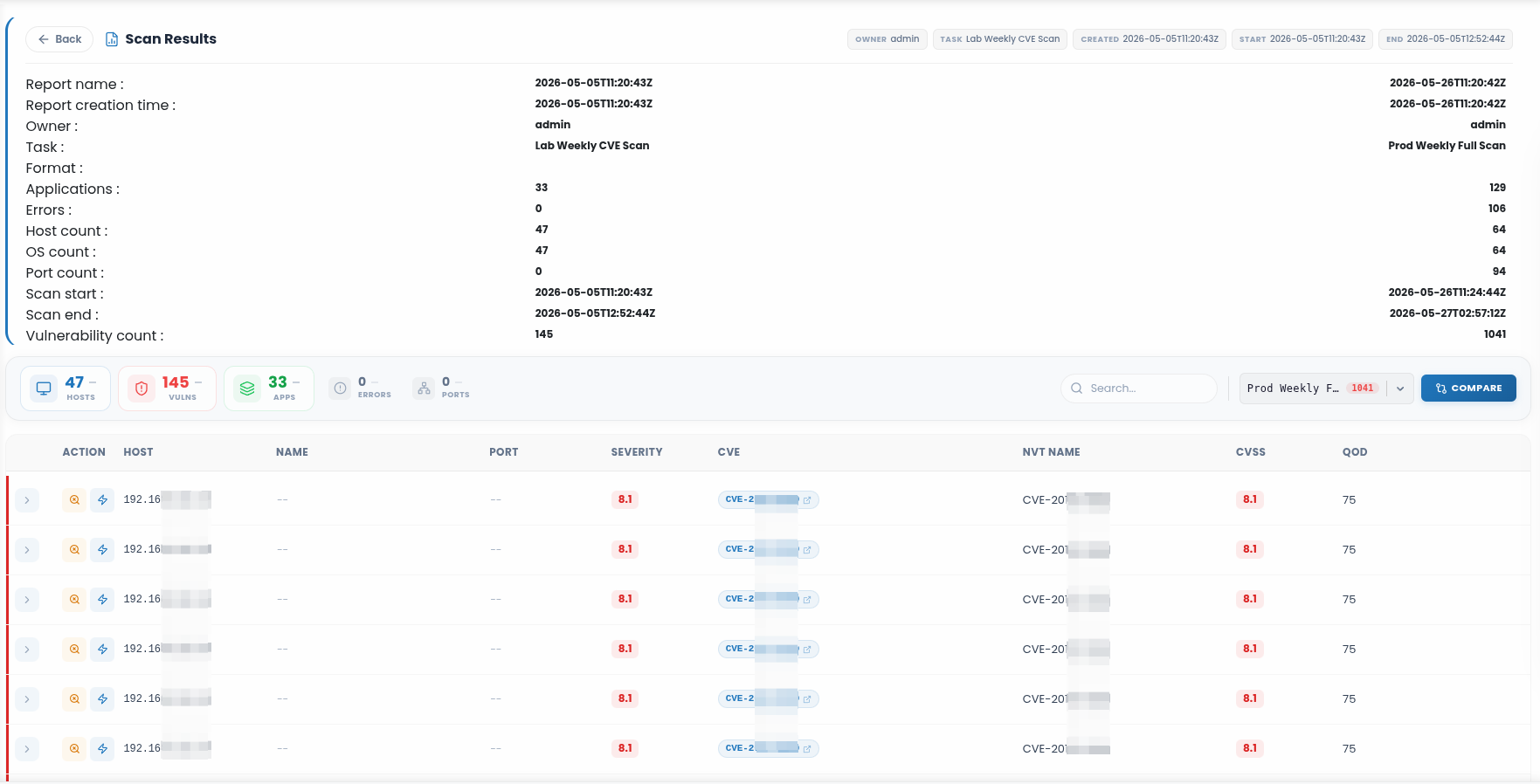
- View Report:
 Opens the scan results view. Reports can also be compared to track changes between scan executions.
Os
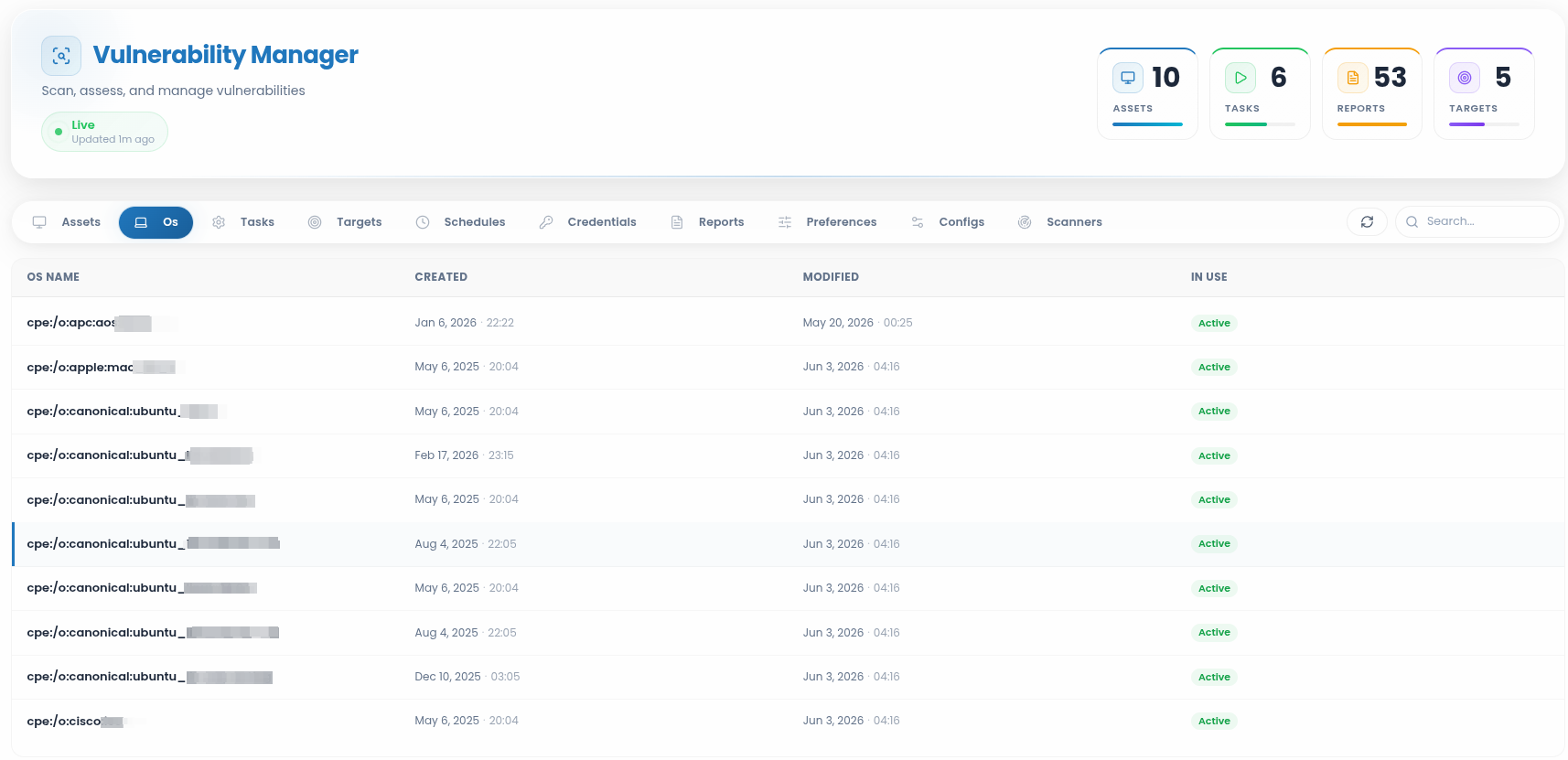
The OS section displays the operating systems identified by the scanner during the scan process. Operating systems are listed using CPE-style identifiers and include creation, modification, and usage status information.
Assets
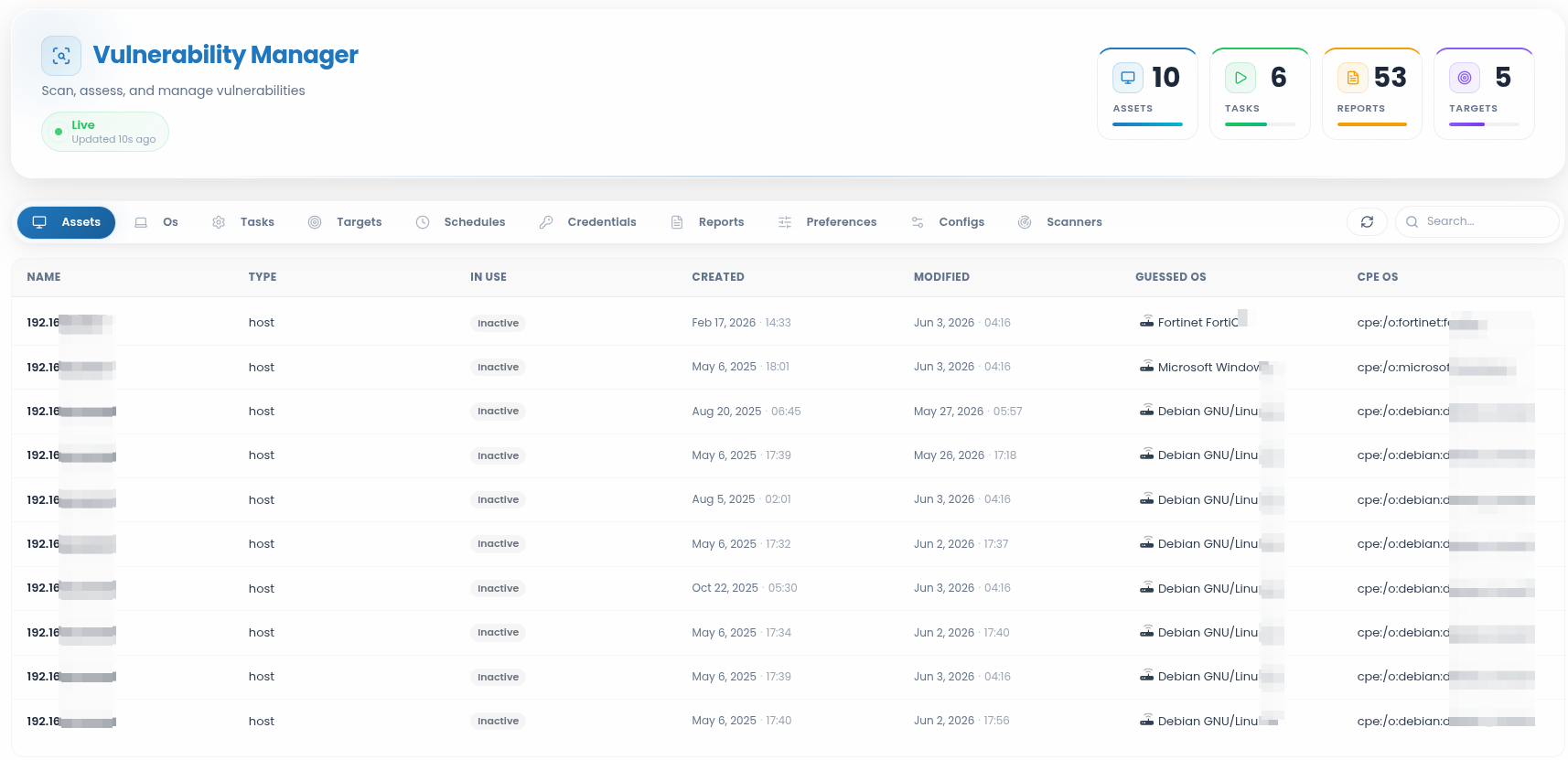
The Assets section displays the systems discovered or updated during vulnerability scanning. Each asset entry can include information such as asset name or IP address, type, creation date, modification date, detected operating system, and CPE information.
Preferences
The Preferences section displays scanner preference values used by specific Network Vulnerability Tests. Preferences are shown as key-value entries and may include default values, configured values, and the related NVT name.
This section is useful for reviewing scanner behavior and understanding how specific tests are configured.
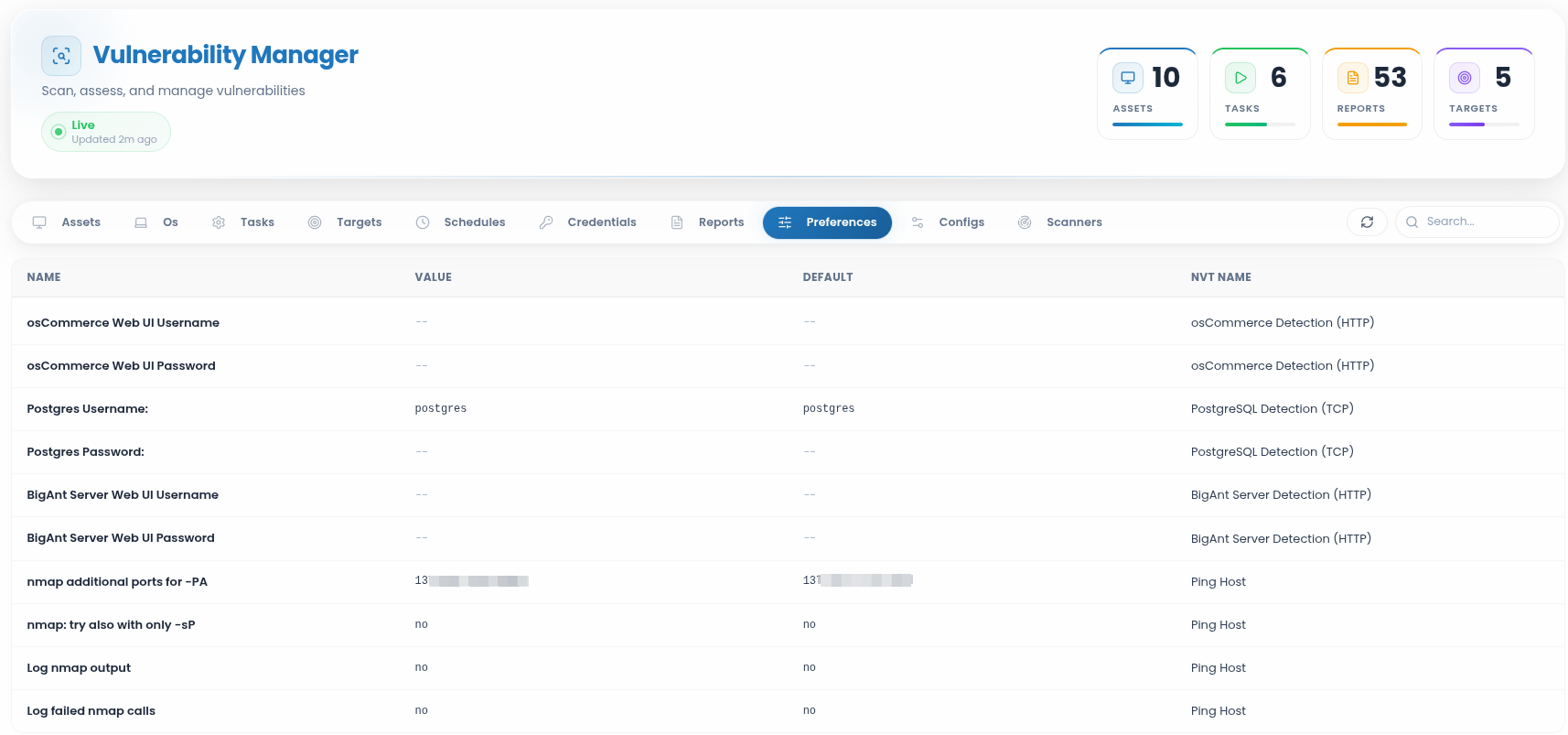
The Update button refreshes the Preferences page to display the latest configuration settings.
Scanners
The Scanners section displays the scanning engines available in the environment. Each scanner entry can include the scanner name, port, host, usage status, and scanner type.
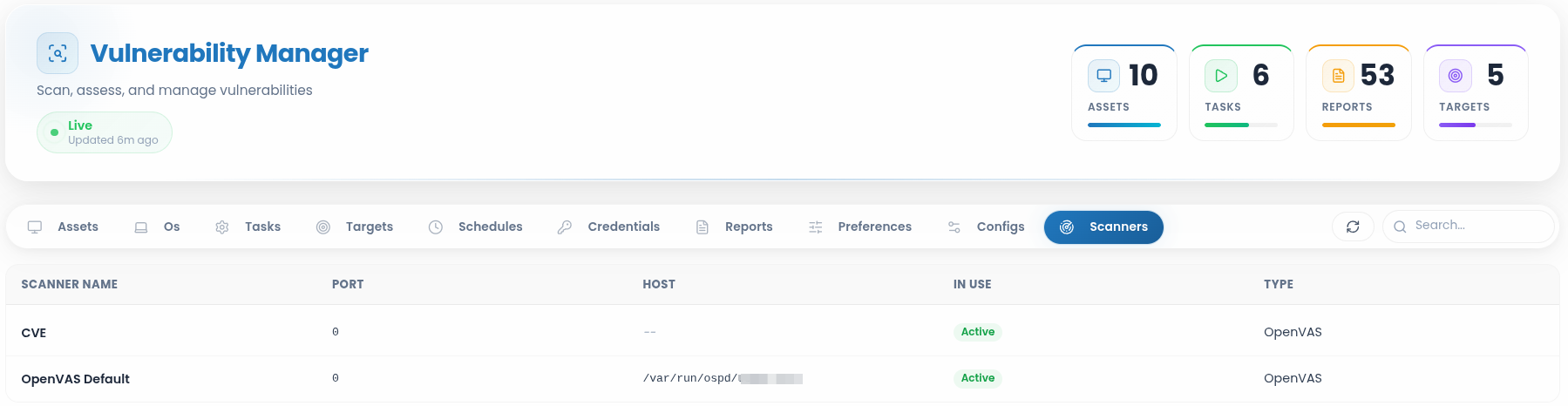
The Update button refreshes the Scanners page to ensure the latest data is shown.