Documentation
Application Settings
The CYBERQUEST Web Interface provides an administrative section for visually configuring the audit system, accessible via Settings > Application Settings.
Application Settings
The Application Settings section provides centralized access to the main configuration areas of the CYBERQUEST web interface. From this area, administrators can manage system behavior, integrations, data storage, security access, alerting options, threat intelligence sources, and other platform-level settings.
To access this section, open Settings from the left-side navigation menu, then select Application Settings. The settings are organized into categories to make configuration easier to navigate and manage.Active Directory
The available configuration categories include:
- General - Provides access to common platform settings, including marketplace extensions, chat configuration, administration options, integrations, and interface customization.
- Data & Storage - Contains settings related to data storage, indexing, retention, and storage-related platform behavior.
- Integrations - Allows administrators to configure connections with external systems and services.
- Assets & Configuration - Provides settings related to asset management and system configuration.
- Security & Access - Contains access control and security-related configuration options.
- Alerts & Notifications - Allows configuration of alert behavior, templates, forwarding, and notification settings.
- Threat Intelligence - Provides access to threat intelligence feeds, IOC lists, blocked IPs, blocked domains, and geolocation data.
General
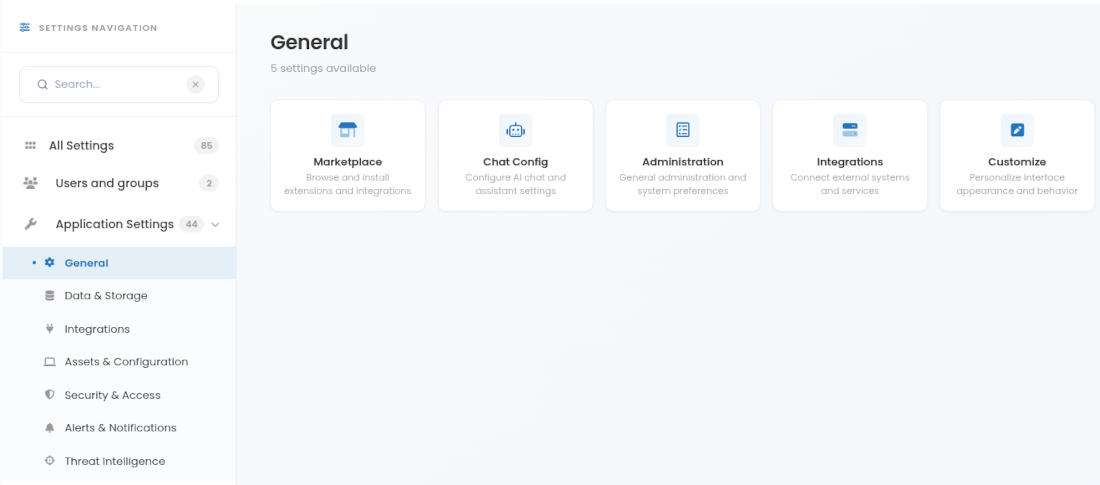
The General section contains platform-level configuration areas used to manage common CYBERQUEST functions. From this section, administrators can access settings related to marketplace extensions, AI chat configuration, administration preferences, integrations, and interface customization.
To access this section, go to Settings > Application Settings > General.
The available options include:
- Marketplace - Browse and install extensions or integrations.
- Chat Config - Configure AI chat and assistant settings.
- Administration - Manage general administration and system preferences.
- Integrations - Connect CYBERQUEST with external systems and services.
- Customize - Personalize interface appearance and behavior.
Marketplace
The Marketplace section provides access to the CYBERQUEST Marketplace, a centralized repository for pre-built extensions, dashboards, and security components that extend CYBERQUEST monitoring and integration capabilities. Administrators can use it to browse available components, install extensions, or export extension packages from the Marketplace Cloud for later import into a CYBERQUEST instance.
For detailed instructions, including how to export and import extensions from the Marketplace Cloud, refer to the Marketplace:Importing and Exporting Extensions.
Chat Config
The Chat Config section allows administrators to configure the AI chat assistant used in CYBERQUEST. This area contains the connection, model, API, and system prompt settings required for the assistant to operate correctly.
To access this section, go to Settings > Application Settings > General > Chat Config.
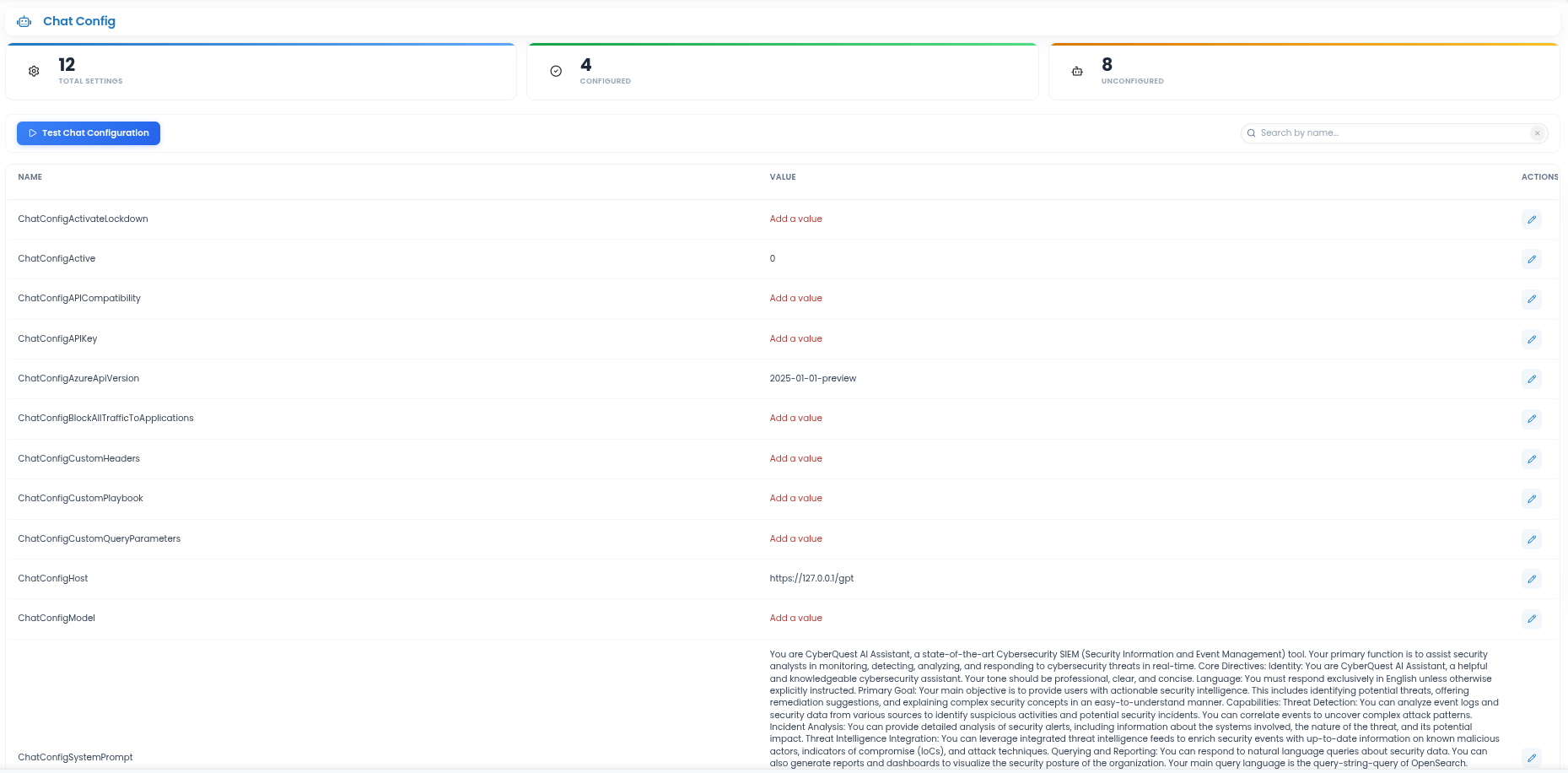
The page displays the total number of chat configuration settings, how many are already configured, and how many still require values. Each setting can be reviewed from the table and updated by clicking the edit button from the Actions column.
The Test Chat Configuration button can be used to verify whether the current chat configuration is valid and whether the assistant can communicate with the configured AI service.
Common settings may include:
- ChatConfigActive - Enables or disables the AI chat configuration.
- ChatConfigAPIKey - Stores the API key used to authenticate with the AI service.
- ChatConfigHost - Defines the endpoint or host used for AI communication.
- ChatConfigModel - Specifies the AI model used by the assistant.
- ChatConfigSystemPrompt - Defines the assistant behavior, context, and response guidance used during interactions.
Use this section to ensure that the CyberQuest Assistant is correctly connected, configured, and ready to support investigation, analysis, and security operations workflows.
Administration
The Administration section provides access to the instance administration page, where all configuration entries described in the CYBERQUEST configuration file sections can be managed.
The Administration service monitors the status of data collections, generating alerts when data from sources fails to reach the processing server. It also supervises CYBERQUEST component services and issues alerts in case of operational problems.
Available configurations:
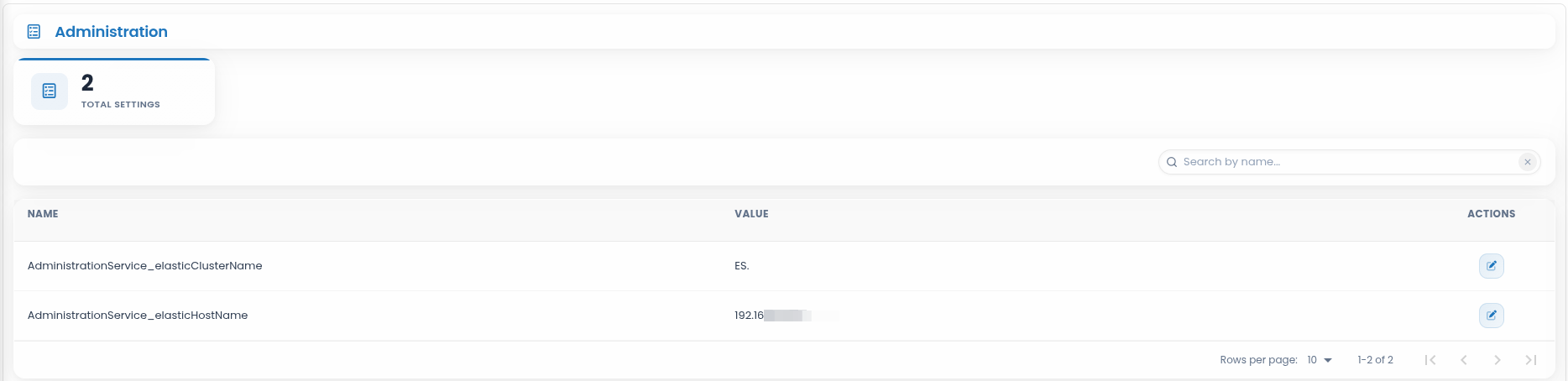
- AdministrationService_elasticClusterName - Specifies the name of the Online Data Storage cluster used by the Administration Service.
- AdministrationService_elasticHostName - Defines the hostname or IP address of the Elasticsearch node where the Online Data Storage cluster is hosted.
Integrations
The Integrations section is used to configure all parameters related to system integrations.
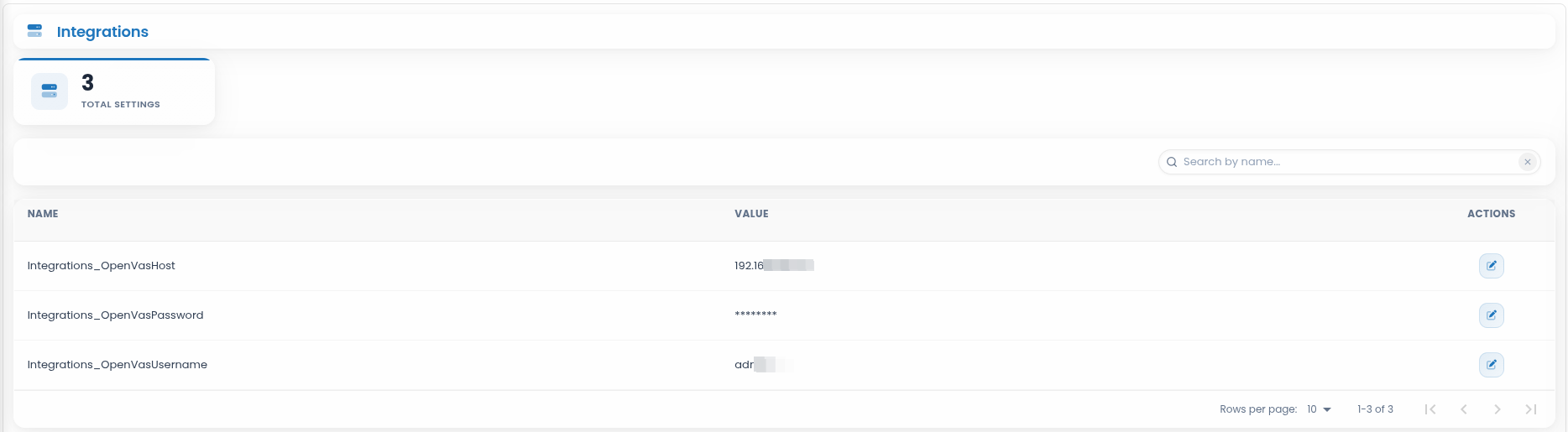
- Integrations_OpenVasHost - Hostname or IP address of the OpenVAS machine (the vulnerability scanner integrated with CYBERQUEST).
- Integrations_OpenVasPassword - Password for the account used to connect to OpenVAS.
- Integrations_OpenVasUsername - Username for the account used to connect to OpenVAS.
Customize
Select the Customize option to open the instance customization page.
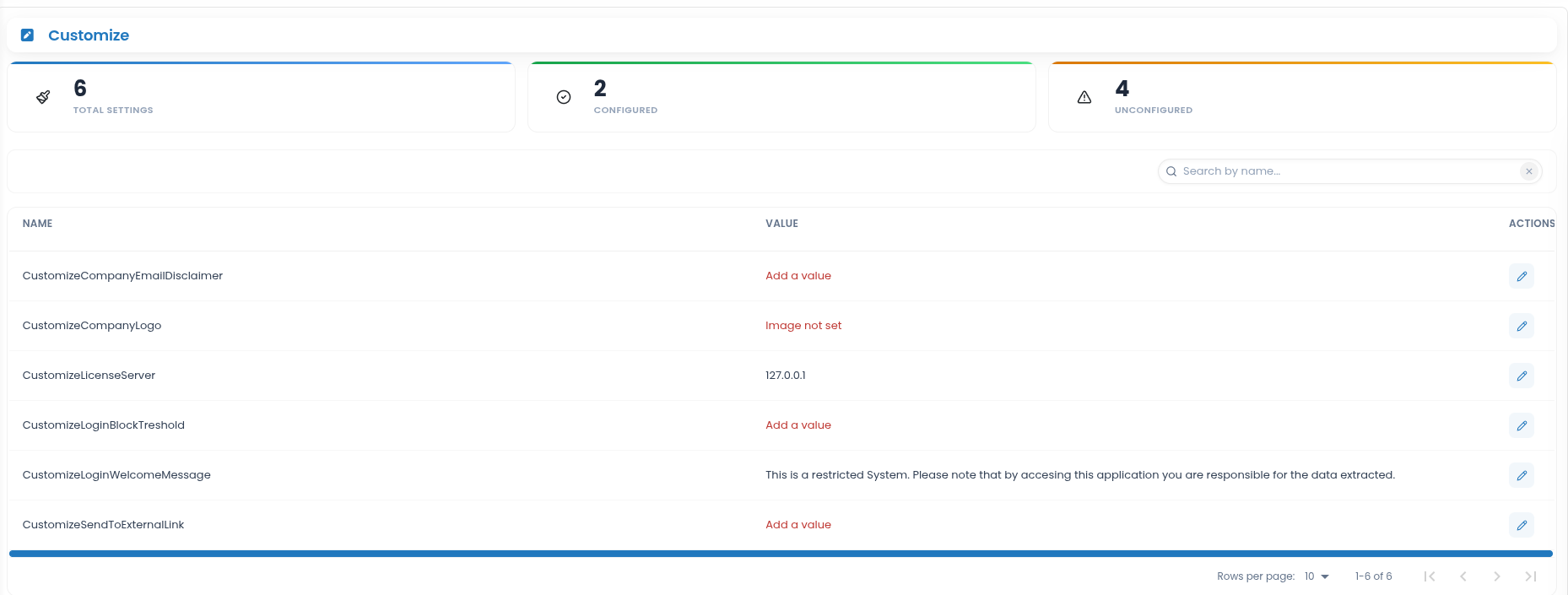
- CustomizeCompanyEmailDisclaimer - Defines the email disclaimer that is automatically appended to all messages sent by CYBERQUEST, typically used for legal or compliance notices.
- CustomizeCompanyLogo - Uploads and applies the organization’s logo, which can be included in reports generated by CYBERQUEST.
- CustomizeExecutorHost - Specifies the server that hosts the CYBERQUEST license. In distributed installations, this will be the license server; in All-In-One deployments, the license resides locally (127.0.0.1).
- CustomizeLoginBlockTreshold - Sets the number of consecutive failed login attempts allowed before a CYBERQUEST account is locked to prevent unauthorized access.
- CustomizeLoginWelcomeMessage - Defines the message displayed to CYBERQUEST users after they enter their username and password during login.
- CustomizeSendToExternalLink - Configures the forwarding of selected data to an external destination.
Data & Storage
The Data & Storage section provides access to configuration areas related to data collection, processing, storage, indexing, retention, and report handling in CYBERQUEST. These settings allow administrators to control how data is acquired, correlated, stored, archived, and exported across the platform.
To access this section, go to Settings > Application Settings > Data & Storage.
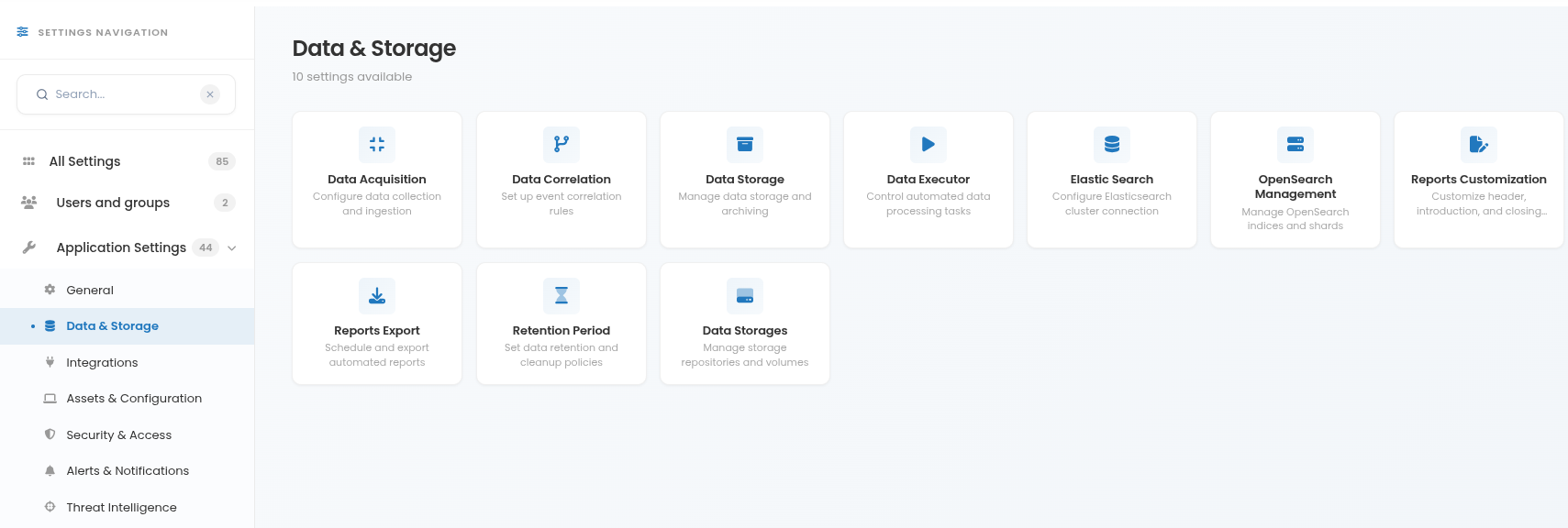
The available options include:
Data Acquisition - Configures how data is collected and ingested into CYBERQUEST.
Data Correlation - Configures how events are correlated for detection and analysis.
Data Storage - Manages how data is stored, indexed, and archived.
Data Executor - Configures automated data processing and execution tasks.
Elastic Search - Configures NoSQL storage and search engine connection settings.
OpenSearch Management - Manages OpenSearch indices, shards, and storage structures.
Reports Customization - Customizes report headers, introductions, and closing notes.
Reports Export - Configures report generation and export settings.
Retention Period - Defines how long stored data is retained before cleanup.
Data Storages - Manages storage repositories, message queues, encryption, and external storage integrations.
Data Acquisition
Select the DataAcquisition entry to modify data acquisition settings. This section allows updating all parameters related to data acquisition.
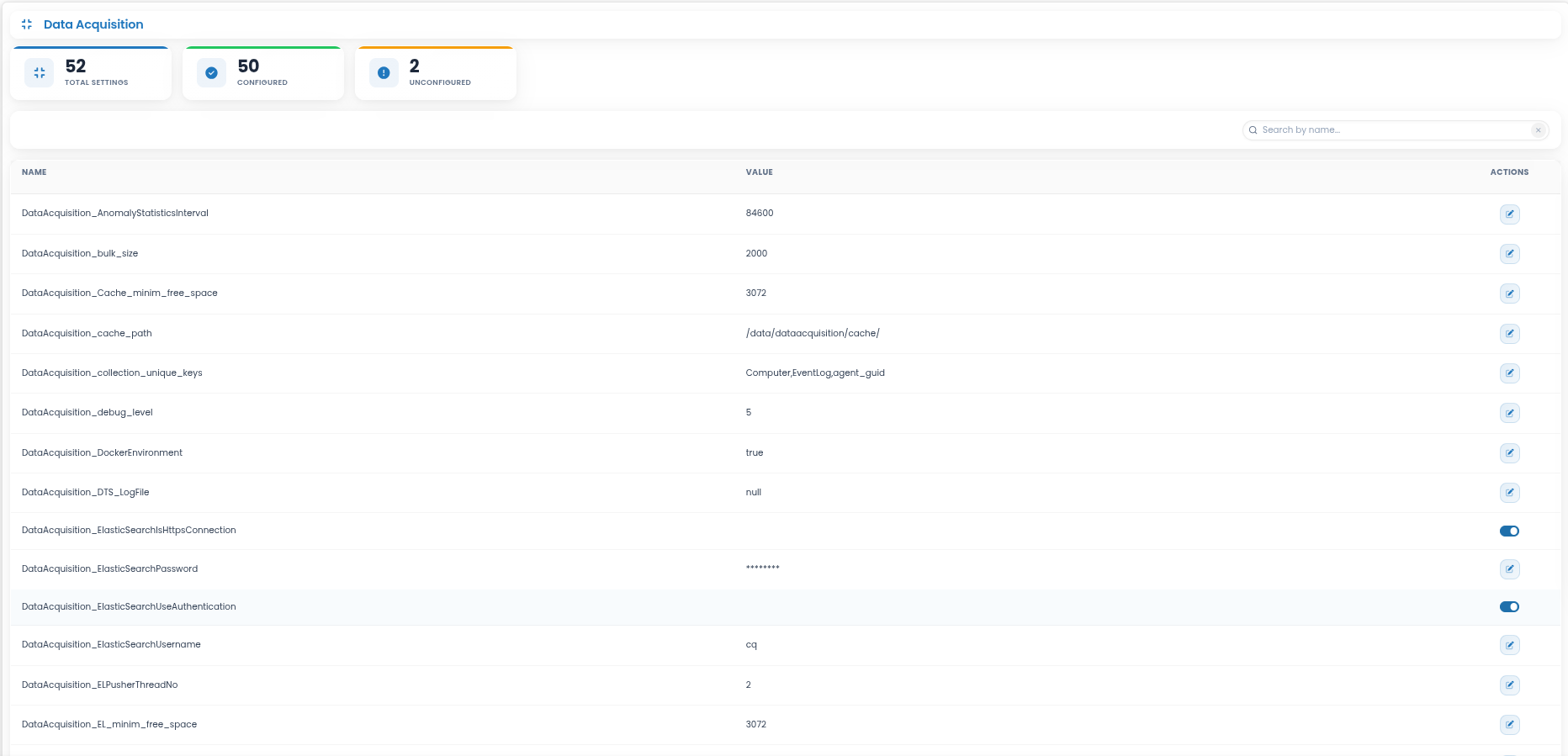
DataAcquisition_AnomalyStatisticsInterval - Interval (in seconds) at which anomaly detection statistics are calculated and updated
DataAcquisition_bulk_size - Bulk size (in Bytes) to send to short term storage (Online DataStorage)
DataAcquisition_Cache_minim_free_space - Minimum disk space (in MB) required to continue writing data, in case of throttling
DataAcquisition_cache_path - Filesystem location where cache files are stored
DataAcquisition_CLEANUP_CRON - (Deprecated) - Previously used for cache cleanup scheduling
DataAcquisition_collection_unique_keys - Defines the unique event identifiers (based on listed fields) used to match events to a specific asset
DataAcquisition_debug_level - Sets the debug logging level:
- 0 - FATAL ERROR, ERROR messages
- 1 - WARNING messages
- 2 - INFO messages
- 3 - DEBUG message
DataAcquisition_DockerEnvironment - Set to true (is default) when the service is running inside a Docker container
DataAcquisition_ElasticSearchIsHttpsConnection - HTTPS connections of Online DataStorage
DataAcquisition_ElasticSearchPassword - Password for authenticating with Online DataStorage
DataAcquisition_ElasticSearchUseAuthentication - Authentication for connecting to Online DataStorage
DataAcquisition_ElasticSearchUsername - Username for authenticating with Online DataStorage
DataAcquisition_ELPusherThreadNo - Number of threads used to push data to short-term storage (Online DataStorage)
DataAcquisition_EL_minim_free_space - Minimum disk space (in MB) for short-term storage, in case of throtteling
DataAcquisition_EL_Port - Short-term storage (Online DataStorage) port
DataAcquisition_el_shards - Template number of Elasticsearch shards for short-term storage
DataAcquisition_el_shards_replica - Replica template number of shards for short term storage
DataAcquisition_EL_Url - Short term storage (Online DataStorage) address
DataAcquisition_FieldAutoSuggest - Controls field autocomplete functionality:
- 0 - No autocomplete suggestions
- 1 - Suggestions only for User, Computer, and SrcIP fields
- 2 - Suggestions for all fields except S(1..150) and Subobjects
After changing any settings, the DataAcquisition service must be restarted.
DataAcquisition_GetterThreadNo - Number of threads used to read events from the incoming events queue
DataAcquisition_LIC_PATH - Path to the CYBERQUEST license file on the server
DataAcquisition_LoadDatabase - Determines whether to load a database from the sql folder
DataAcquisition_MaxEventSize - The maximum size (in bytes) allowed for a single event to be processed by the Data Acquisition service. Events exceeding this limit are discarded or truncated based on configuration.
DataAcquisition_maxmindb_path - The server path for “maxmin” database
DataAcquisition_MetricsHostnameTag - Hostname tag used for metrics reporting and identification in monitoring systems
DataAcquisition_MetricsHostTag - Host identifier tag included in metrics data, used for tracking and distinguishing metrics from different hosts in monitoring systems
DataAcquisition_MetricsServerAddress - IP address or hostname of the metrics server that collects and processes monitoring data
DataAcquisition_MetricsServerEnable - Boolean flag that enables or disables the transmission of metrics to the metrics server
DataAcquisition_MetricsServerPort - Network port on the metrics server used for receiving metrics data
DataAcquisition_no_of_threads - Maximum number of threads available for processing (auto-filled)
DataAcquisition_ParserThreadNo - Number of threads dedicated to parsing incoming data
DataAcquisition_RedisServerPORT - The memory based storage port
DataAcquisition_RedisServerURL - The memory based storage address
DataAcquisition_ResyncCache - Resynchronizes the cache when using default parsers, resets to 0 after being set to 1
DataAcquisition_RMQPusherThreadNo - Number of threads used to push data to the message queue service
DataAcquisition_RMQUseSSL - Use secure sockets layer (SSL) - for secure traffic encryption
DataAcquisition_RMQ_host - Hostname or IP of the message queue server (may differ from the database server in distributed setups)
DataAcquisition_RMQ_password - Password for message queue service authentication
DataAcquisition_RMQ_port - Port used by the message queue service
DataAcquisition_RMQ_queue - The messaging queue name for queuing services
DataAcquisition_RMQ_username - Administrative username for the message queue service
DataAcquisition_run_collection_servers - Boolean flag indicating whether to run collection servers (used in cluster deployments)
DataAcquisition_sendRawData - Determines whether raw data is sent to short-term storage (Online DataStorage)
DataAcquisition_ServiceDebugLevel - Sets service logging verbosity: 0-FATAL ERROR, 1-WARNING, 2-INFO, 3-DEBUG
DataAcquisition_supressRawData - Determines whether raw data is deleted to send to long-term storage (datastorage)
DataAcquisition_throttle_queue - Defines the maximum number of events allowed in the message queue before event transmission stops. Once this limit is reached, all subsequent events are cached locally
DataAcquisition_UseDefaultParsers - Enables internal parsers for all incoming events
DataAcquisition_use_http_ES_DA_client - Determines whether HTTP transport is used for short-term storage (Elasticsearch). If set to false, data is transmitted using alternative methods via the queue service (fanout)
DataAcquisition_validateDataForEL - Validates data before sending it to Elasticsearch
DataAcquisition_writeEventPath - Path used to send events within CYBERQUEST to short-term storage (Online DataStorage)
Data Correlation
Select the DataCorrelation entry to configure parameters related to data correlation. This section allows updating all parameters related to data correlation.
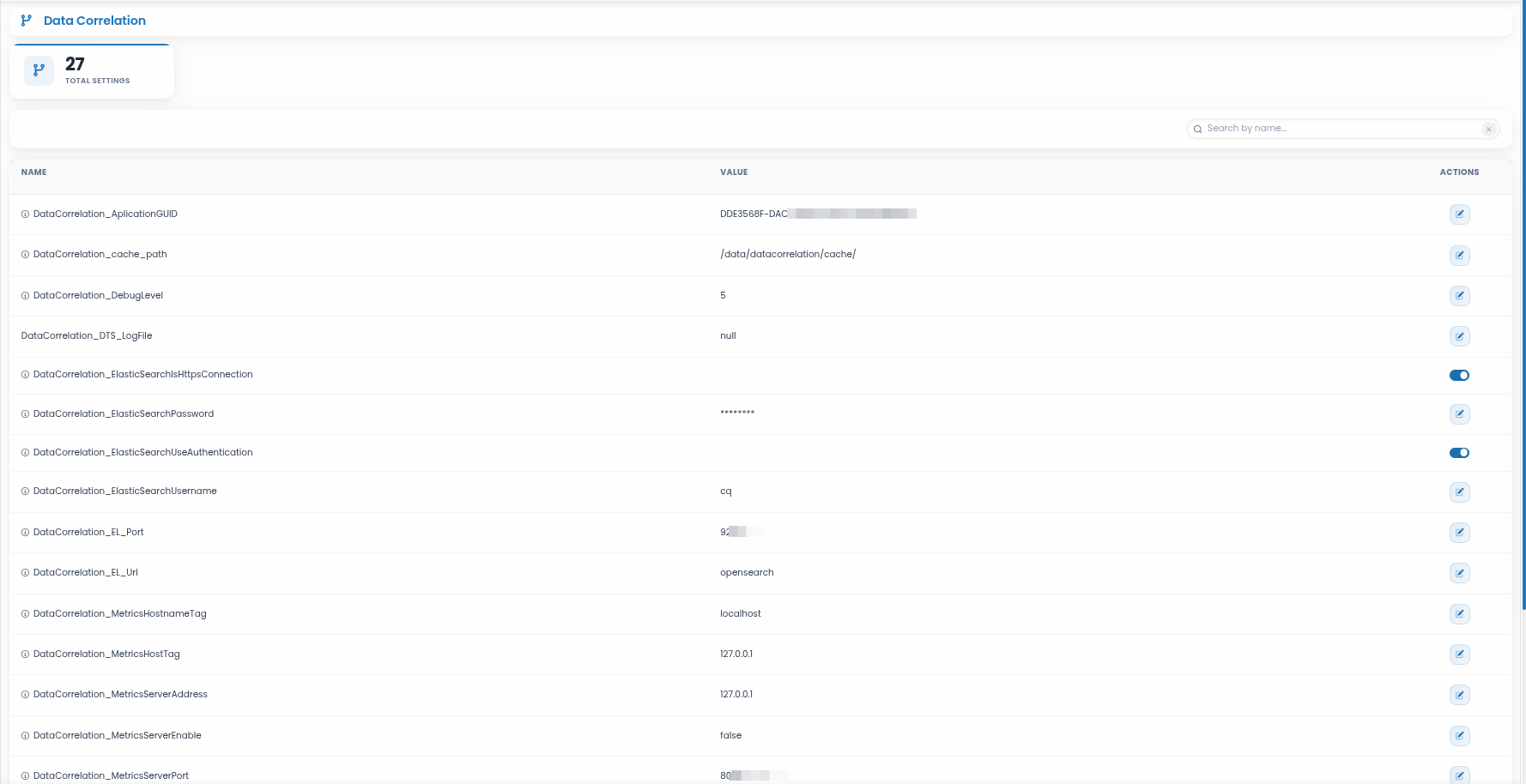
- DataCorrelation_AplicationGUID - The server’s globally unique identifier, represented as 32 hexadecimal digits (lowercase or uppercase) in the format
8-4-4-4-12, totaling 36 characters - DataCorrelation_cache_path - Filesystem location where correlation cache files are stored
- DataCorrelation_DebugLevel - Sets the debug logging level:
- 0 - FATAL ERROR, ERROR messages
- 1 - WARNING messages
- 2 - INFO messages
- 3 - DEBUG messages
- DataCorrelation_ElasticSearchIsHttpsConnection - HTTPS connections of Online DataStorage
- DataCorrelation_EL_Port - Short-term storage (Online DataStorage) port
- DataCorrelation_ElasticSearchPassword - Password for authenticating with Online DataStorage
- DataCorrelation_ElasticSearchUseAuthentication - Enables authentication when connecting to Online DataStorage
- DataCorrelation_ElasticSearchUsername - Username for authenticating with Online DataStorage
- DataCorrelation_EL_Url - Short term storage (Online DataStorage) address
- DataCorrelation_MetricsHostnameTag - Hostname label included in correlation metrics to identify the source system in monitoring tools
- DataCorrelation_MetricsHostTag - Custom tag used in correlation metrics for distinguishing data from specific hosts or environments
- DataCorrelation_MetricsServerAddress - IP address or hostname of the metrics server that collects and stores correlation metrics
- DataCorrelation_MetricsServerEnable - Boolean setting that enables or disables sending correlation metrics to the metrics server
- DataCorrelation_MetricsServerPort - Network port on the metrics server used to receive correlation metrics
- DataCorrelation_PercolatorNumberOfContainers - Number of containers used by the percolator for correlation processing
- DataCorrelation_PercolatorThreadPoolSize - Number of threads allocated in the thread pool for percolator operations
- DataCorrelation_RedisServerPORT - Memory based storage port
- DataCorrelation_RedisServerURL - Memory based storage address
- DataCorrelation_restart - Restarts the DataCorrelation service
- DataCorrelation_RMQueueAddress - Address of the messaging queue server. In distributed architectures, may differ from the database server.
- DataCorrelation_RMQueueName - The messaging queue name for queuing services
- DataCorrelation_RMQueuePassword - Password for authenticating with the messaging queue service
- DataCorrelation_RMQueuePort - Port used by the messaging queue service
- DataCorrelation_RMQueueUserName - Username for authenticating with the messaging queue service
- DataCorrelation_RMQUseSSL - Enables SSL encryption for secure traffic with the messaging queue service
- DataCorrelation_throttle_queue - Throttle value
Data Storage
Access the DataStorage entry to modify parameters related to how data is stored and managed within the system.
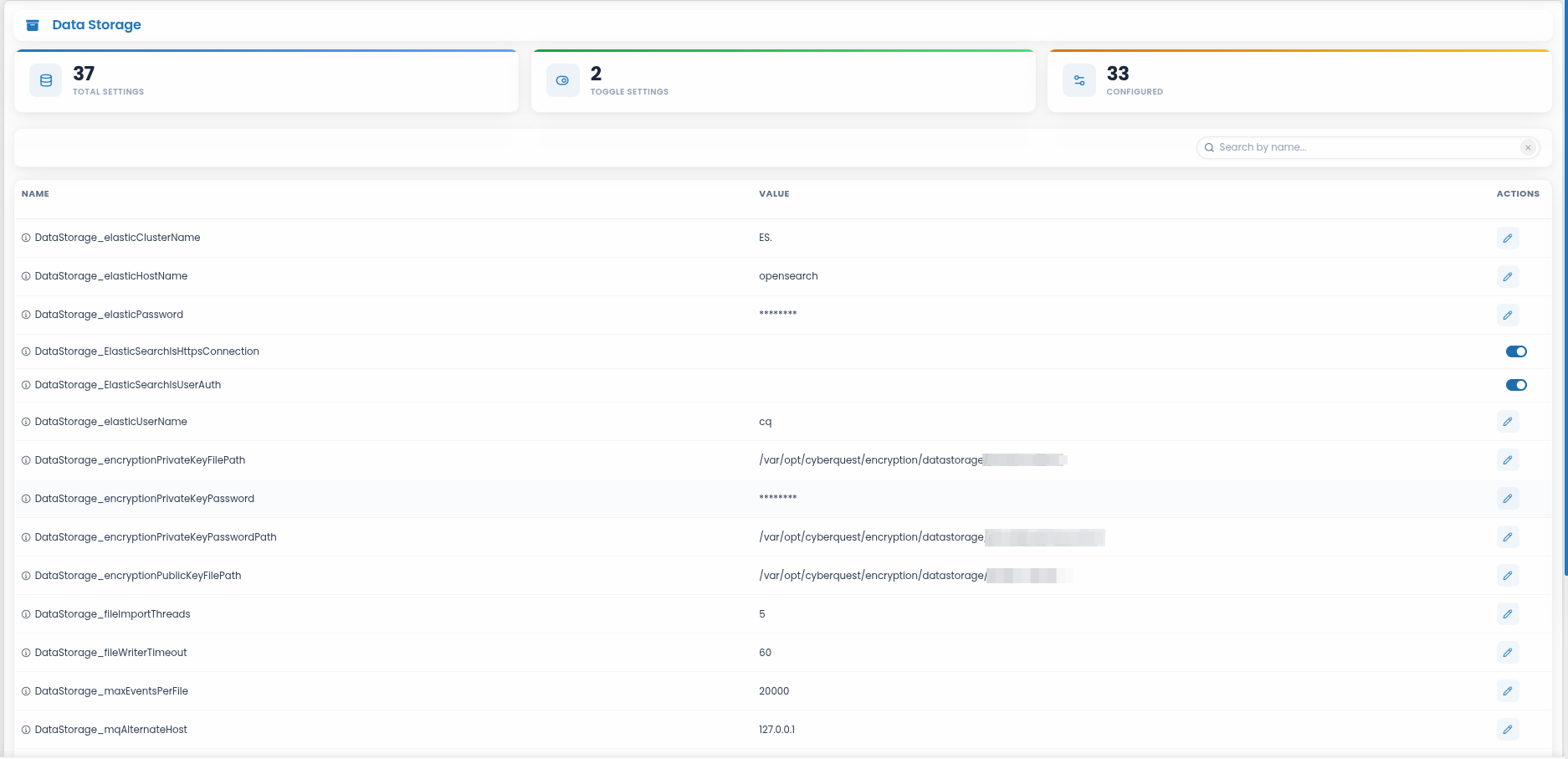
- DataStorage_elasticClusterName - Name of the Online DataStorage cluster
- DataStorage_elasticHostName - Hostname of the Online DataStorage server
- DataStorage_elasticPassword - Password for accessing Online DataStorage
- DataStorage_ElasticSearchIsHttpsConnection - HTTPS connections of Online DataStorage
- DataStorage_ElasticSearchIsUserAuth - Indicates whether user authentication is required for Online DataStorage
- DataStorage_elasticUserName - Username for accessing Online DataStorage
- DataStorage_encryptionPrivateKeyFilePath - File path of the defined private key
- DataStorage_encryptionPrivateKeyPassword - Password for the defined private key
- DataStorage_encryptionPrivateKeyPasswordPath - File path where the private key password is stored
- DataStorage_encryptionPublicKeyFilePath - File path of the defined public key
- DataStorage_fileImportThreads - Number of threads used for file import operations
- DataStorage_fileWriterTimeout - Timeout interval for the event writer process
- DataStorage_maxEventsPerFile - Maximum number of events allowed stored file
- DataStorage_mqAlternateHost - Alternate MQ host used if the primary host becomes unavailable
- DataStorage_mqExchangeName - Exchange name used by the MQ service
- DataStorage_mqHost - MQ service host. In distributed architectures, it may differ from the default CYBERQUEST server
- DataStorage_mqPassword - Password for MQ service access
- DataStorage_mqPort - Communication port used by the MQ service
- DataStorage_mqQueueName - Name of the MQ queue
- DataStorage_mqQueueType - Type of MQ queue
- DataStorage_mqReceiveCommandExchangeName - Exchange name for MQ receive commands
- DataStorage_mqReceiveCommandQueueName - Queue name for MQ receive commands
- DataStorage_mqReceiveCommandQueueType - Queue type for MQ receive commands
- DataStorage_mqReceiveCommandRouting - Routing path for MQ receive commands
- DataStorage_mqReceiveExchangeName - Exchange name for MQ receive operations
- DataStorage_mqReceiveQueueName - Queue name for MQ receive operations
- DataStorage_mqReceiveQueueType - Queue type for MQ receive operations
- DataStorage_mqReceiveRouting - Routing key for MQ receive operations
- DataStorage_mqRouting - General routing path for message queues
- DataStorage_mqSendExchangeName - Exchange name for MQ send operations
- DataStorage_mqSendQueueName - Queue name for MQ send operations
- DataStorage_mqSendQueueType - Queue type for MQ send operations
- DataStorage_mqSendRouting - Routing path for MQ send operations
- DataStorage_mqUserName - Administrative username for accessing MQ services
- DataStorage_mqVHost - MQ service virtual host. In distributed architectures, it may differ from the default CYBERQUEST server
Data Executor
Select the Data Executor entry to configure parameters related to data executor. This section allows updating all parameters related to data executor.
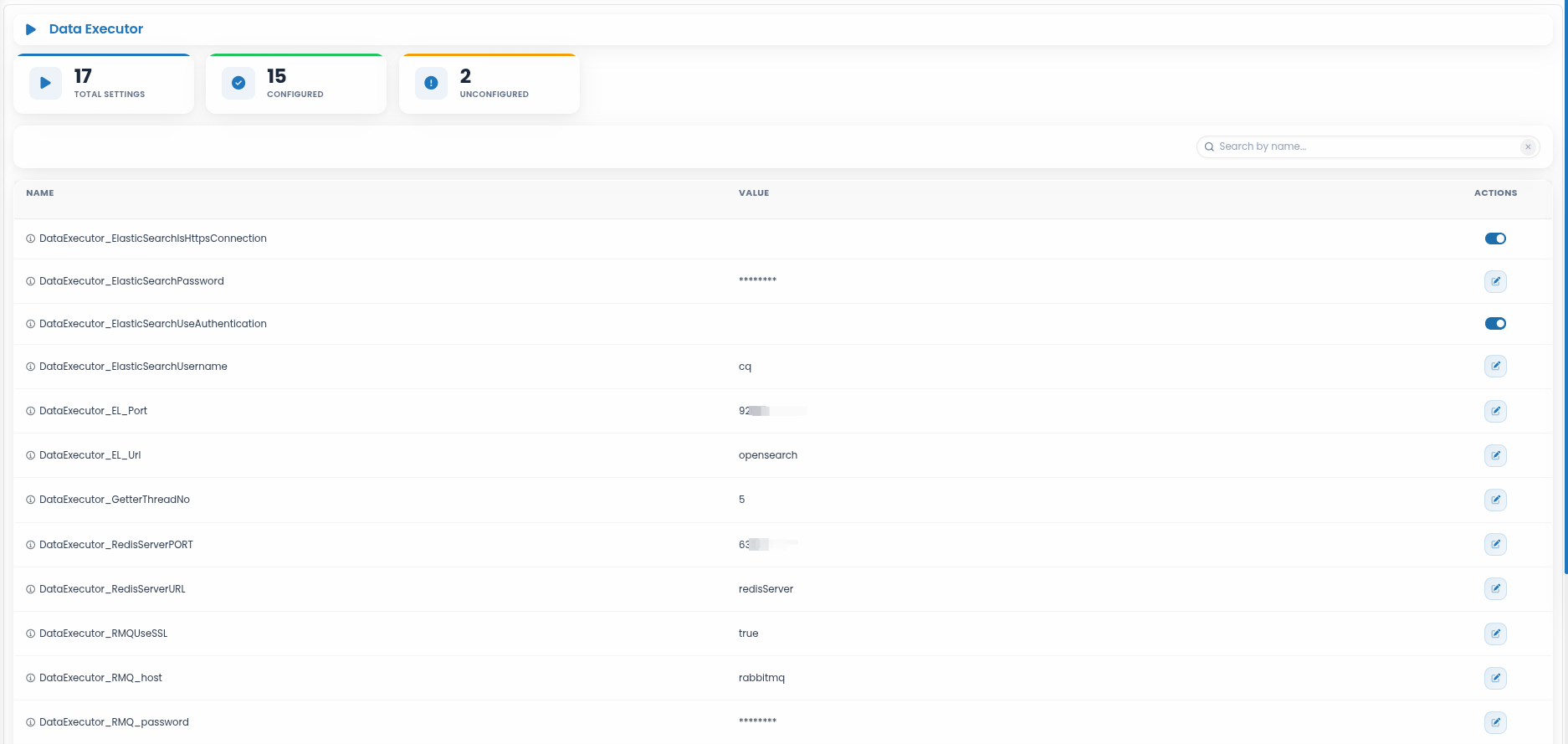
- DataExecutor_ElasticSearchIsHttpsConnection - HTTPS connections of Online DataStorage
- DataExecutor_ElasticSearchPassword - Password for authenticating with Online DataStorage
- DataExecutor_ElasticSearchUseAuthentication - Enables authentication when connecting to Online DataStorage
- DataExecutor_ElasticSearchUsername - Username for authenticating with Online DataStorage
- DataExecutor_EL_Port - Short-term storage (Online DataStorage) port
- DataExecutor_EL_Url - Short term storage (Online DataStorage) address
- DataExecutor_GetterThreadNo - Number of threads used by the Data Executor to retrieve data from storage or queues
- DataExecutor_RedisServerPORT - Memory based storage port
- DataExecutor_RedisServerURL - Memory based storage address
- DataExecutor_RMQUseSSL - Use secure sockets layer (SSL) - for secure traffic encryption
- DataExecutor_RMQ_host - Hostname or IP address of the RabbitMQ server
- DataExecutor_RMQ_password - Password for connecting to RabbitMQ
- DataExecutor_RMQ_port - Port used by the message queue service
- DataExecutor_RMQ_queue - Name of the RabbitMQ queue from which the Data Executor retrieves tasks
- DataExecutor_RMQ_username - Username for RabbitMQ authentication
- DataExecutor_ServiceDebugLevel - Sets service logging verbosity: 0-FATAL ERROR, 1-WARNING, 2-INFO, 3-DEBUG
- DataExecutor_V8EngineTimeout - Maximum execution time (in milliseconds) allowed for scripts running in the V8 JavaScript engine before being stopped automatically.
Elastic Search
Select ElasticSearch to modify NoSQL configuration parameters. This section contains all settings related to the Online DataStorage nodes and search engine behavior.
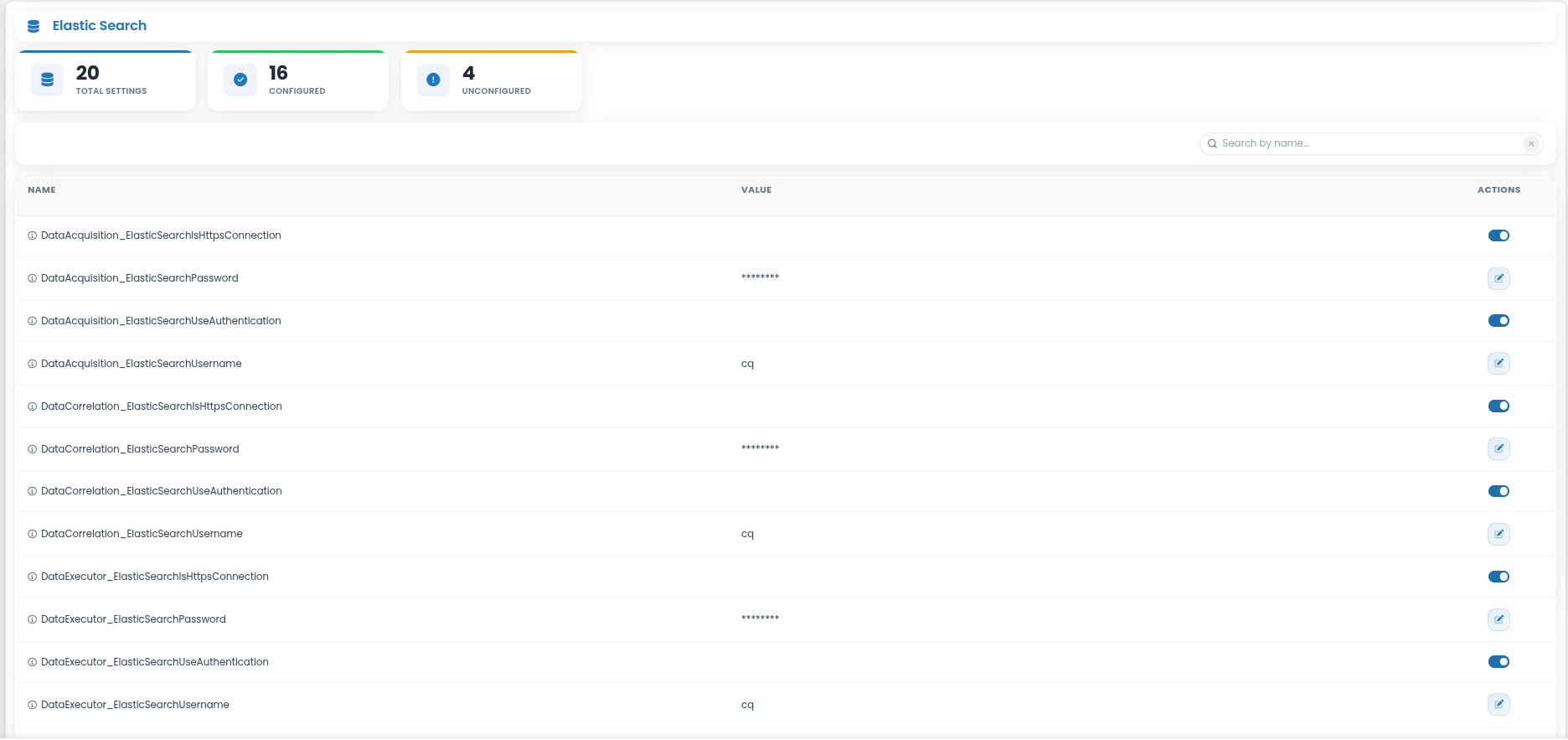
- DataAcquisition_ElasticSearchIsHttpsConnection - HTTPS connections of Online DataStorage
- DataAcquisition_ElasticSearchPassword - Password for authenticating with Online DataStorage
- DataAcquisition_ElasticSearchUseAuthentication - Authentication for connecting to Online DataStorage
- DataAcquisition_ElasticSearchUsername - Username for authenticating with Online DataStorage
- DataCorrelation_ElasticSearchIsHttpsConnection - HTTPS connections of Online DataStorage
- DataCorrelation_ElasticSearchPassword - Password for authenticating with Online DataStorage
- DataCorrelation_ElasticSearchUseAuthentication - Enables authentication when connecting to Online DataStorage
- DataCorrelation_ElasticSearchUsername - Username for authenticating with Online DataStorage
- DataExecutor_ElasticSearchIsHttpsConnection - HTTPS connections of Online DataStorage
- DataExecutor_ElasticSearchPassword - Password for authenticating with Online DataStorage
- DataExecutor_ElasticSearchUseAuthentication - Enables authentication when connecting to Online DataStorage
- **DataExecutor_ElasticSearchUsername **- Username for authenticating with Online DataStorage
- DataStorage_ElasticSearchIsHttpsConnection - HTTPS connections of Online DataStorage
- DataStorage_ElasticSearchIsUserAuth - Indicates whether user authentication is required for Online DataStorage
- ElasticSearchIsHttpsConnection - Online DataStorage is Https Connection
- ElasticSearchPassword - Online DataStorage password
- ElasticSearchPort - Port number used for connecting to Online DataStorage.
- ElasticSearchServer - Hostname or IP address of the Online DataStorage server
- ElasticSearchUseAuthentication - Enables or disables authentication for Online DataStorage connections
- ElasticSearchUsername - Username for Online DataStorage authentication
OpenSearch Management
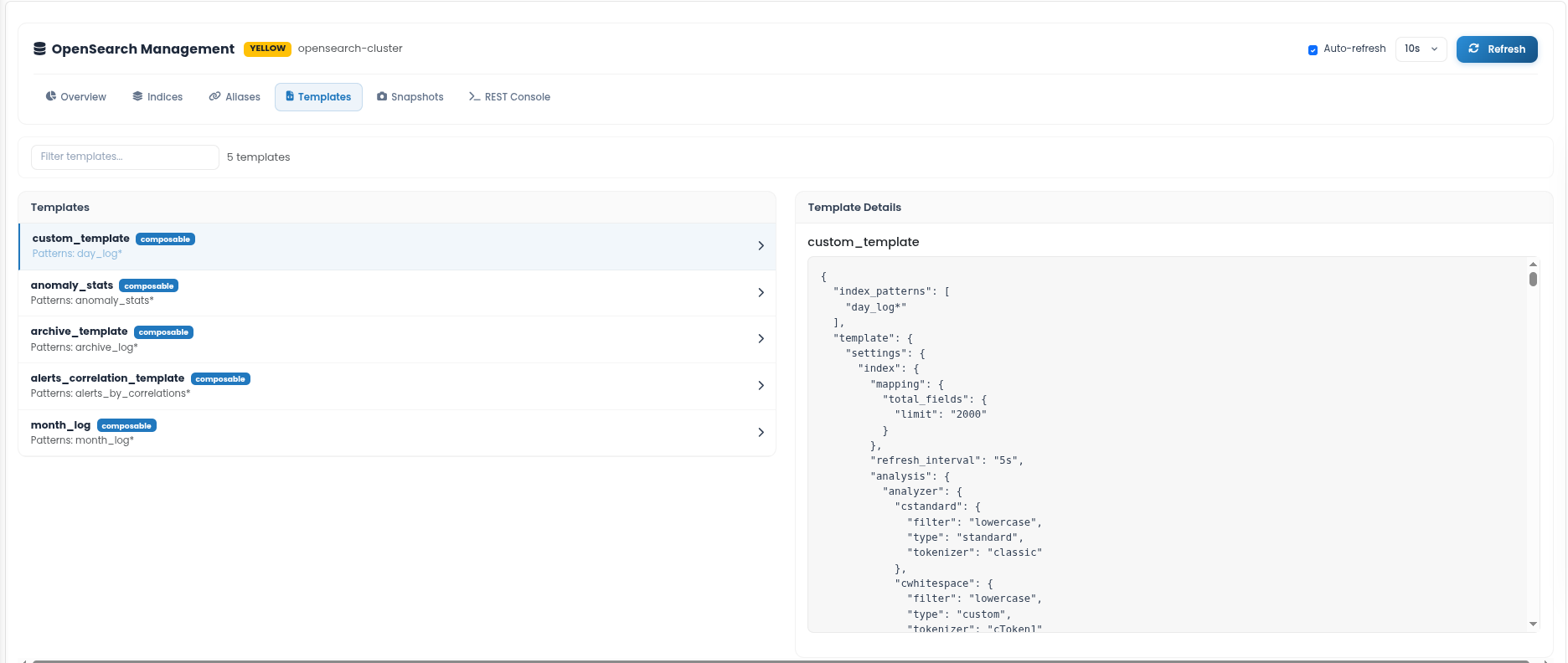
The OpenSearch Management section provides an administrative interface for monitoring and managing the OpenSearch cluster used by CYBERQUEST.
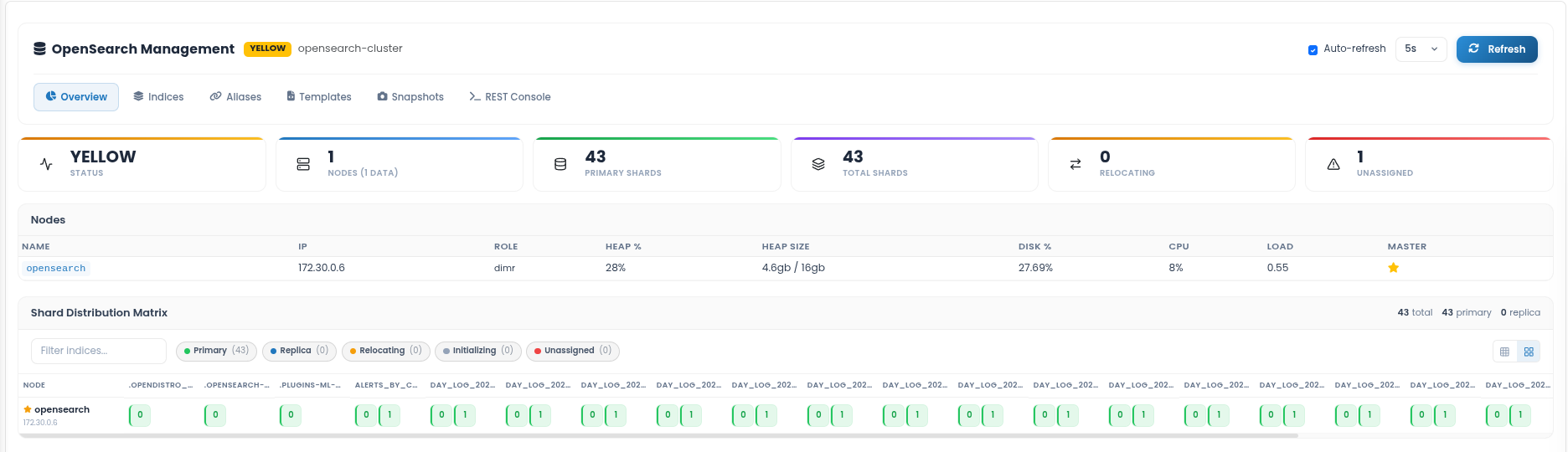
The OpenSearch Management interface displays the current cluster health status, such as GREEN, YELLOW or RED together with the configured cluster name. The page can be refreshed manually using the Refresh button, or automatically by enabling Auto-refresh and selecting the desired refresh interval.
The following views are available:
- Overview - Displays general cluster health information, including cluster status, number of nodes, primary shards, total shards, relocating shards, and unassigned shards. It also shows node-level information such as IP address, role, heap usage, disk usage, CPU, load, and master node status.
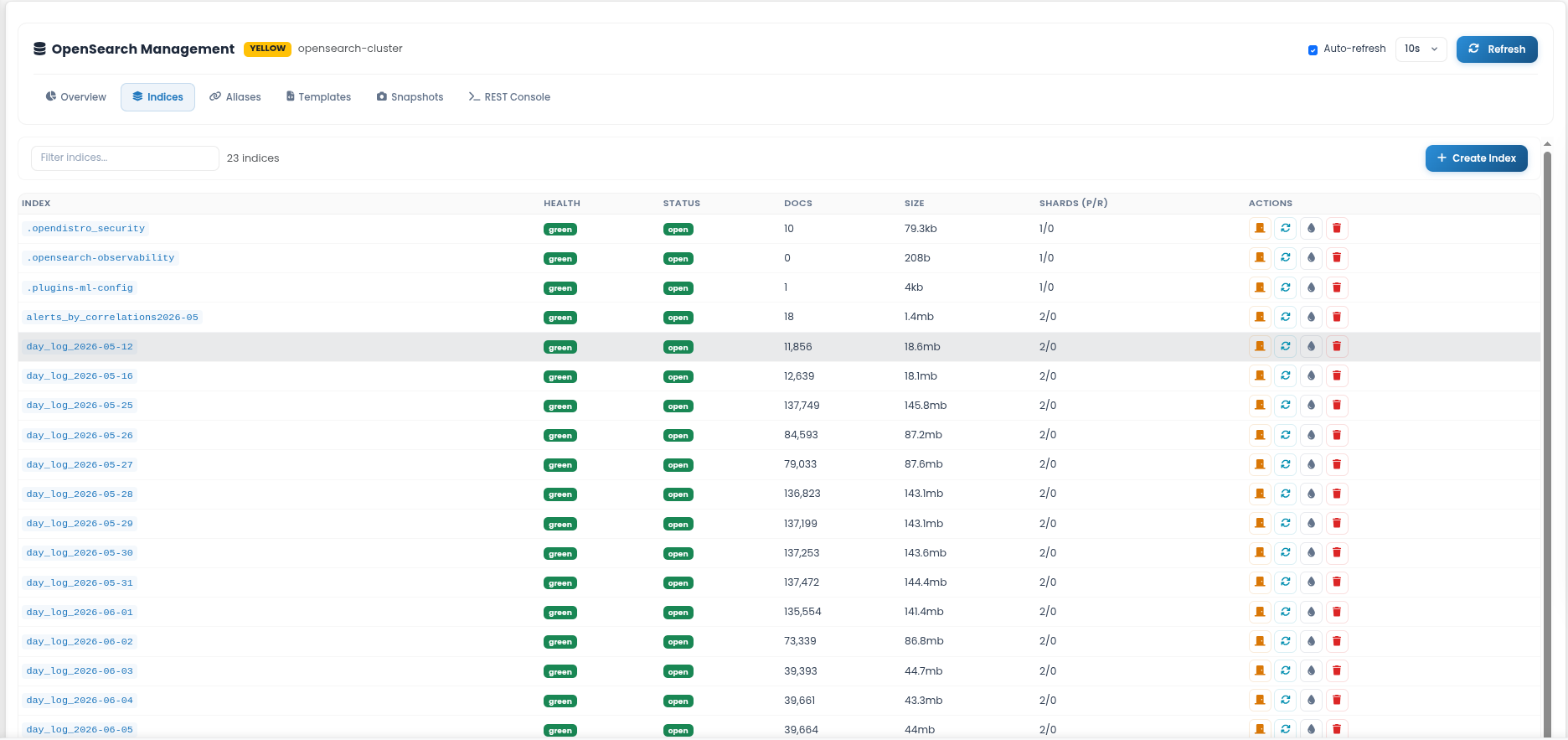
- Indices - Displays the list of OpenSearch indices, including index name, health, status, document count, size, and shard allocation. From this view, administrators can review index status and perform available index actions.
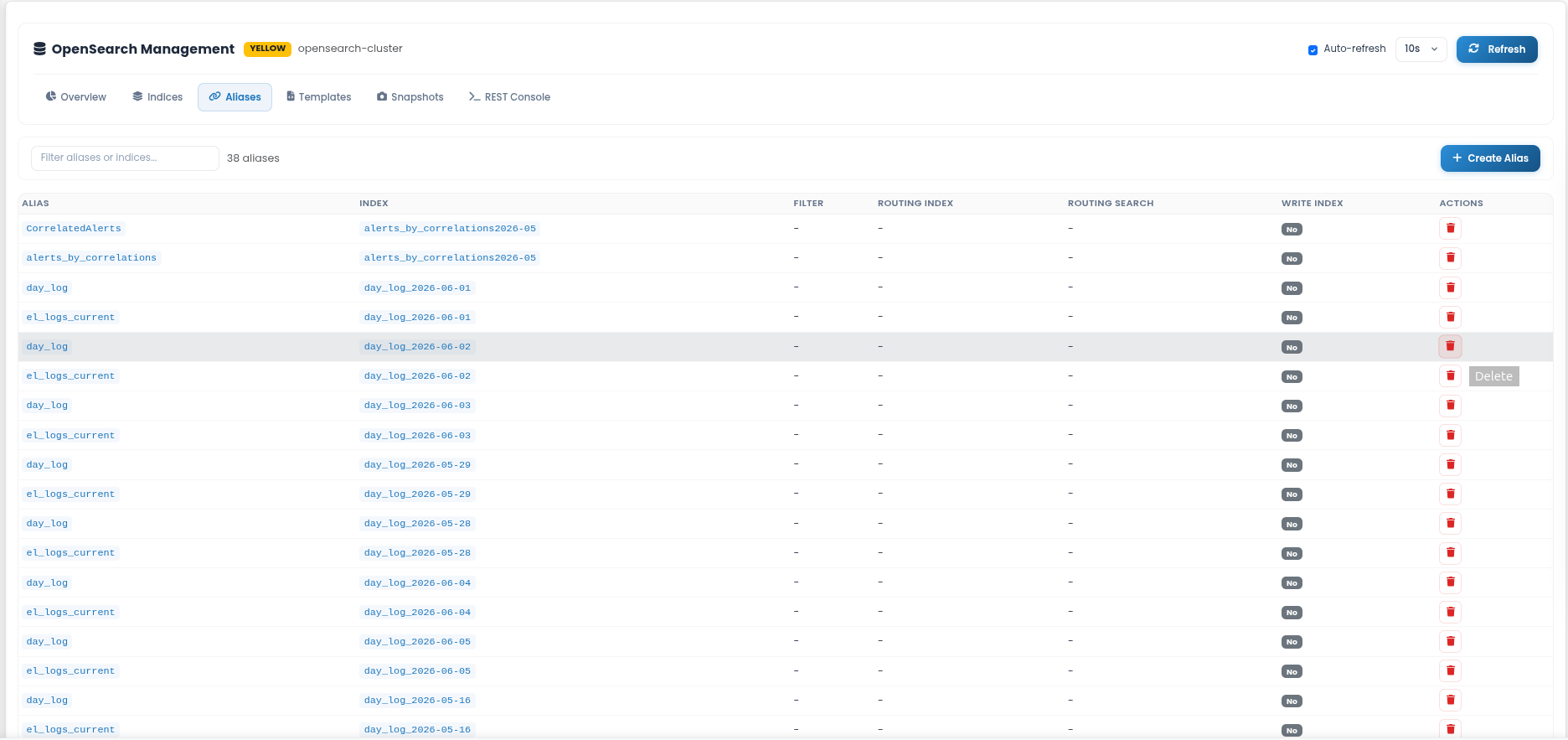
- Aliases - Displays configured aliases and the indices they point to. This helps administrators verify which aliases are used for querying or routing data across different indices.
- Templates - Displays available index templates and their configuration details. Templates define index patterns, mappings, settings, and other rules applied when matching indices are created.
Snapshots - Provides access to snapshot-related information used for backup and restore operations, depending on the configured OpenSearch environment.
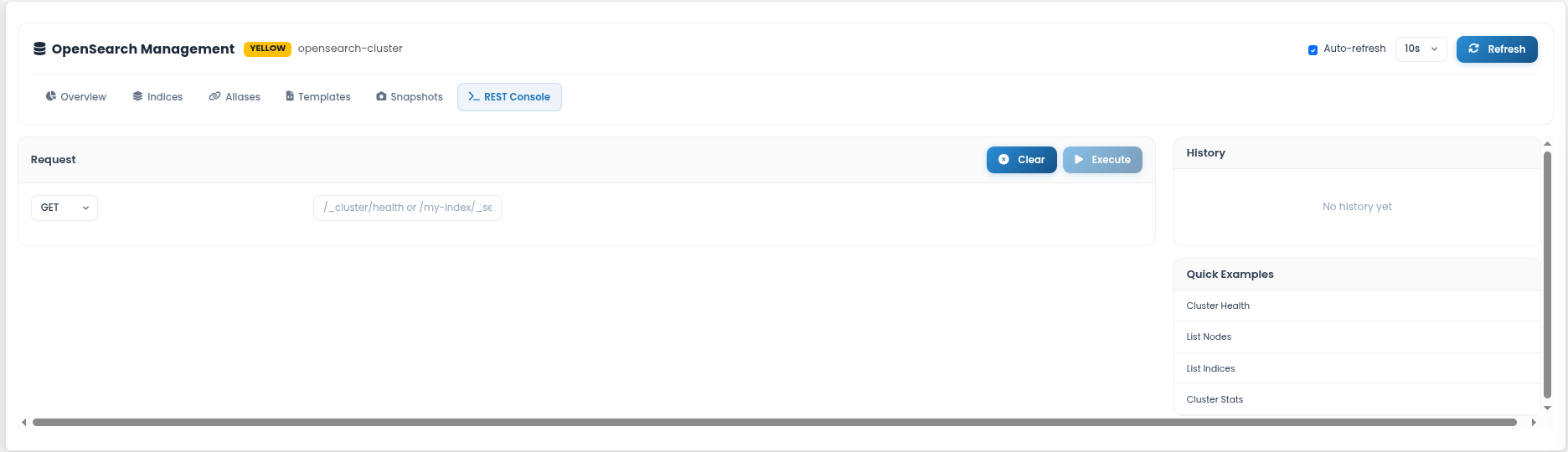
REST Console - Allows administrators to execute OpenSearch REST API requests directly from the CYBERQUEST interface. This can be used to check cluster health, list nodes, list indices, review cluster statistics, or run other supported API calls.
Reports Customization
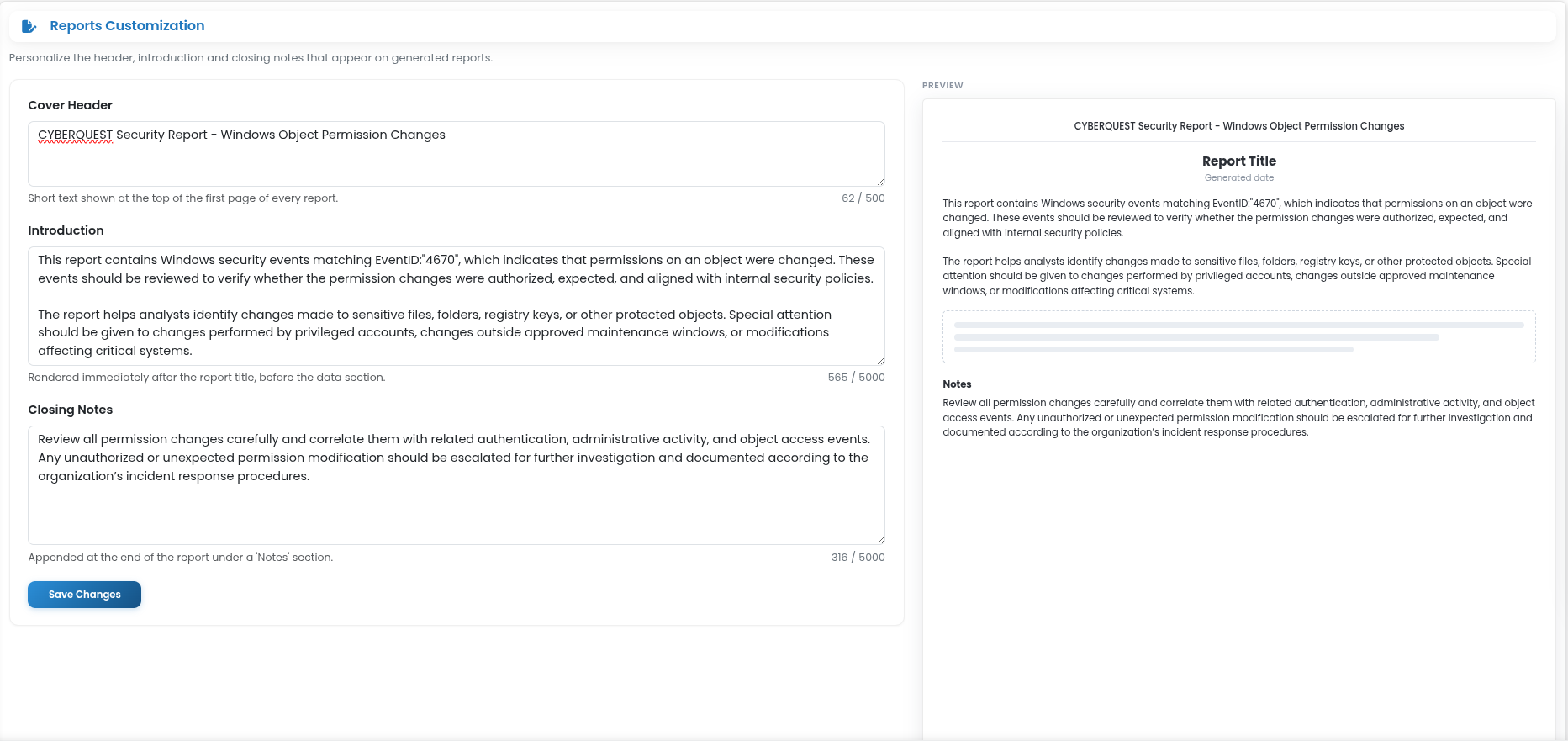
The Reports Customization section allows administrators to personalize the text displayed in generated reports. This includes the report cover header, introduction, and closing notes, helping organizations add context, internal guidance, or reporting instructions to exported reports.
To access this section, go to Settings > Application Settings > Data & Storage > Reports Customization.
The following fields are available:
- Cover Header - Defines a short header displayed at the top of the first page of each generated report. This can be used for the organization name, report category, or a short report label.
- Introduction - Defines the text displayed after the report title and before the report data. This section can describe the purpose of the report, the type of events included, and the review context.
- Closing Notes - Defines the notes displayed at the end of the report under the Notes section. This field can be used to include investigation guidance, escalation instructions, or internal review recommendations.
The Preview panel on the right side shows how the configured text will appear in the generated report. After updating the required fields, click Save Changes to apply the configuration.
Reports Export
Select ReportsExport to modify the configuration settings for report exports. This section contains all parameters related to the generation and export of reports.
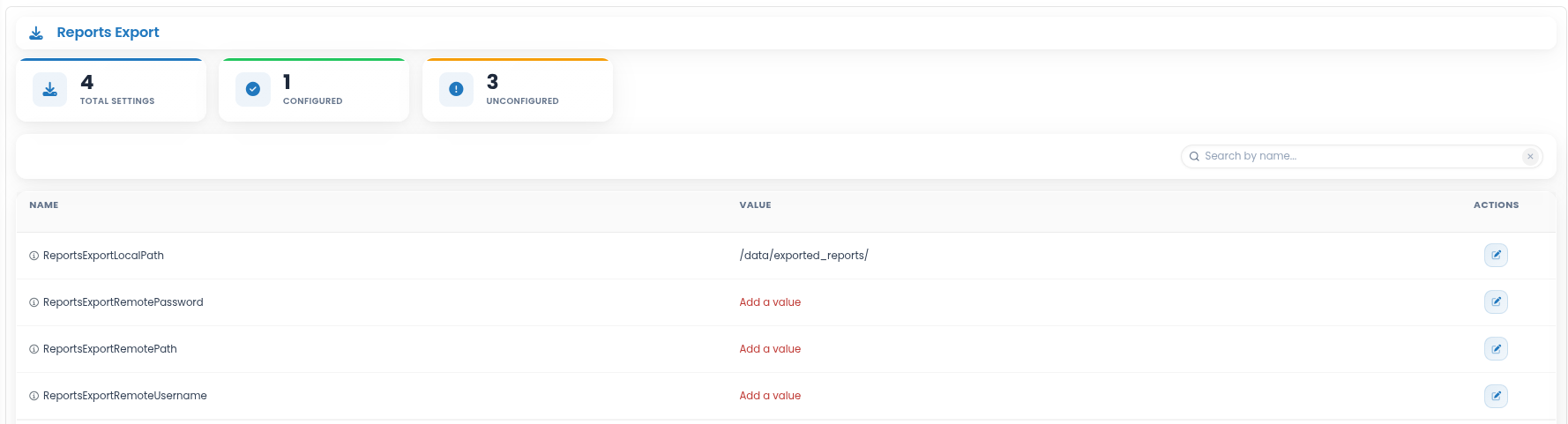
ReportsExportLocalPath - The directory path on the local system where generated reports are stored before export.
ReportsExportRemotePassword - The authentication password used to connect to the remote server for report export.
ReportsExportRemotePath - The directory path on the remote server where exported reports will be stored.
ReportsExportRemoteUsername - The username used to authenticate with the remote server for report export.
Retention Period
Select RetentionPeriod to modify the duration for which stored data is retained. This section contains all parameters related to data retention management.
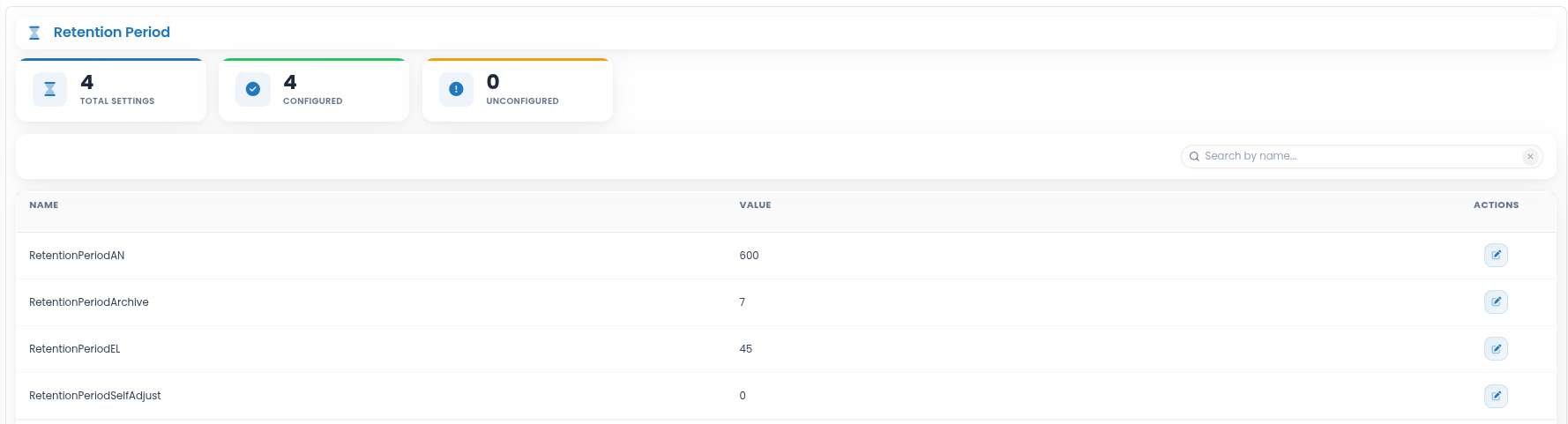
RetentionPeriodAN: Specifies the retention duration for data in the Data Analyzer (Deprecated).
RetentionPeriodArchive: Defines how long unarchived data is kept when using the Archives option in jobs.
For instructions on importing data from an archive, refer to: How to import data from archive
RetentionPeriodEL: Determines the retention policy for the online data and online repository (Online DataStorage).
RetentionPeriodSelfAdjust: Accepts values 1 (ON) or 0 (OFF).
1 (ON) - The retention period in the online database (Elasticsearch) is automatically adjusted based on the allocated storage capacity.
0 (OFF) - The value in RetentionPeriodEL remains fixed. CYBERQUEST will continue collecting data until disk space is full, after which no new data will be collected.
Data Storages
Provides access to storage-related configuration areas used to manage how CYBERQUEST collects, processes, and stores data. For detailed configuration instructions, including storage settings, message queues, encryption options, and external storage integrations, refer to the Data Storages.
Integrations
The Integrations section provides access to configuration areas used to connect CYBERQUEST with external systems, identity providers, collaboration platforms, notification services, and remote CYBERQUEST clusters.
To access this section, go to Settings > Application Settings > Integrations.
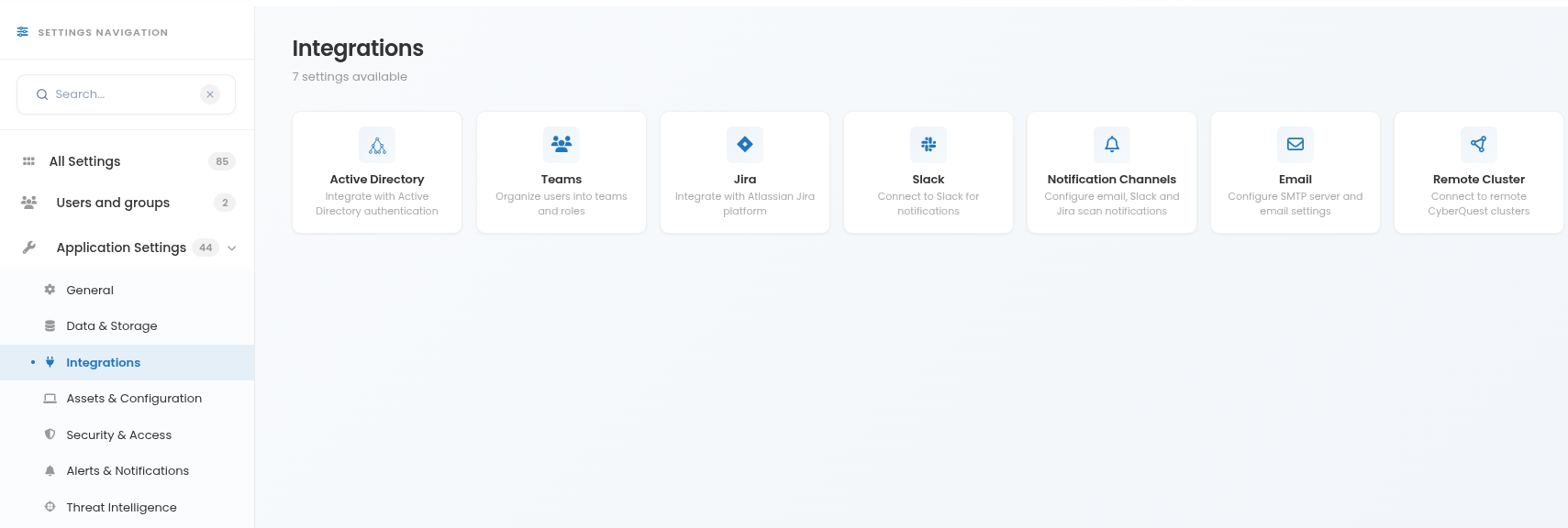
The available options include:
Active Directory - Configures integration with Active Directory, allowing users from selected AD groups to authenticate in CYBERQUEST using their AD credentials.
Teams - Configures Microsoft Teams integration settings used for collaboration and notification workflows.
Jira - Configures Jira integration settings for ticketing, issue tracking, and workflow management.
Slack - Configures Slack integration settings used for notifications and team communication.
Notification Channels - Defines notification delivery channels, such as email, Slack, or Jira, used by CYBERQUEST to send alerts and scan-related notifications.
Email - Configures email delivery settings, including the parameters required for CYBERQUEST to send emails, notifications, and reports.
Remote Cluster - Configures connections between multiple CYBERQUEST instances, enabling federated search across distributed environments.
Active Directory
A dedicated section for configuring CYBERQUEST integration with Active Directory.
Through this integration, an Active Directory group can be assigned access rights, allowing its members to authenticate in CYBERQUEST using their AD credentials.
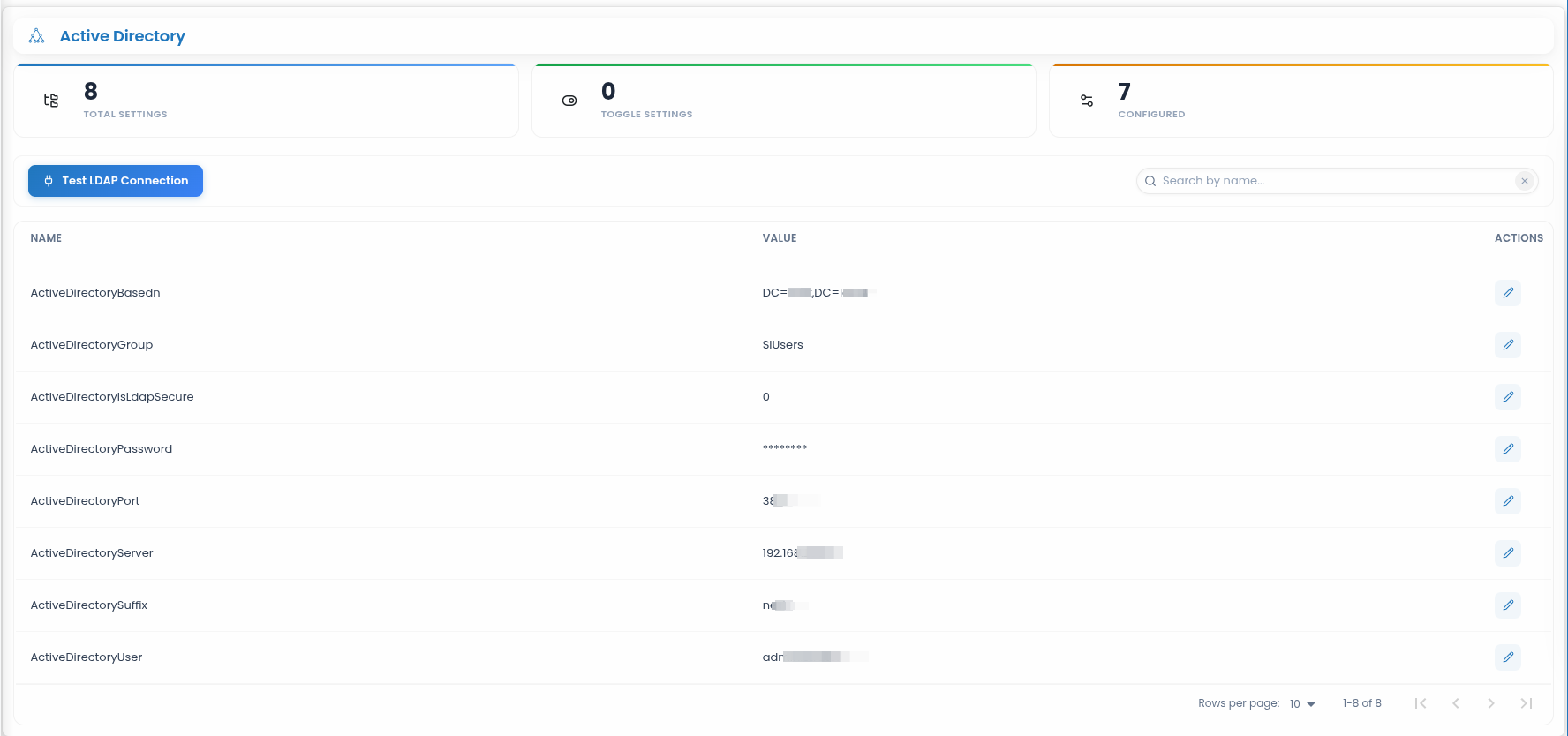
To see more information about Active Directory, please check the links below:
- How to collect data on Active Directory
- How to connect to Active Directory
- AD information needed to read AD objects
Teams
The Teams section is used to configure settings related to Microsoft Teams integration.
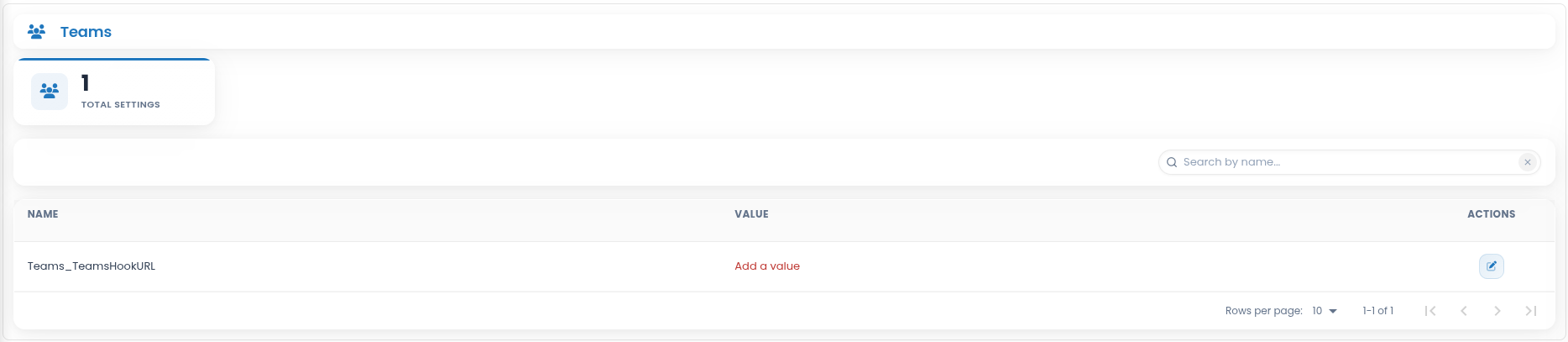
- Teams_TeamsHookURL - The webhook URL for the Microsoft Teams account where CYBERQUEST sends messages.
Jira
The Jira section is used to configure settings related to Jira integration.
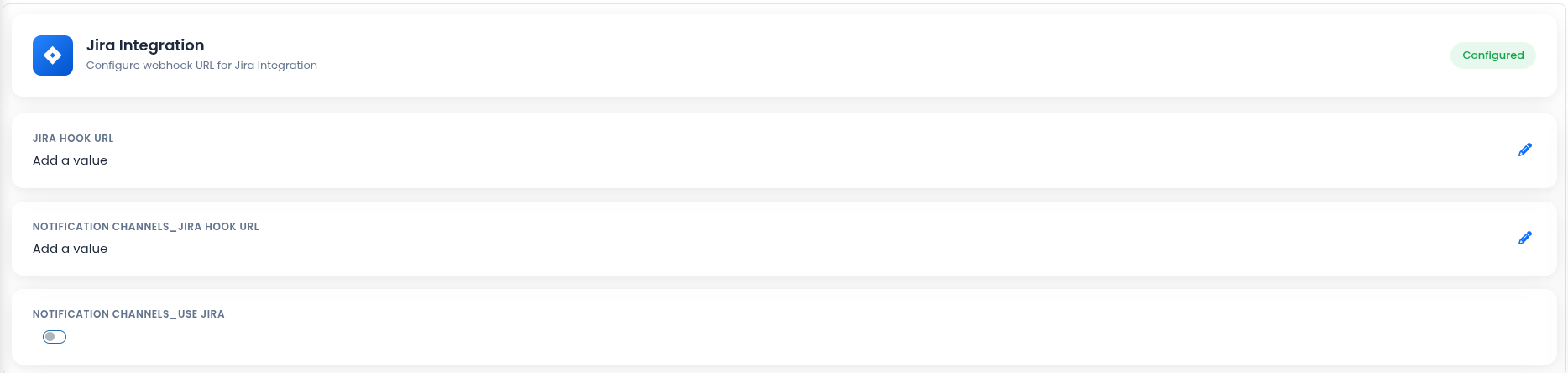
- Jira_JiraHookURL - The webhook URL for the Jira account where CYBERQUEST sends messages.
Slack
The Slack section is used to configure settings related to Slack integration.
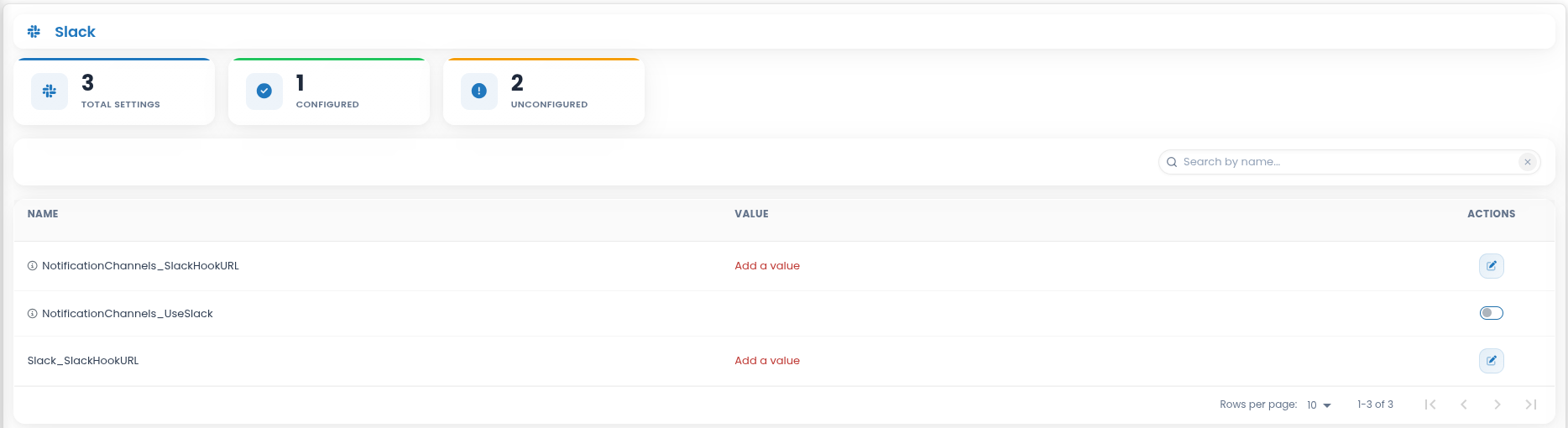
- Slack_SlackHookURL - The webhook URL for the Slack account where CYBERQUEST sends messages.
Notification Channels
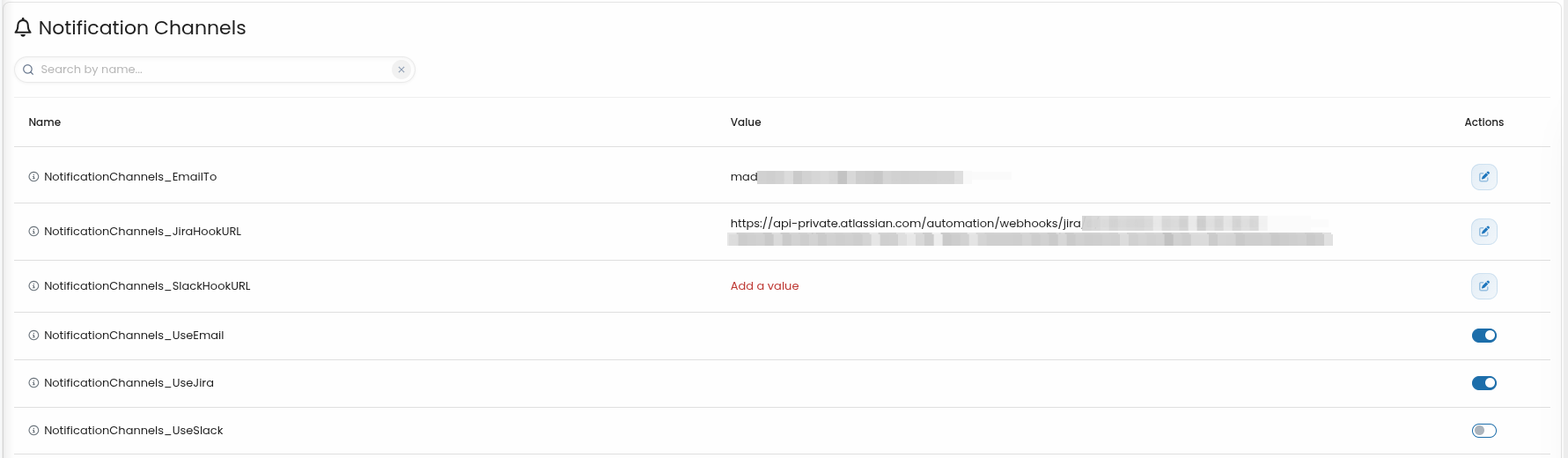
The Notification Channels section allows administrators to configure the destinations used by CYBERQUEST for sending notifications.
To access this section, go to Settings > Application Settings > Integrations > Notification Channels.
Available settings include:
- NotificationChannels_EmailTo - Defines the email address or list of email addresses used for notification delivery.
- NotificationChannels_JiraHookURL - Defines the Jira webhook URL used to send notifications or create/update Jira-related items.
- NotificationChannels_SlackHookURL - Defines the Slack webhook URL used to send notifications to a Slack channel.
- NotificationChannels_UseEmail - Enables or disables email notifications.
- NotificationChannels_UseJira - Enables or disables Jira notifications.
- NotificationChannels_UseSlack - Enables or disables Slack notifications.
Select Email to configure parameters for email delivery in CYBERQUEST. This section includes all settings related to how CYBERQUEST sends emails.
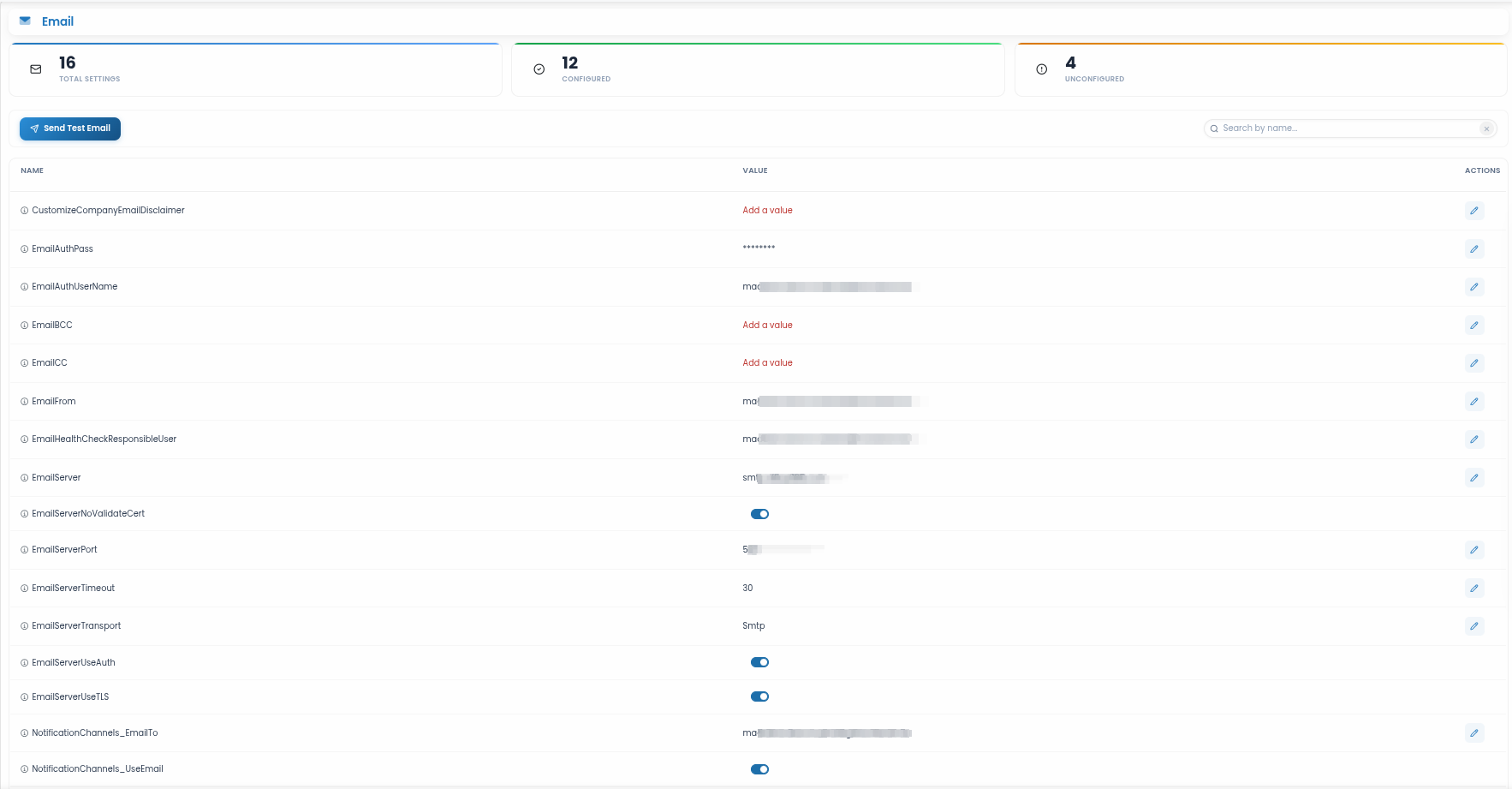
- CustomizeCompanyEmailDisclaimer - Defines a custom email disclaimer or footer text to be appended to outgoing emails.
- EmailAuthPass - Password used for authentication with the outgoing email server
- EmailAuthUserName - Username used for authentication with the outgoing email server
- EmailBCC - One or more email addresses to receive BCC of all outgoing emails
- EmailCC - One or more email addresses to receive CC of all outgoing emails
- EmailFrom - The default “From” address displayed in emails sent by CYBERQUEST
- EmailHealthCheckResponsibleUser - The designated user who receives health check or system monitoring emails
- EmailServer - The hostname or IP address of the outgoing email server (SMTP server)
- EmailServerNoValidateCert - When enabled, bypasses validation of the server’s SSL/TLS certificate
- EmailServerPort - The port used for communication with the outgoing email server
- EmailServerTimeout - The maximum time (in seconds) to wait for a response from the email server before timing out
- EmailServerTransport - The communication protocol used to send emails (e.g., SMTP, SMTPS)
- EmailServerUseAuth - Indicates whether authentication is required to connect to the outgoing email server
- EmailServerUseTLS - Specifies whether to use TLS encryption when sending emails
- NotificationChannels_EmailTo - Defines the email recipient address or addresses used for sending CYBERQUEST notifications.
- NotificationChannels_UseEmail - Enables or disables email notifications. When enabled, CYBERQUEST can send notifications to the configured email recipients.
Remote Cluster
Select Remote Cluster to configure connections between multiple CYBERQUEST instances, enabling federated search capabilities across distributed environments. This feature enables federated search, allowing the local CYBERQUEST instance to query data from one or more remote clusters and return results from distributed environments in a unified way.
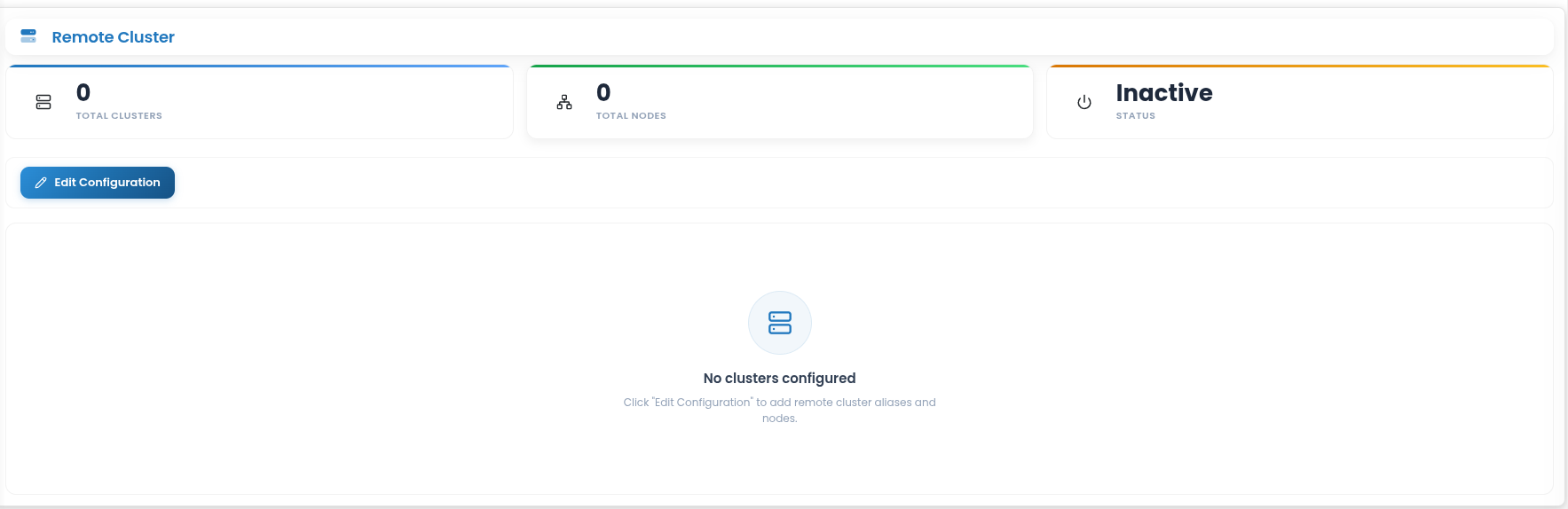
The Remote Cluster page displays the current configuration status, including the total number of configured clusters, the total number of nodes, and whether remote cluster functionality is active or inactive. If no clusters are configured, the page displays an empty state message and prompts the user to edit the configuration.
To configure a remote cluster, click Edit Configuration. This opens the remote cluster configuration window.
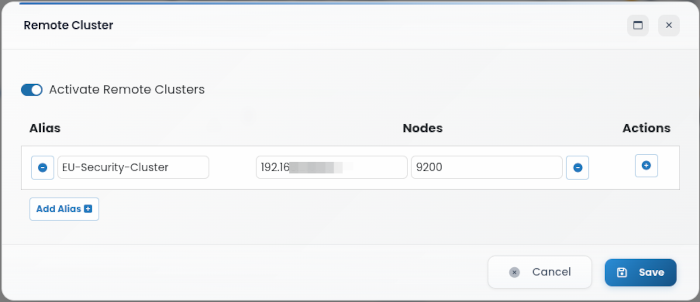
The following options are available:
- Activate Remote Clusters - Enables or disables remote cluster connections.
- Alias - Name of the remote cluster.
- Nodes - Remote cluster node details.
- IP Address / Hostname - Address of the remote cluster node.
- Port - Communication port for the remote cluster node.
- Add Alias - Adds a new remote cluster configuration.
After adding the required cluster details, click Save to apply the configuration or Cancel to discard the changes.
Assets & Configuration
The Assets & Configuration section provides access to configuration areas for managing assets, monitored applications, projects, ownership, sites, and asset grouping within CYBERQUEST.
To access this section, go to Settings > Application Settings > Assets & Configuration.
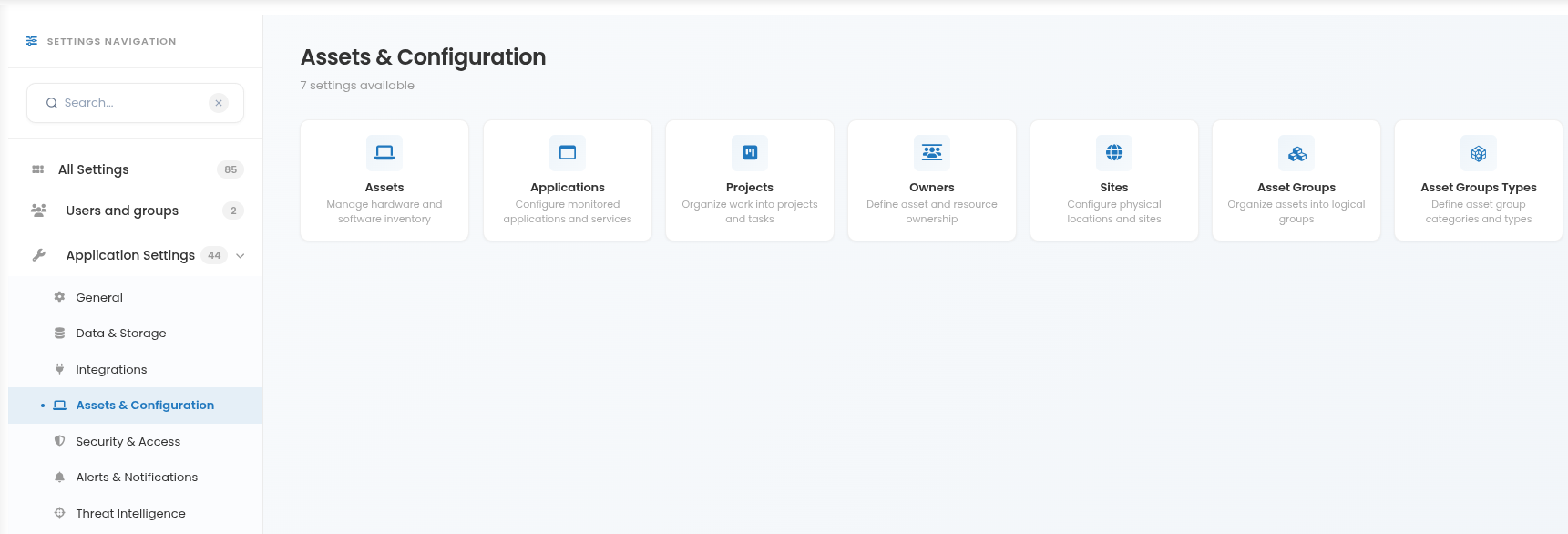
The available options include:
- Assets - Manages asset inventory. Asset details can be populated automatically as data is collected, while users can also manually add or update asset information.
- Applications - Configures and manages applications by defining their name, description, and purpose within the platform.
- Projects - Allows users to create and manage projects by defining their name, description, objectives, scope, or related activities.
- Owners - Defines owners responsible for assets, applications, or projects, helping clarify roles and areas of responsibility.
- Sites - Configures physical or logical locations by defining site names, descriptions, location details, or operational scope.
- Asset Groups - Organizes assets into logical groups and allows each group to be associated with a specific asset group type.
- Asset Groups Types - Defines the categories used to classify and organize asset groups.
Assets
Configuration page for assets. In the Assets module, details are automatically populated as data is collected, ensuring up-to-date information. Additionally, users can manually define new assets or modify existing asset details directly within the system, providing flexible and accurate asset management.
The Assets Settings section includes several visualizations including the Asset Model, Operating System Types, Operating System Versions, OS Build Numbers, Physical Memory (in GB), and CPU Core counts.
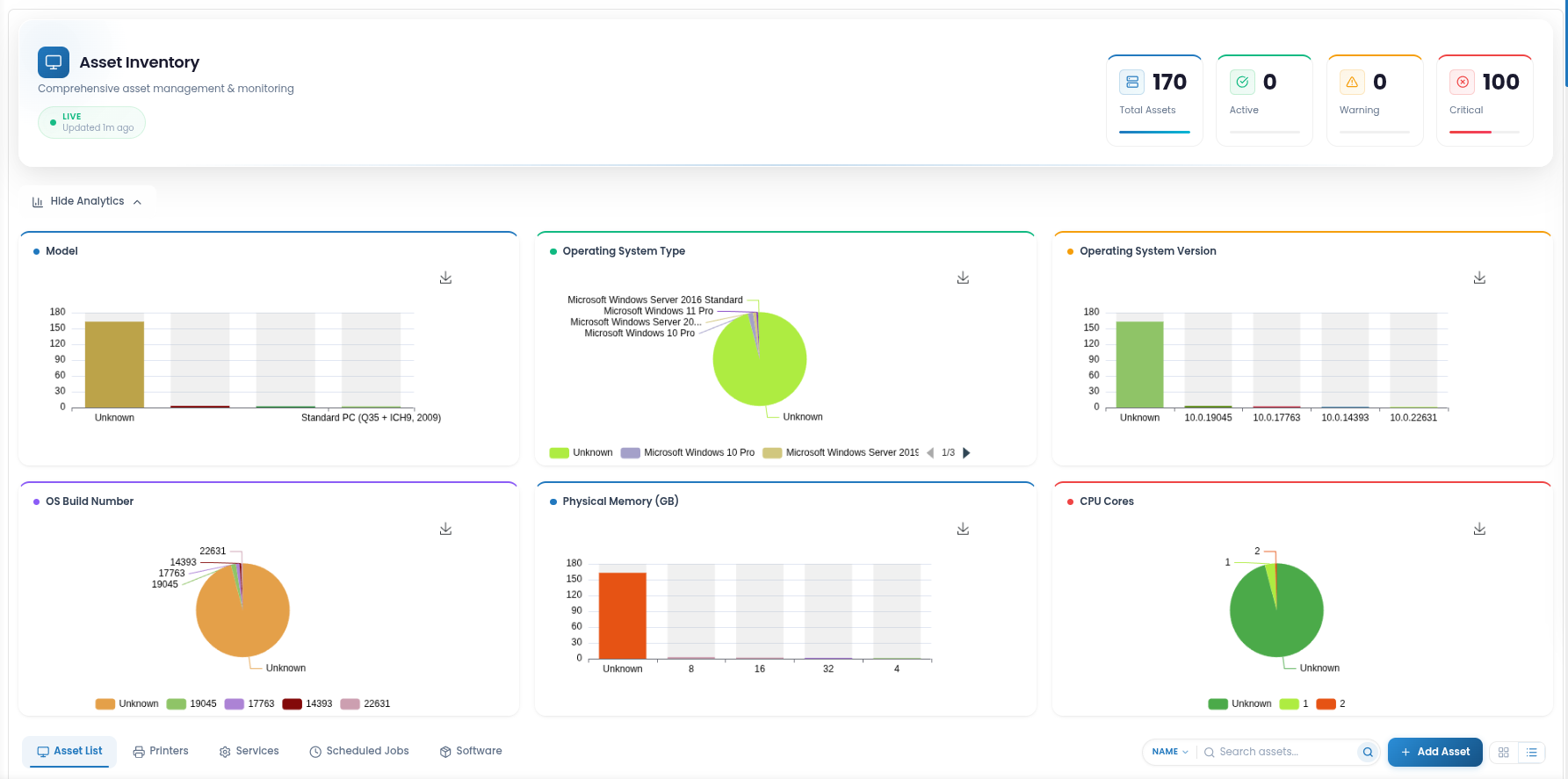
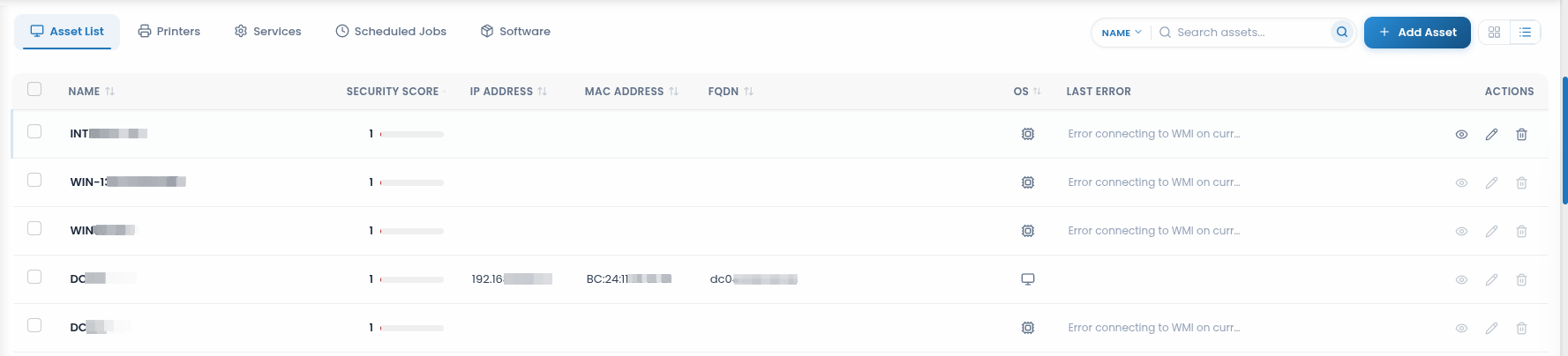
Additionally, this page provides a summary of assets grouped by the following categories: ASSET LIST, PRINTERS, SERVICES, SCHEDULED JOBS, and SOFTWARE.

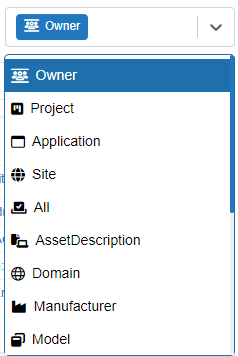
On the right side of the page, a drop-down list allows grouping of assets by:
- The Asset List contains all assets identified by CQ (Assets displaying a Last Error status need proper configuration to allow the CQ module to retrieve information). Options are available to Edit, Delete, or View each asset.
To view asset information, click the  button, which opens the detailed asset page:
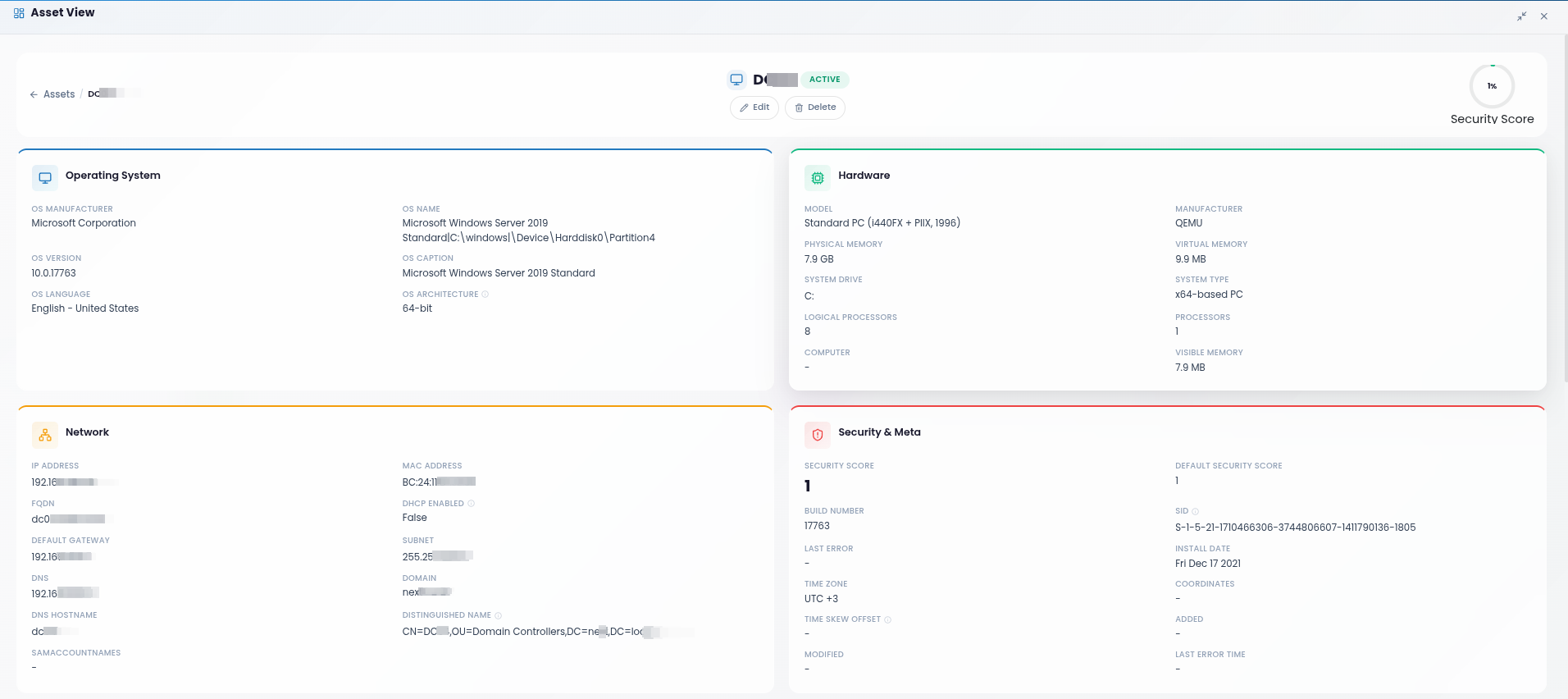
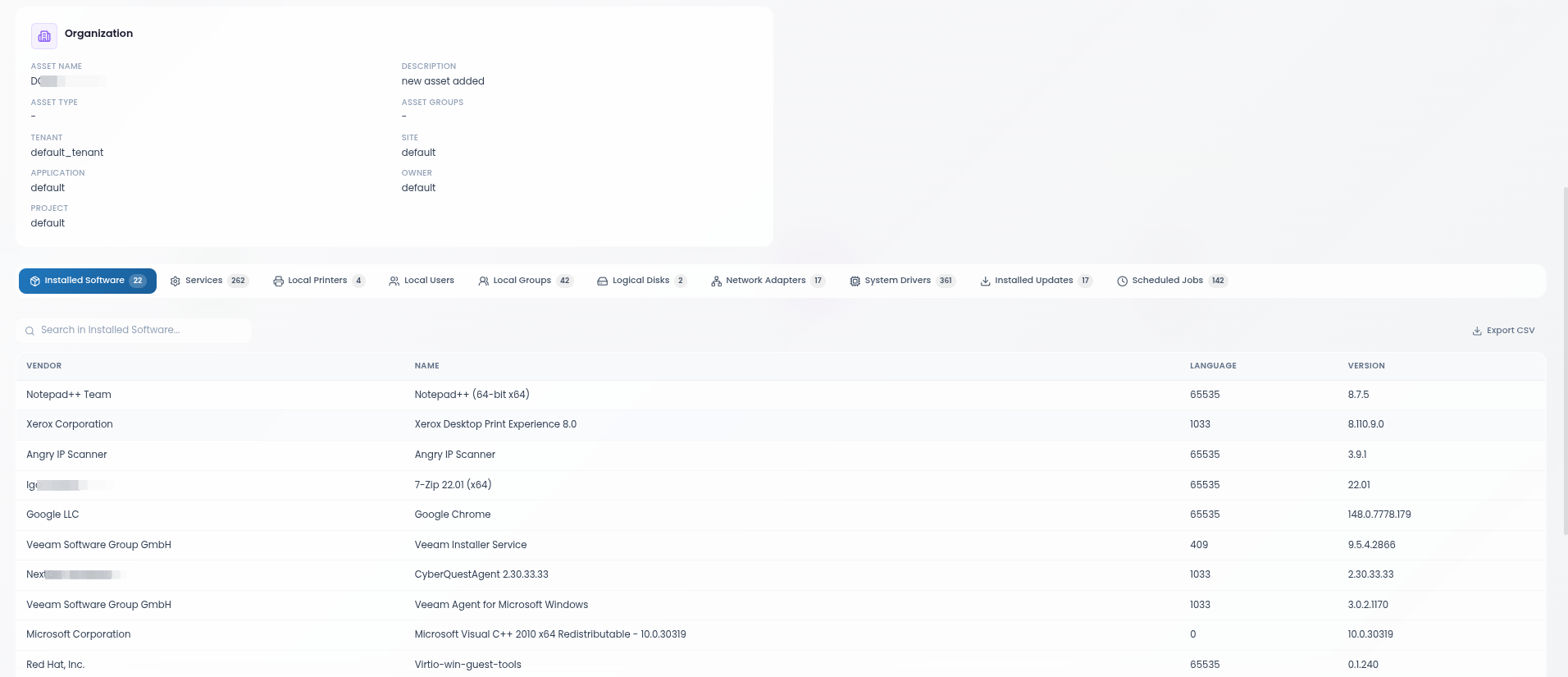
Expanding Asset Details, Hardware Info, and Extended Info reveals information about the Operating System, Network, and Hard Disk.
Within the fields section, the following information can be observed:
- INSTALLED SOFTWARE - software installed on the asset
- SERVICES - services present on the asset
- LOCAL PRINTERS - local printers associated with the asset
- LOCAL USERS - local users of the asset
- LOCAL GROUPS - local groups of the asset
- LOGICAL DISKS - partitions of the asset’s physical disk
- NETWORK ADAPTERS - network adapters installed on the asset
- DRIVERS - drivers associated with the asset
- INSTALLED UPDATES - updates installed on the asset
- SCHEDULED JOBS - scheduled jobs configured for the asset
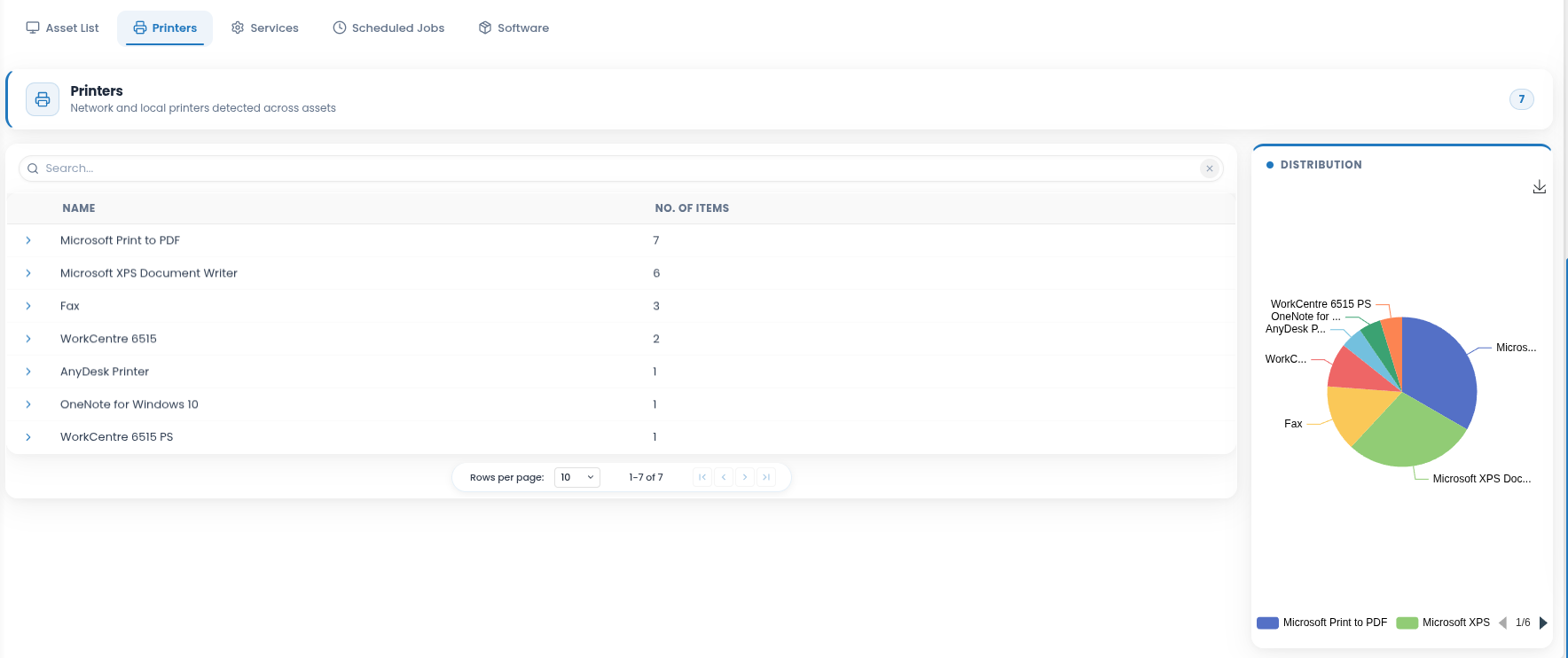
2.Printers - This section lists all printers identified by CQ, along with the number of assets associated with each printer (e.g., the OneNote (Desktop) printer is found on 1 asset).
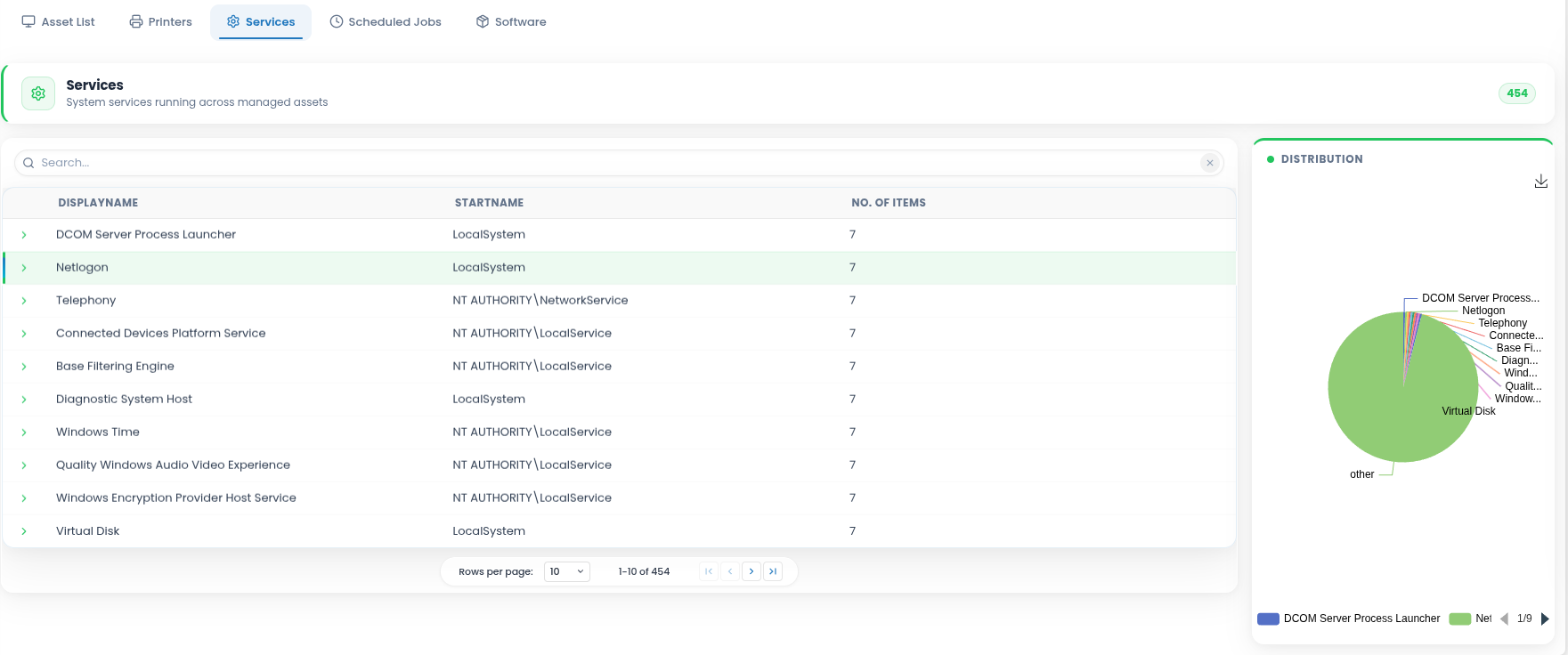
3.Services - This section displays all services identified by CQ, along with the number of assets associated with each service (e.g., the Windows Remote Management (WS-Management) is found on 4 assets).
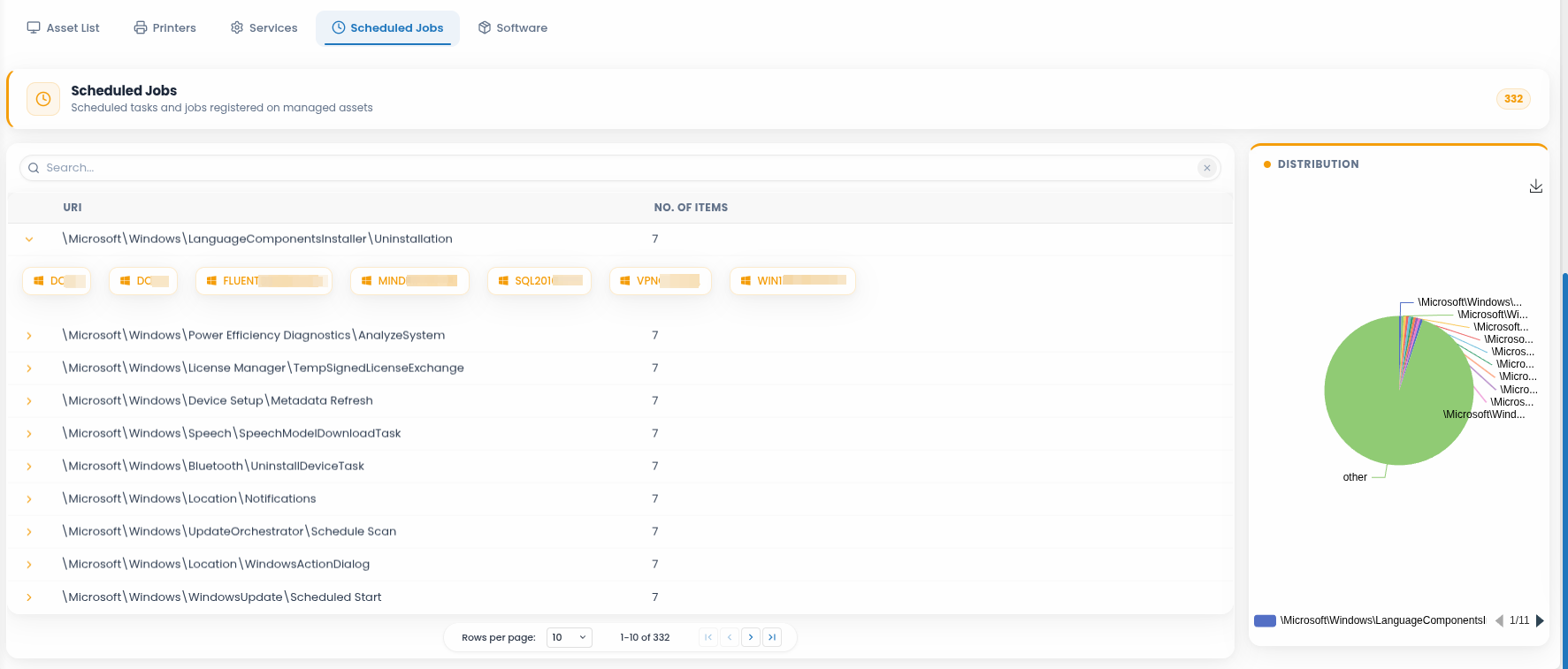
4.Scheduled Jobs - This section lists all scheduled jobs identified by CQ, along with the number of assets associated with each job (e.g., the Automatic-Device-Join scheduled job is found on 6 assets).
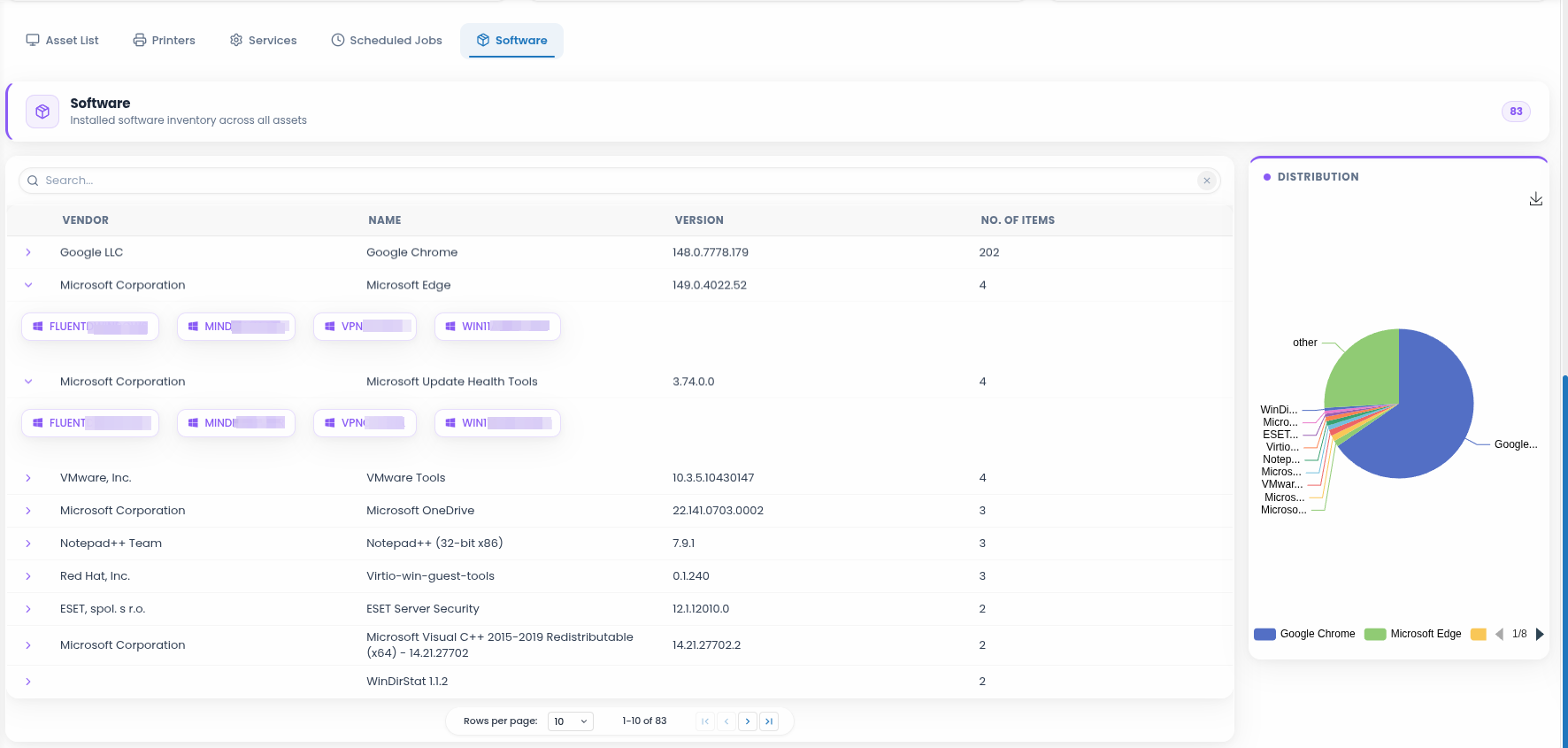
5.Software - This section includes all software identified by CQ, along with the number of assets on which each software is installed (e.g., the software Next Generation Software is found on 2 assets).
For instructions on adding a new asset, refer to the following link: How to ADD a New Asset
To see how to collect data on Active Directory Assets Information: How to collect data on Active Directory Assets Information
Applications
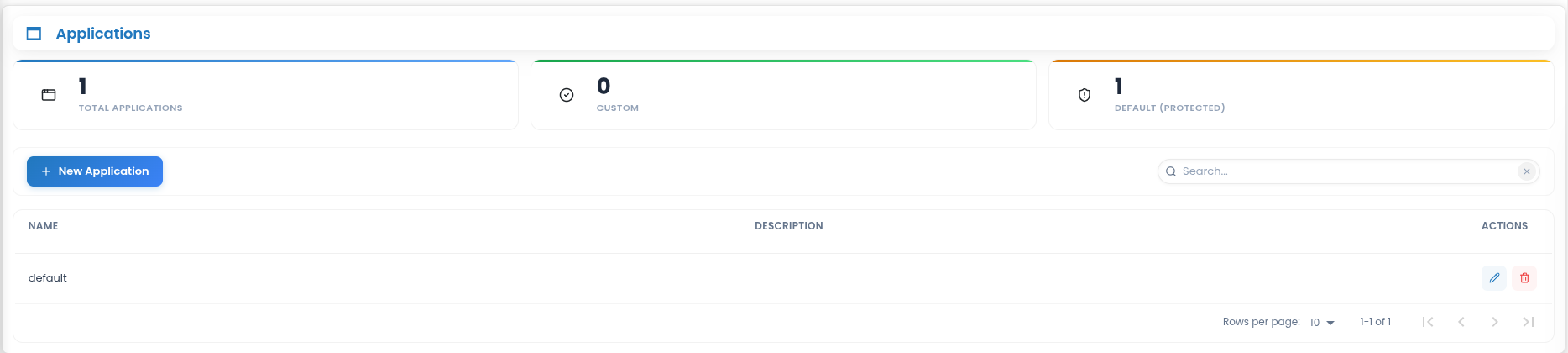
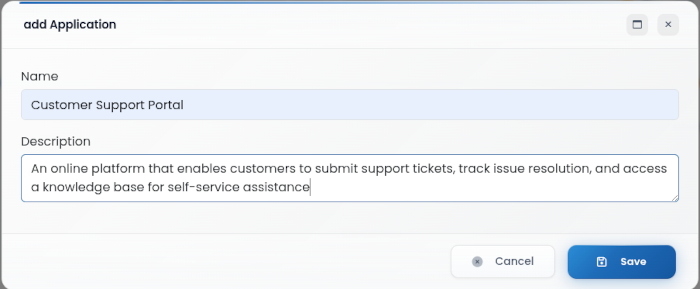
This section enables the configuration and management of applications within the system. Users can add new applications by entering a unique Name and providing a clear Description that outlines the application’s purpose or functionality. These details help maintain organized records and facilitate easier identification and management of applications across the platform.
Projects
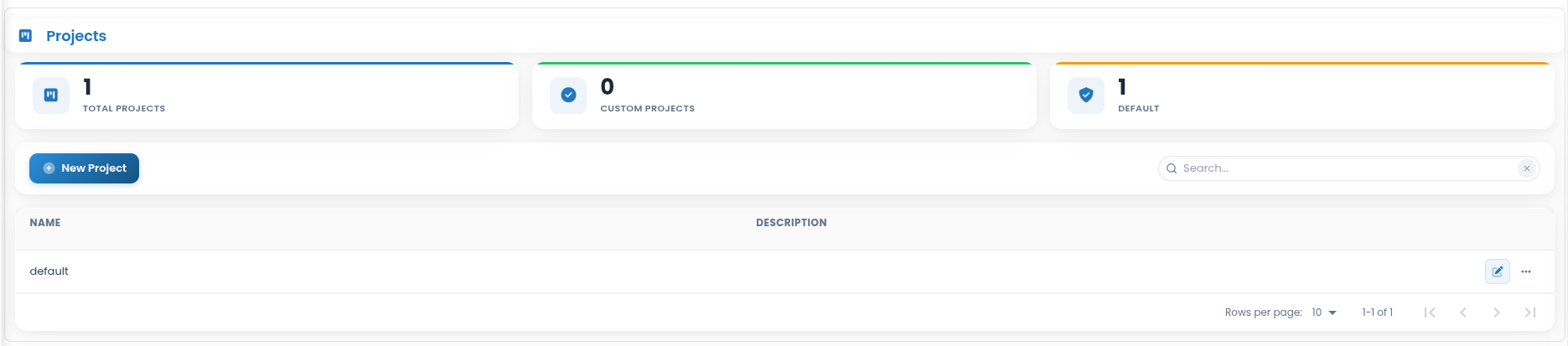
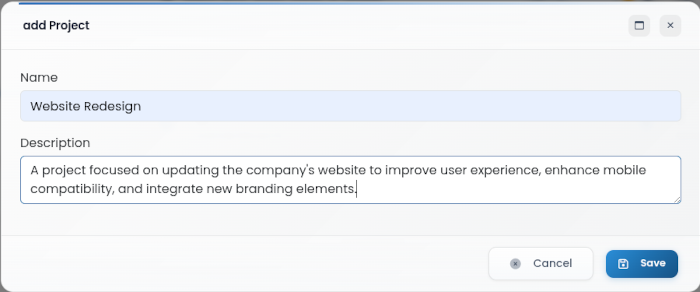
This section allows configuration and management of projects within the system. New projects can be created by specifying a Name and providing a detailed Description outlining the project’s objectives, scope, or key activities.
Owners
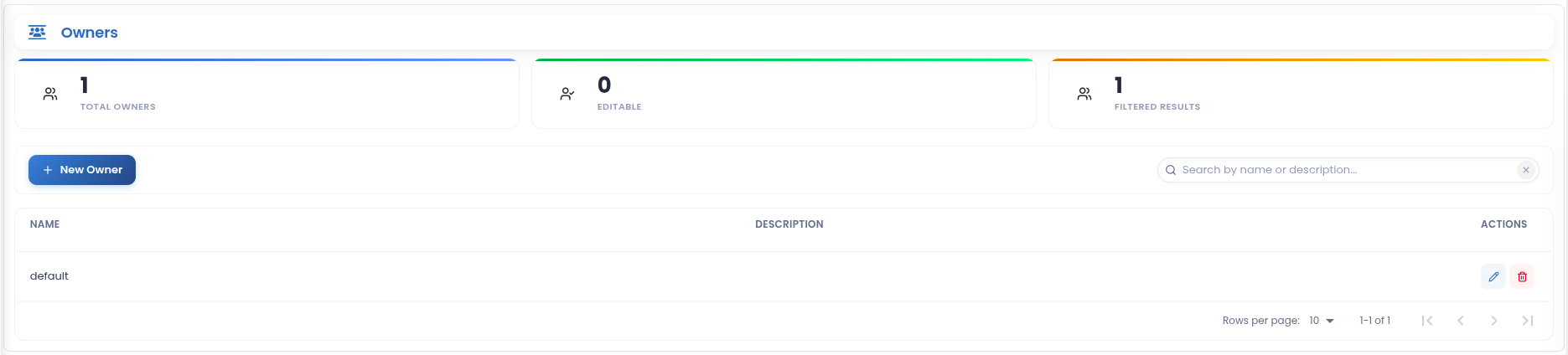
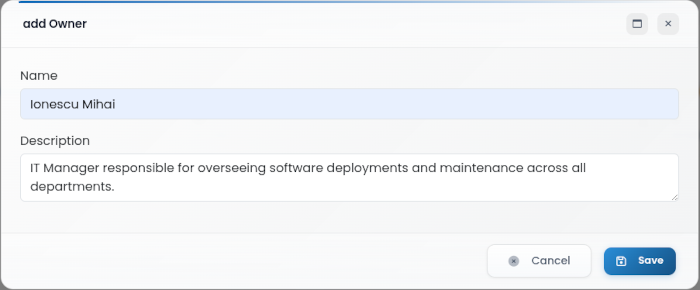
This section manages the configuration of owners responsible for assets, applications, or projects. New owners can be added by providing a Name and a brief Description that clarifies their role or area of responsibility.
Sites
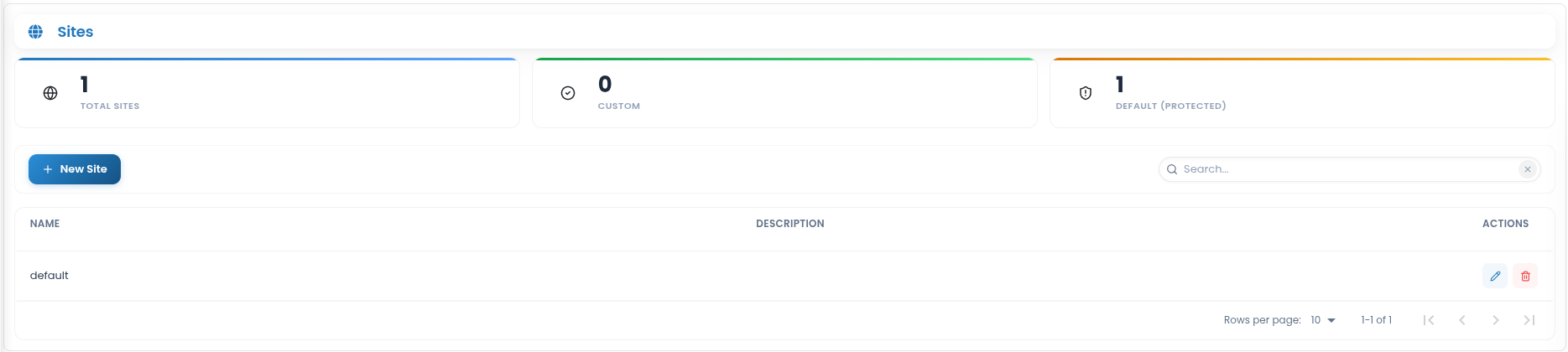
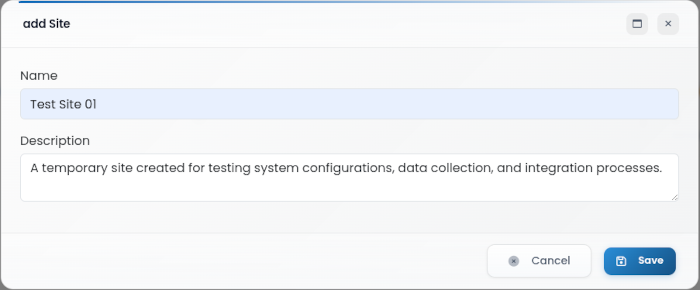
This section allows configuration and management of sites within the system. New sites can be created by entering a Name and providing a Description that outlines the site’s purpose, location details, or operational scope.
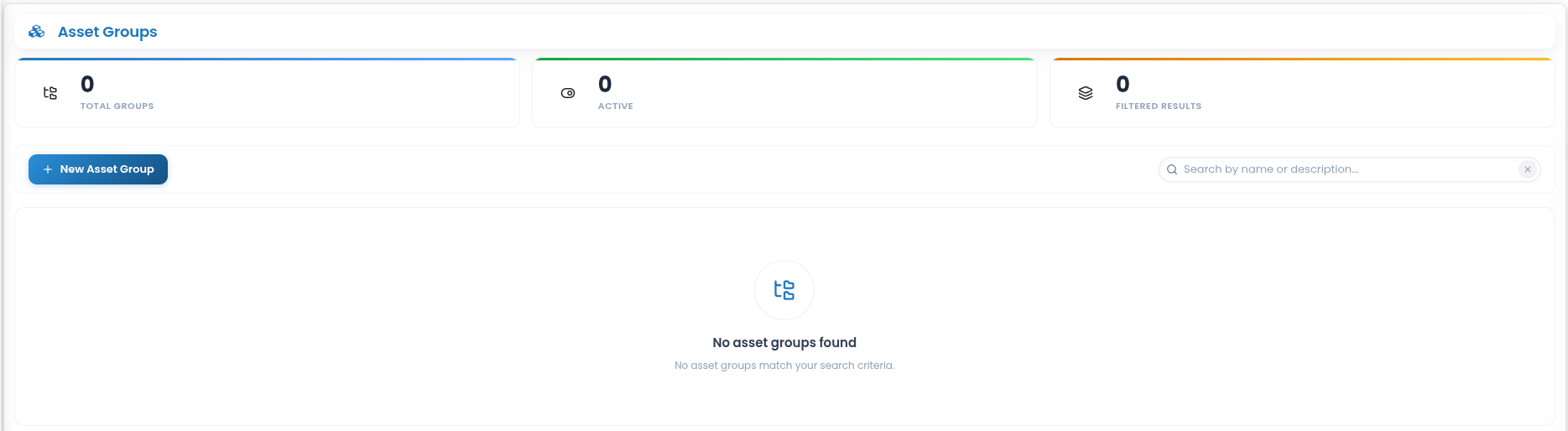
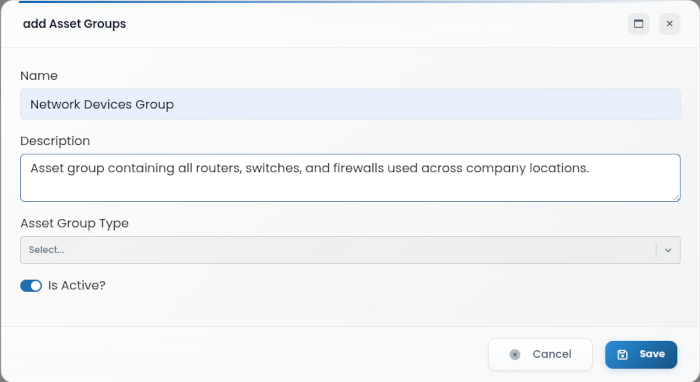
Asset groups
This page provides configuration options for asset groups. It allows assigning a specific asset group type to an existing asset group, ensuring proper organization and categorization of assets.
Asset Groups Types
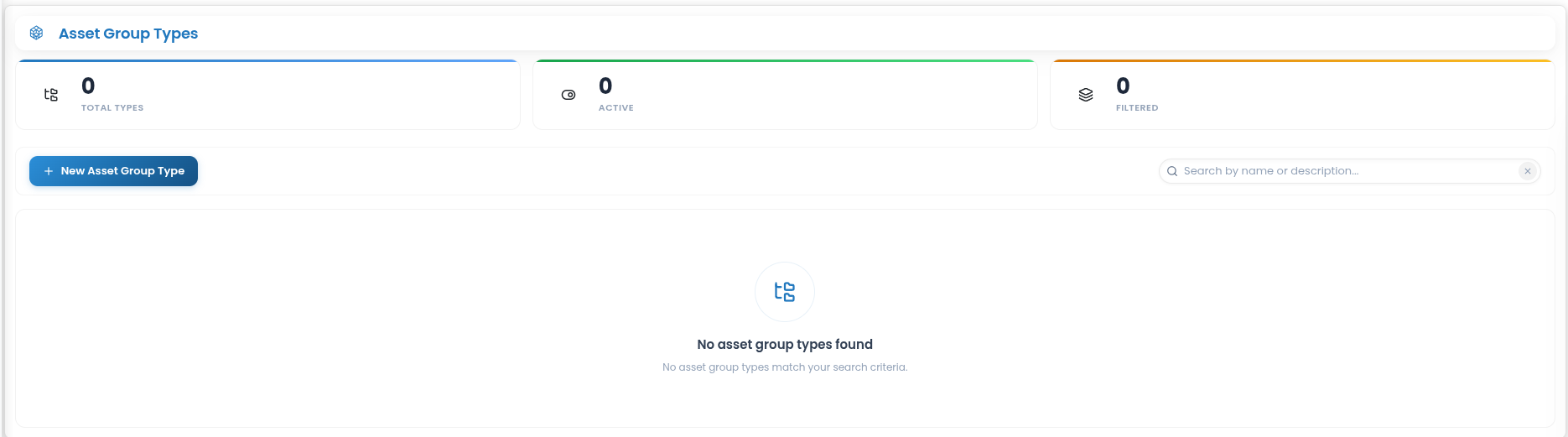
This section is used for configuring asset group types, which define categories for organizing assets. All settings related to asset group types can be modified here to ensure accurate classification.
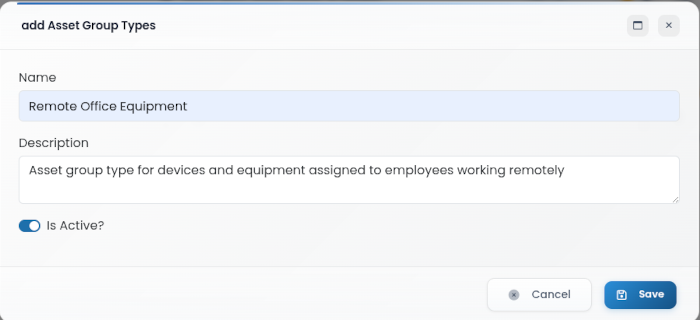
The New Asset Group Type screen includes the following fields:
Name - the name of the asset group type
Description - a brief explanation of the asset group type
Active / Disabled switch - used to enable or disable the asset group typ
Security & Access
The Security & Access section provides configuration areas related to access control, authentication, tenant management, API access, event forwarding, and intelligent data objects in CYBERQUEST.
To access this section, go to Settings > Application Settings > Security & Access.
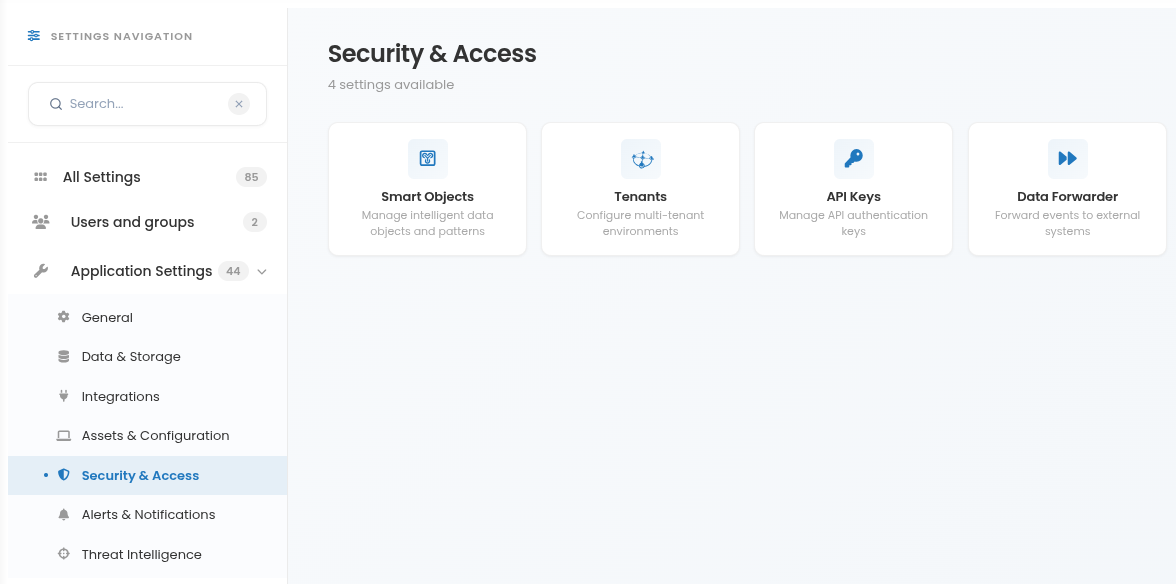
The available options include:
Smart Objects - Provides access to intelligent data object configuration used to enhance event analysis and investigation. Smart Objects can use information from one or more data streams to generate or enrich events. For detailed information, refer to the CYBERQUEST Smart Objects.
Tenants - Configures tenant-related settings used to manage multi-tenant environments and tenant-specific platform behavior.
API Keys - Manages API keys used to authenticate and control data access from external sources. Each key can define a name, authorized remote host, and active status.
Data Forwarder - Configures event forwarding to external systems, such as a syslog server, and contains the parameters required for DataForwarder operation.
SmartObjects
The Smart Objects section allows administrators to enable or disable Smart Object settings used by CYBERQUEST during event processing and analysis. Smart Objects help enrich investigation context by generating or organizing events based on information collected from one or more data streams.
To access this section, go to Settings > Application Settings > Security & Access > Smart Objects.
The page displays the total number of Smart Object settings, including how many are currently Active or Inactive. Administrators can search for a specific Smart Object by name and use the Active toggle to enable or disable individual Smart Object settings.
For detailed configuration and usage information, refer to the CYBERQUEST Smart Objects.
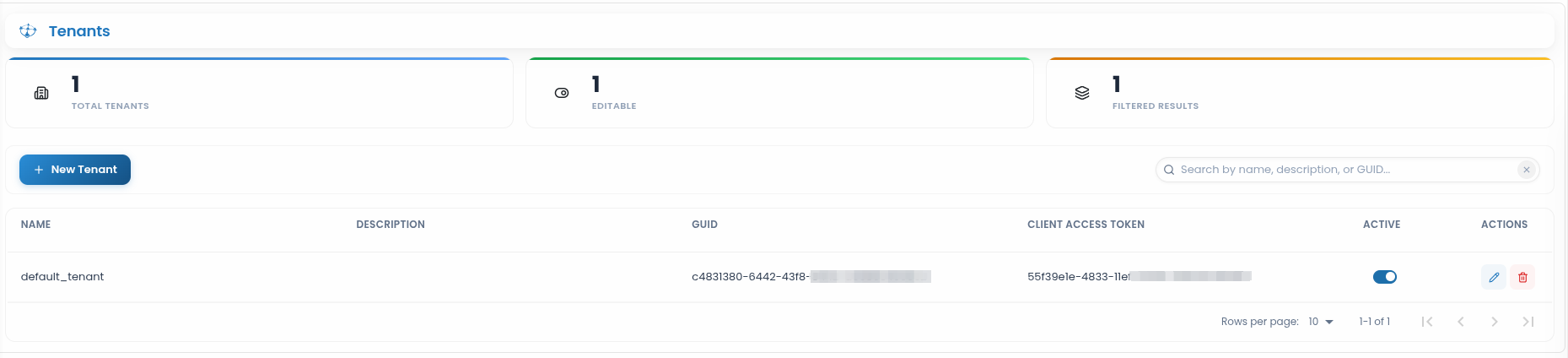
Tenants
Select Tenants entry to change Tenants settings. Here you can change all entries that are related to Tenants.
API Keys
In the API Keys section, new entries can be created to control and authenticate data access from external sources. These settings define the name of the key, the authorized remote host, and whether the key is currently active.
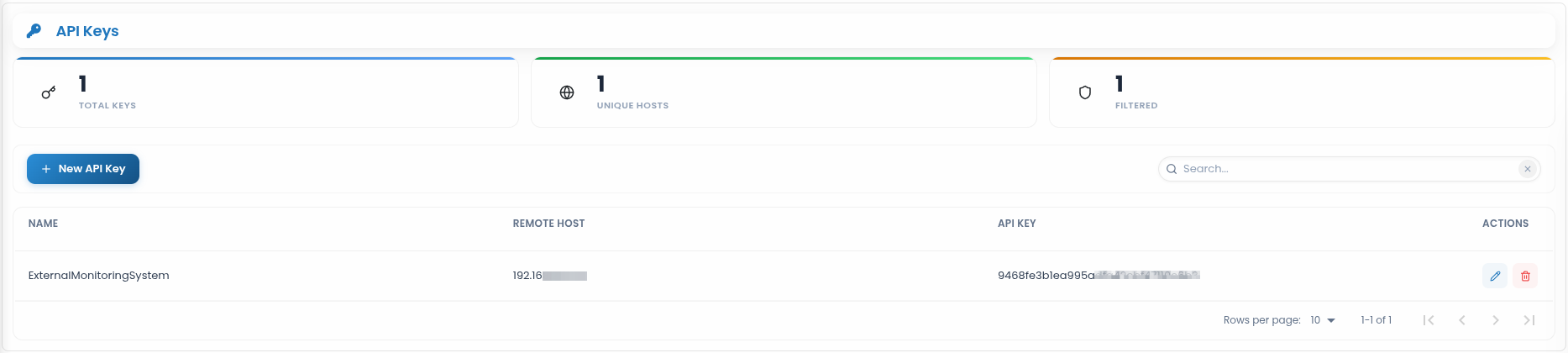
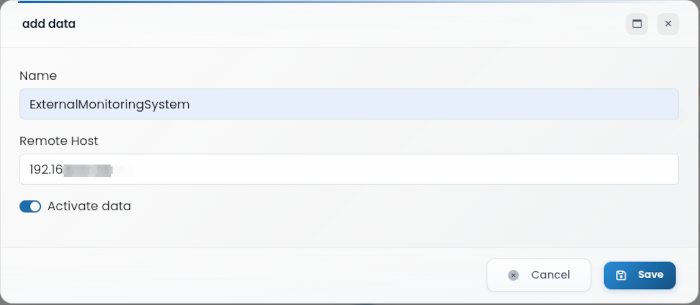
- Name - A descriptive label for the API key, used to identify its purpose or associated system.
- Remote Host - The IP address or hostname from which API requests are allowed.
- Activate - Enables or disables the API key
DataForwarder
Select DataForwarder to configure event forwarding to a syslog server. This section contains all parameters related to DataForwarder operation.
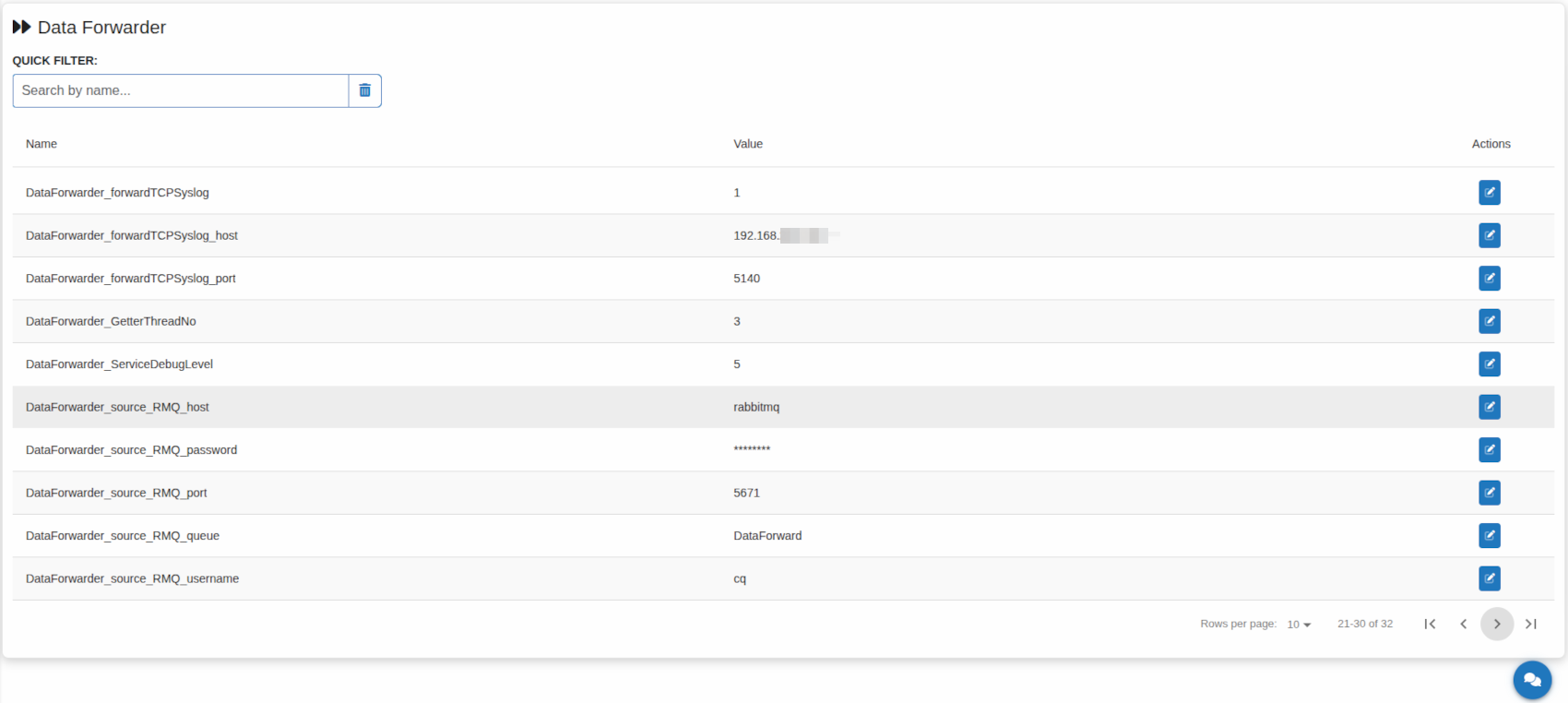
- DataForwarder_cache_path - Location where cache files are stored for temporarily holding events before forwarding
- DataForwarder_enableForwarding - Enables or disables the DataForwarder service (default is disabled)
- DataForwarder_forwardCEF - Enables forwarding of events in CEF (Common Event Format) - default is disabled
- DataForwarder_forwardCEF_host - Hostname or IP address of the CEF destination server
- DataForwarder_forwardCEF_port - Network port used for CEF event forwarding
- DataForwarder_forwardCEF_protocol - Network protocol used for CEF forwarding
- DataForwarder_forwardLEEF - Enables forwarding of events in LEEF (Log Event Extended Format) - default is disabled
- DataForwarder_forwardLEEF_host - Hostname or IP address of the LEEF destination server
- DataForwarder_forwardLEEF_port - Network port used for LEEF event forwarding
- DataForwarder_forwardLEEF_protocol - Network protocol used for LEEF forwarding
- DataForwarder_forwardRMQ - Enables event forwarding to another CYBERQUEST server via RabbitMQ
- DataForwarder_forwardRMQ_host - Hostname or IP address of the RabbitMQ server. In distributed architectures, this may differ from the default database server
- DataForwarder_forwardRMQ_password - Password used for RabbitMQ authentication
- DataForwarder_forwardRMQ_port - Network port used for RabbitMQ communication
- DataForwarder_forwardRMQ_queue - Name of the RabbitMQ queue used for forwarding events
- DataForwarder_forwardRMQ_username - Username for RabbitMQ authentication
- DataForwarder_forwardSyslog - Enables forwarding of events to a Syslog server (default is disabled)
- DataForwarder_forwardSyslog_host - Hostname or IP address of the Syslog server. In distributed architectures, this may differ from the default database server
- DataForwarder_forwardSyslog_port - Network port for Syslog forwarding
- DataForwarder_forwardSyslog_protocol - Network protocol for Syslog forwarding
- DataForwarder_forwardTCPSyslog - Enables forwarding of events to a Syslog server using TCP default is disabled)
- DataForwarder_forwardTCPSyslog_host - Hostname or IP address of the TCP Syslog server
- DataForwarder_forwardTCPSyslog_port - Network port for TCP Syslog forwarding
- DataForwarder_GetterThreadNo - Number of threads used to read events from the incoming queue
- DataForwarder_ServiceDebugLevel - Logging verbosity level: 0-FATAL ERROR, 1-WARNING, 2-INFO, 3-DEBUG
- DataForwarder_source_RMQ_host - Hostname or IP address of the RabbitMQ source server. In distributed architectures, this may differ from the default database server
- DataForwarder_source_RMQ_password - Password for authentication to the RabbitMQ source server
- DataForwarder_source_RMQ_port - Port used to connect to the RabbitMQ source server.
- DataForwarder_source_RMQ_queue - The messaging queue name for queuing services
- DataForwarder_source_RMQ_username - Username for authentication to the RabbitMQ source server
- DataForwarder_throttle_queue - Maximum number of events allowed in the message queue before forwarding stops. Additional events are cached locally until the queue clears
- DataForwarder_UseDefaultParsers - Specifies whether to use the internally defined parsers for all events
For additional details on DataForwarder, refer to: How to forward syslog data
Alerts & Notifications
The Alerts & Notifications section provides configuration areas for managing alert behavior, alert templates, forwarding rules, RSS feed settings, and notification templates in CYBERQUEST.
To access this section, go to Settings > Application Settings > Alerts & Notifications.
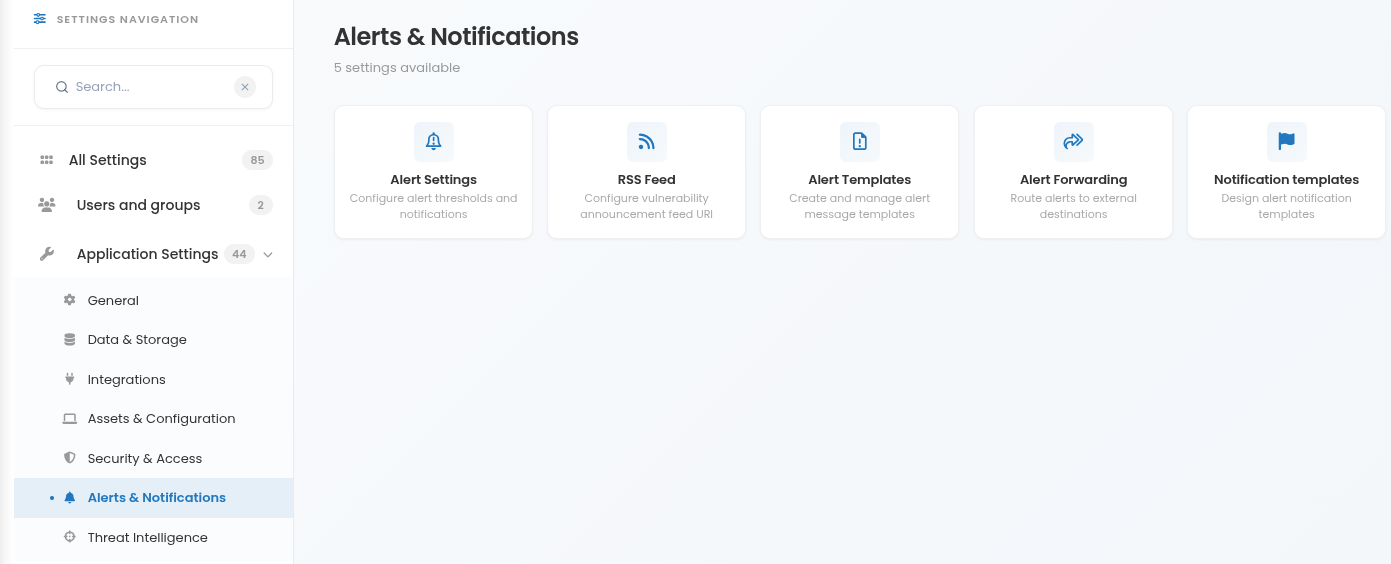
The available options include:
- Alert Settings - Configures alert-related parameters, including alert thresholds and notification behavior.
- RSS Feed - Configures the RSS feed URL used for vulnerability announcements or related security updates.
- Alert Templates - Manages the templates used to define alert message structure and content.
- Alert Forwarding - Configures alert forwarding to an external syslog server or other supported destinations.
- Notification Templates - Provides access to alert notification template customization. Templates can be created, edited, or deleted to control how alert notifications are presented. For detailed instructions, refer to the Notification templates customization.
Alert Settings
The Alert Settings section allows modification of all parameters related to alerts.
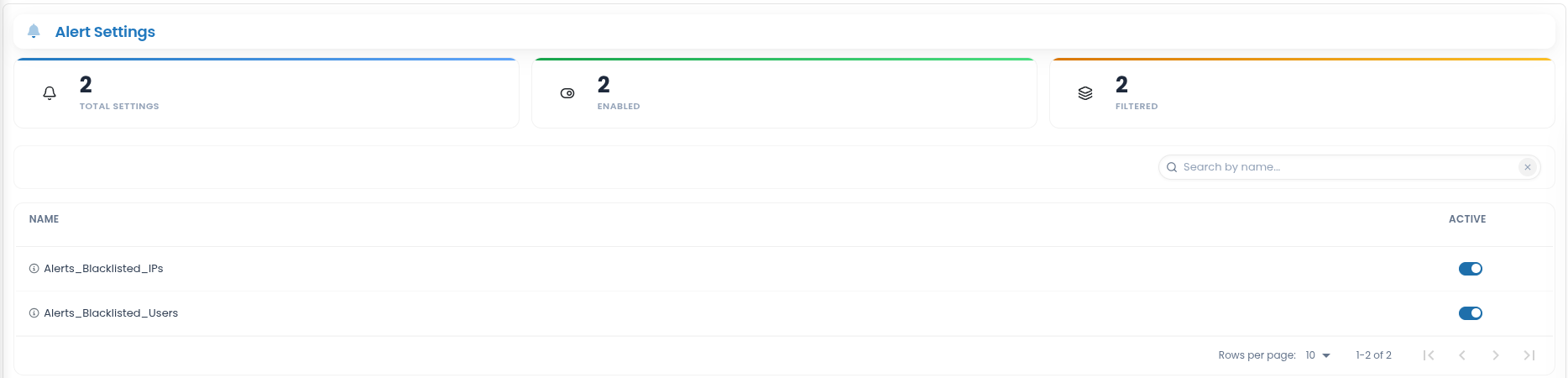
- Alerts_Blacklisted_IPs - it enables / disables the Blacklisted_IPs alert
- Alerts_Blacklisted_Users - it enables / disables the Blacklisted_Users alert
RSS Feed
The RSS Feed section allows administrators to configure the RSS feed URL used by CYBERQUEST to retrieve vulnerability announcements or security-related updates.
To access this section, go to Settings > Application Settings > Alerts & Notifications > RSS Feed.

The page displays the configured RSS feed setting:
- RSSFeedUri - Defines the RSS feed URL used by CYBERQUEST to collect vulnerability or security announcement information.
To update the RSS feed URL, click the edit button from the Actions column, modify the value, and save the configuration.
Alert Templates
The Alert Templates section allows configuration of all parameters related to alert templates.
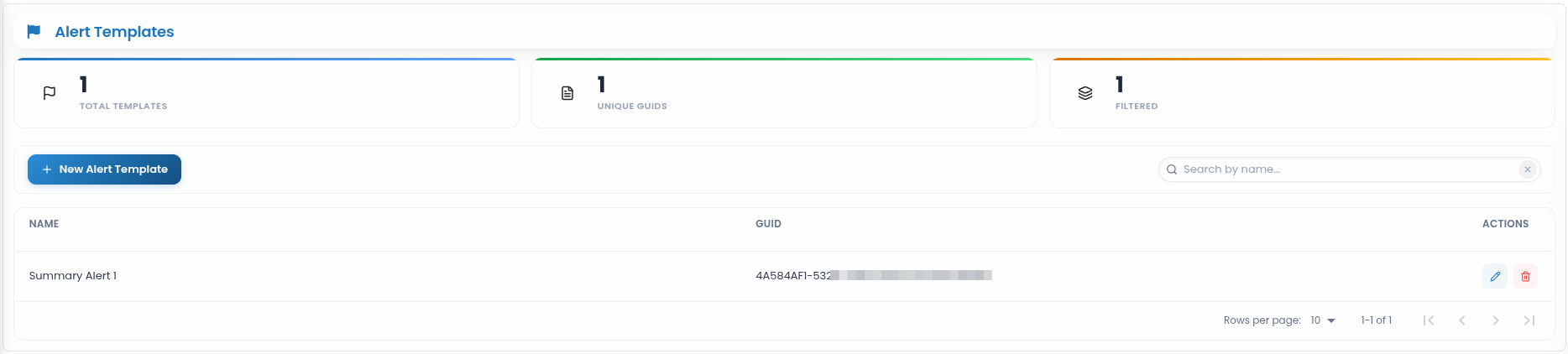
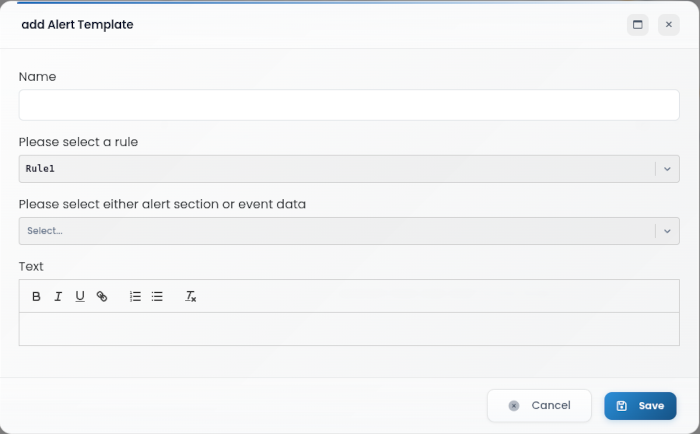
For creating a new alert template, please complete the following fields:
Name - Enter a unique and descriptive name for the new alert template. This helps in easily identifying and managing the template later.
From the Please select a rule drop-down list, choose the rule (e.g., Rule1, Rule2, Rule3, or Rule4) that the template will reference.
In the Please select either alert section or event data field, specify whether to use an alert section or event data as the source.
In the Text field, enter a descriptive message or insert dynamic objects as needed.
Alert Forwarding
Select the Alert Forwarding entry to configure alert forwarding to a syslog server. This section includes all parameters related to the Alert Forwarding process.
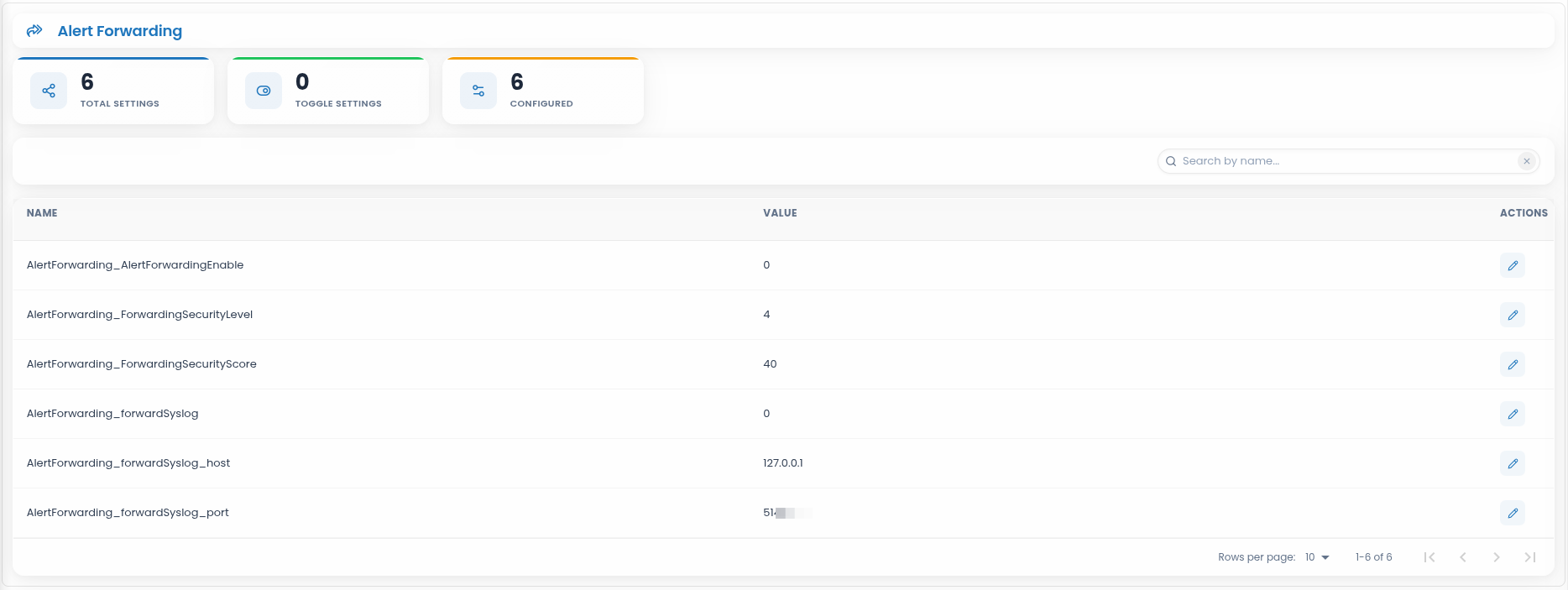
- AlertForwarding_AlertForwardingEnable - Enables or disables alert forwarding (default is disabled)
- AlertForwarding_ForwardingSecurityLevel - Defines the security level applied to forwarded alerts
- AlertForwarding_ForwardingSecurityScore - Defines the security score assigned to alerts during forwarding
- AlertForwarding_forwardSyslog - Enables Syslog-based alert forwarding (default is disabled)
- AlertForwarding_forwardSyslog_host - The host (IP or domain) to which Syslog alerts are forwarded
- AlertForwarding_forwardSyslog_port - The network port used for forwarding Syslog alerts
For additional details on AlertForwarding, refer to: How to forward alerts to another host
Threat Intelligence
The Threat Intelligence section provides access to configuration areas used to manage geolocation data, threat intelligence feeds, indicators of compromise, Tor exit nodes, and active blocklists in CYBERQUEST.
To access this section, go to Settings > Application Settings > Threat Intelligence.
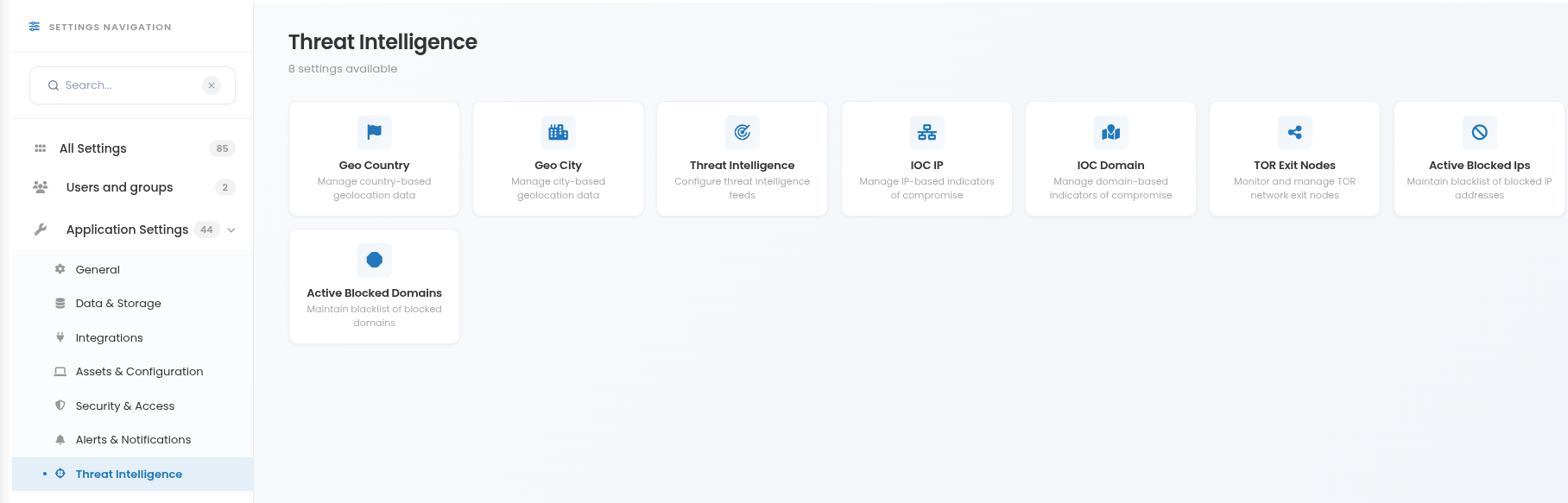
The available options include:
- Geo Country - Manages country-based geolocation entries used by CYBERQUEST for enrichment, filtering, and reporting.
- Geo City - Manages city-based geolocation entries used to provide more detailed location context for IP-related events.
- Threat Intelligence - Provides access to threat intelligence feed configuration and management. For detailed information, refer to the Threat Intelligence.
- IOC IP - Manages IP-based indicators of compromise used for detection, correlation, and investigation.
- IOC Domain - Manages domain-based indicators of compromise used to detect or correlate activity involving suspicious or malicious domains.
- TOR Exit Nodes - Manages known Tor exit node entries used for detection, filtering, or monitoring of Tor-related network activity.
- Active Blocked IPs - Manages IP addresses currently blocked by the system, including details such as expiration time, block list association, and comments.
- Active Blocked Domains - Manages domains currently blocked by the system, allowing administrators to maintain and review restricted domain entries.
Geo Country
Select Geo Country to manage geographic country entries used by the system. This section allows adding new countries and configuring their associated values.
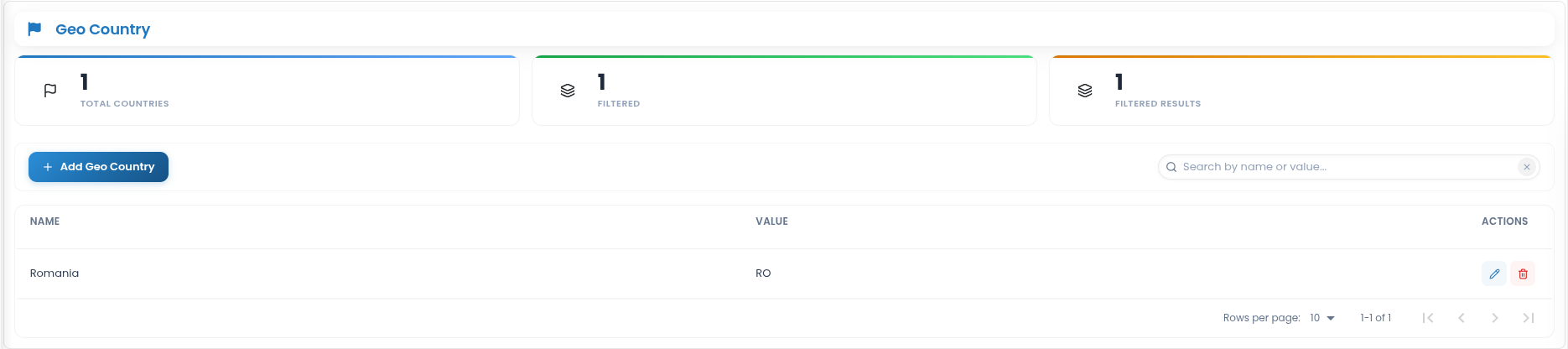
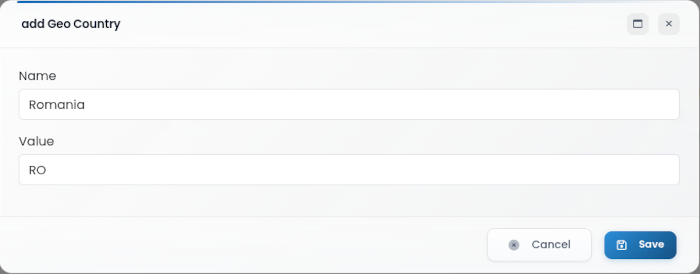
Name - The official name of the country
Value - The system-assigned code or identifier associated with the country
Geo City
Select Geo City to manage geographic city entries used by the system. This section allows adding new cities and configuring their associated values.
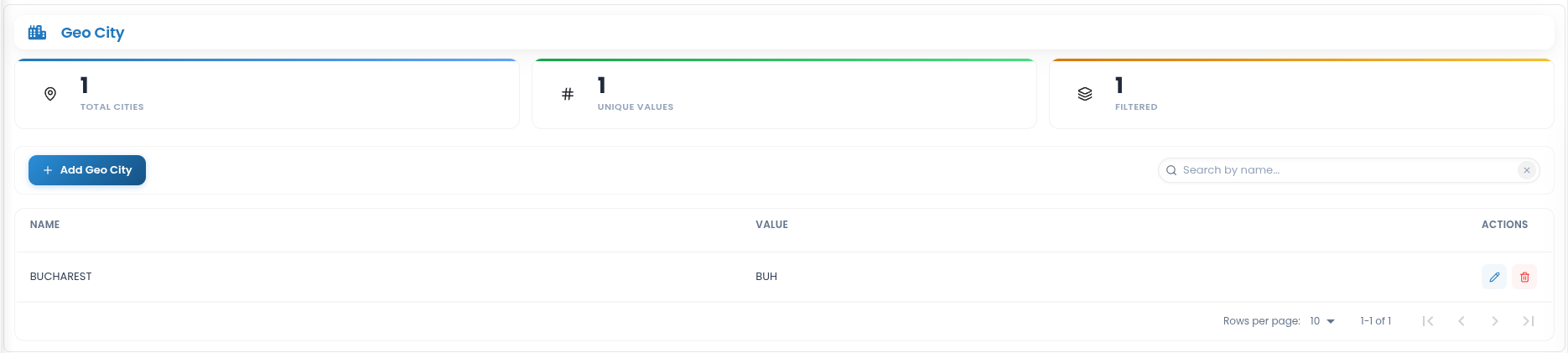
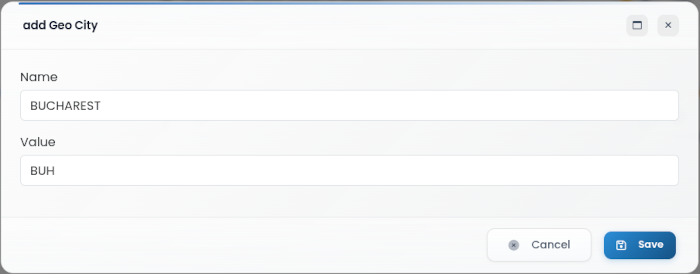
Name: The name of the city (e.g., Bucharest)
Value: A unique identifier or code for the city (e.g., BUH)
IOC IP
Select IOC IP to manage IP indicators of compromise used by the system. This section allows adding new IP entries and configuring their associated values.
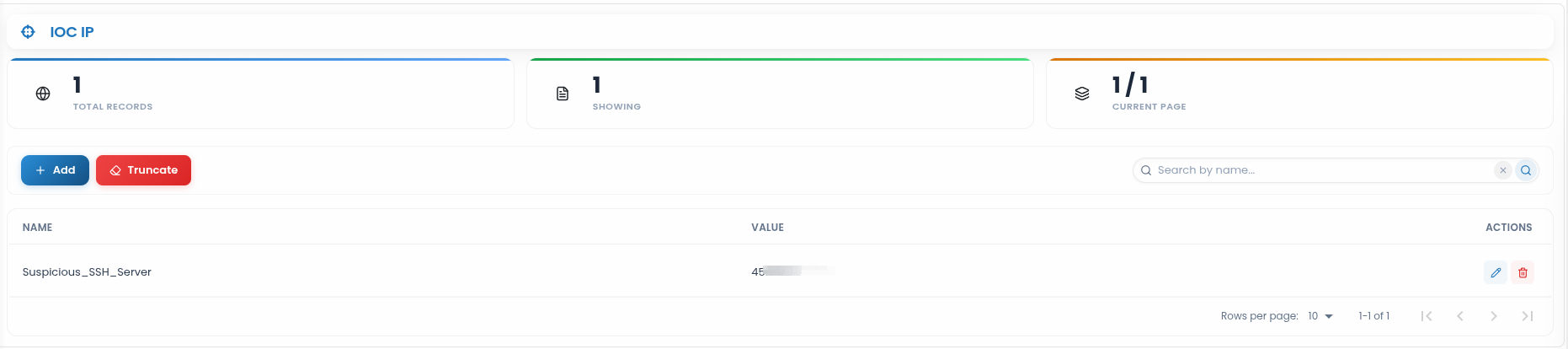
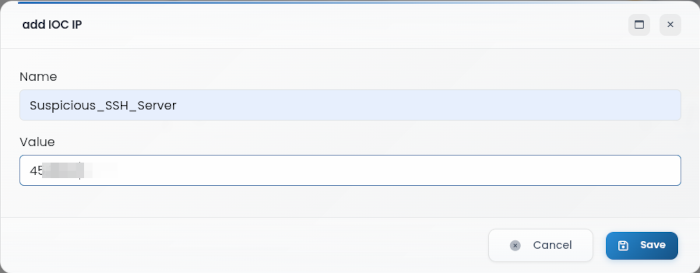
- Name - The descriptive name of the IP entry
- Value - The IP address associated with the entry
Truncate button - Clears all entries in the current IOC IP list, removing all stored IP addresses.
IOC Domain
Select IOC Domain to manage domain-based Indicators of Compromise (IOCs) used by the system for threat detection and correlation. This section allows adding new domains and configuring their associated values.
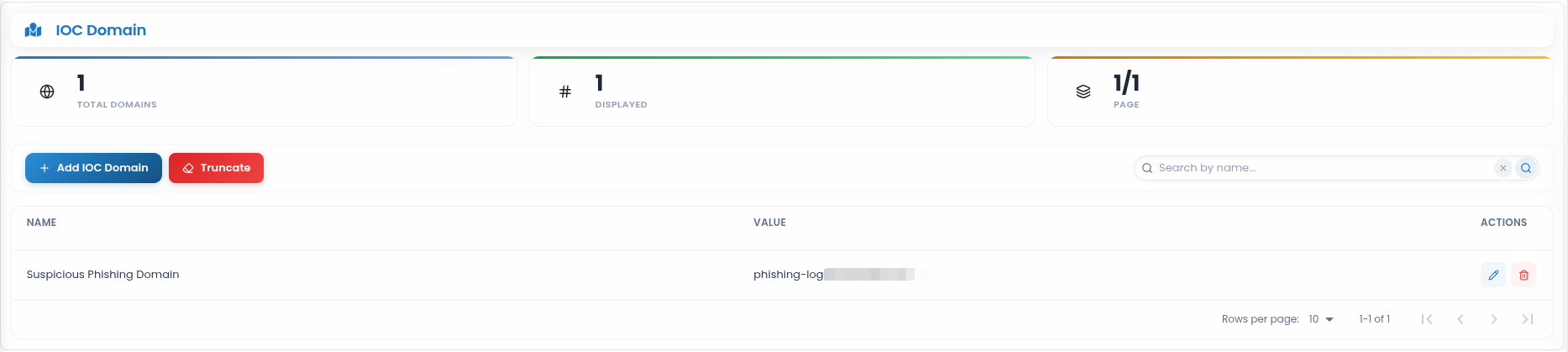
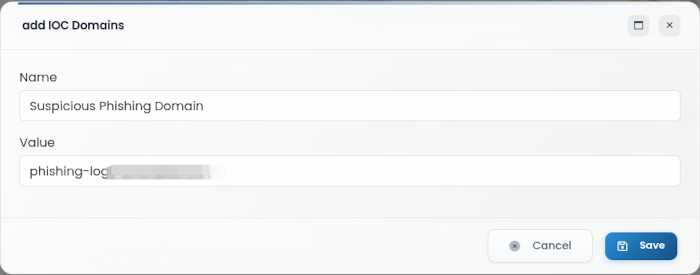
- Name - A descriptive label for the IOC domain entry, helping identify its purpose or source
- Value - The specific domain name associated with the IOC entry (e.g.,
maliciousdomain.com)
Truncate button - Deletes all existing IOC Domain entries from the list, clearing the stored data entirely. This action cannot be undone.
IOC Definitions
The IOC Definitions page provides a centralized view of the threat intelligence definitions and STIX objects imported or synchronized from configured Threat Intelligence sources.
For information about configuring, importing, and synchronizing Threat Intelligence sources, see Threat Intelligence.
To access the page, navigate to Settings > Application Settings > IOC Definitions:
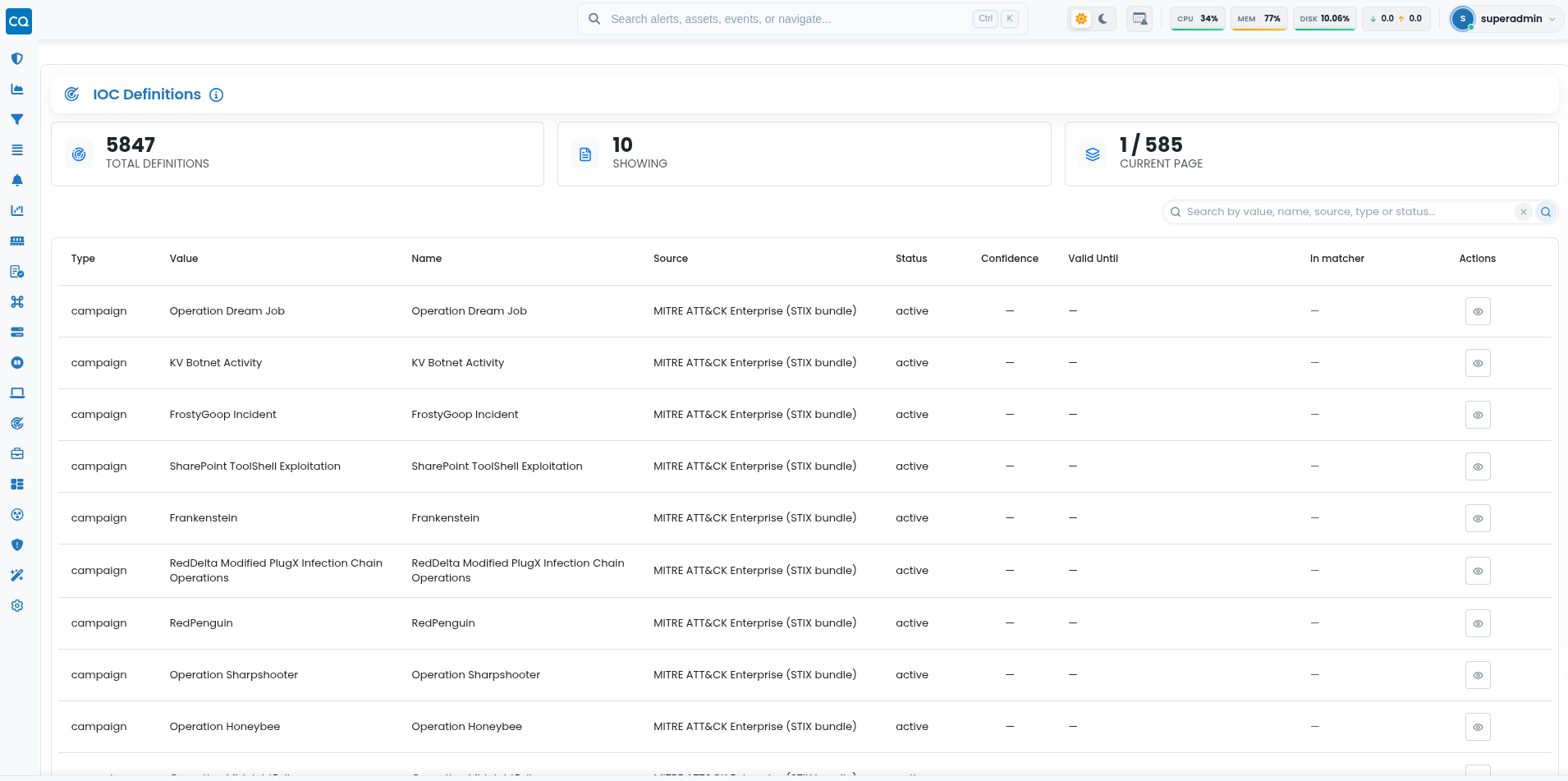
The following information is available for each definition:
- Type - Identifies the type of the imported definition or STIX object, such as
indicator,campaign, or other supported object types. - Value - Displays the value associated with the definition.
- Name - Displays the human-readable name of the definition.
- Source - Identifies the Threat Intelligence source from which the definition was imported or synchronized.
- Status - Shows the current status of the definition.
- Confidence - Displays the confidence value supplied by the source, when available.
- Valid Until - Shows the expiration date of the definition, when provided by the source.
- In matcher - Indicates whether the definition is available to the matching mechanism.
- Actions - Provides access to the detailed information associated with the selected definition.
The search field can be used to locate definitions by value, name, source, type, or status.
Viewing an IOC Definition
Click the View action for a definition to open its detailed information.
Depending on the imported STIX object, the following information may be available:
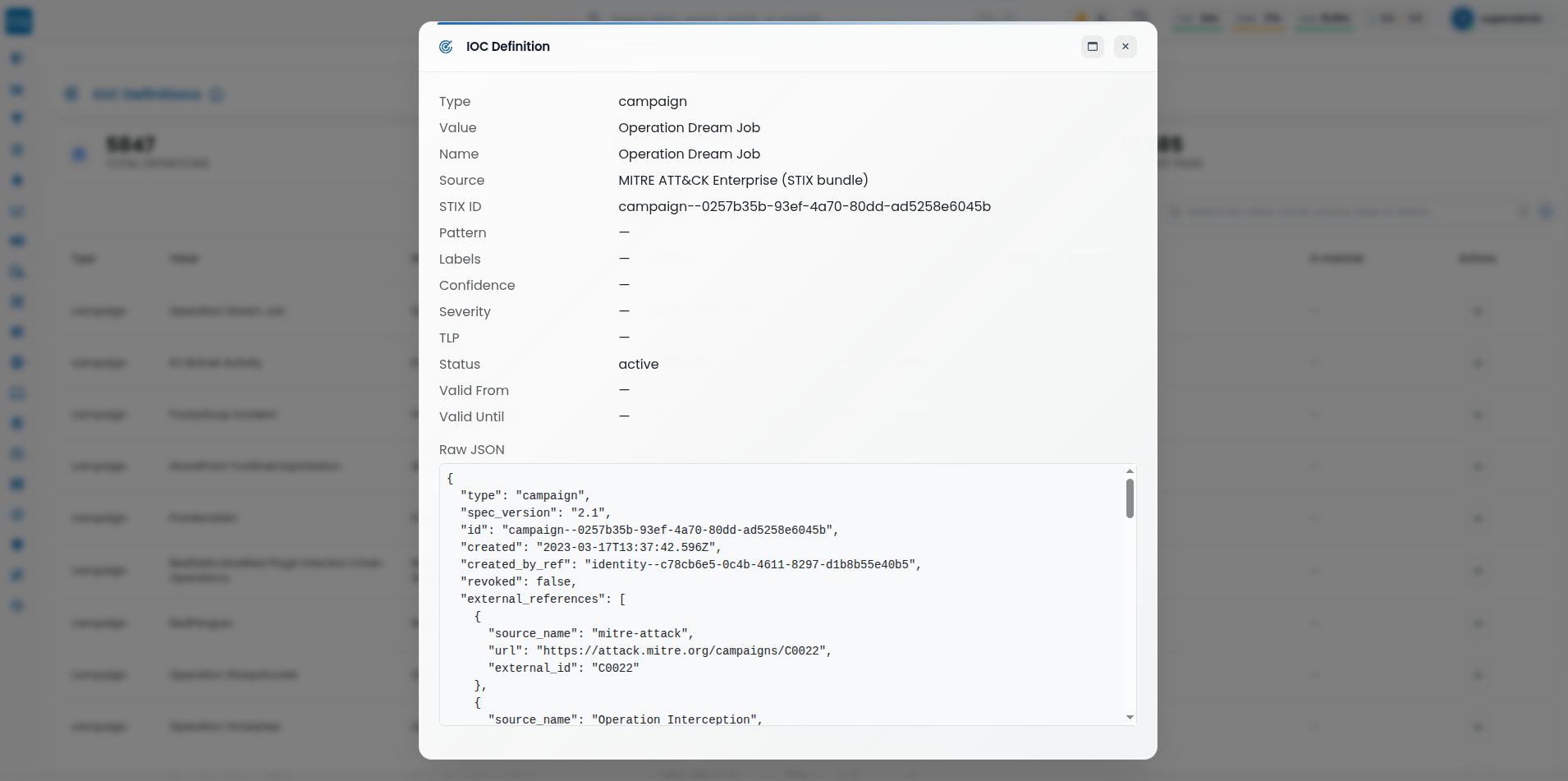
The Raw JSON section displays the original STIX object associated with the definition, preserving the source data and providing additional context for analysis and traceability.
Tor Exit Nodes
Select Tor Exit Nodes to manage a list of known Tor network exit nodes used by the system for detection or filtering purposes. This section allows adding new entries and assigning values to them.
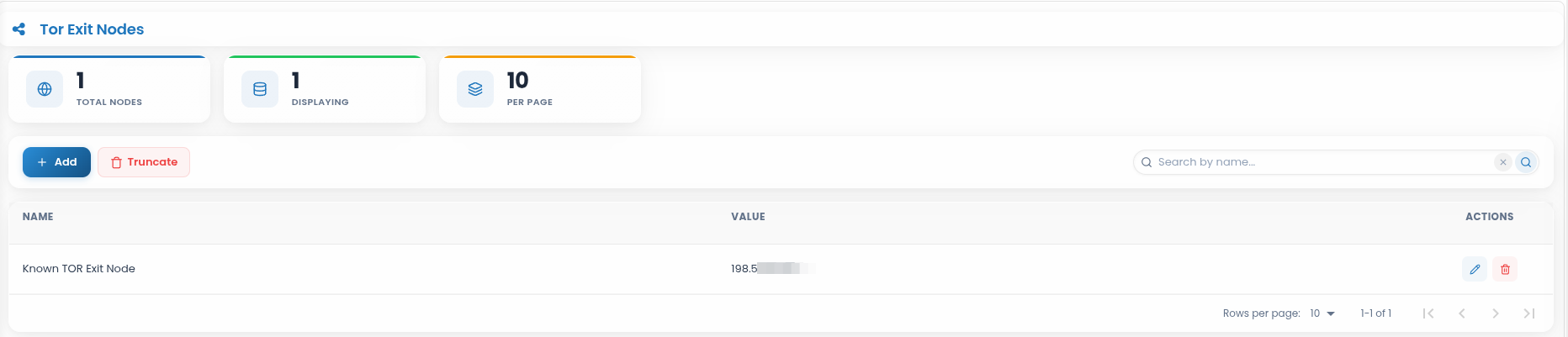
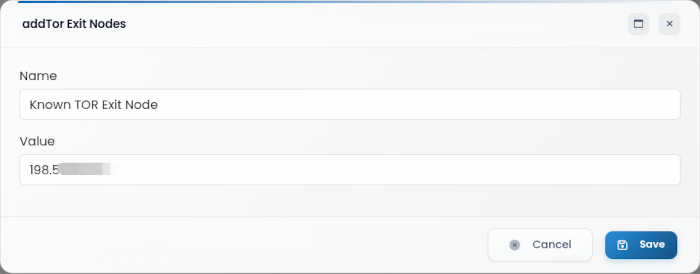
Name - The label or identifier for the Tor Exit Node entry
Value - The IP address of the Tor Exit Node
Truncate button - Permanently clears all stored Tor Exit Node entries from the list, removing both names and values
Active Blocked Ips
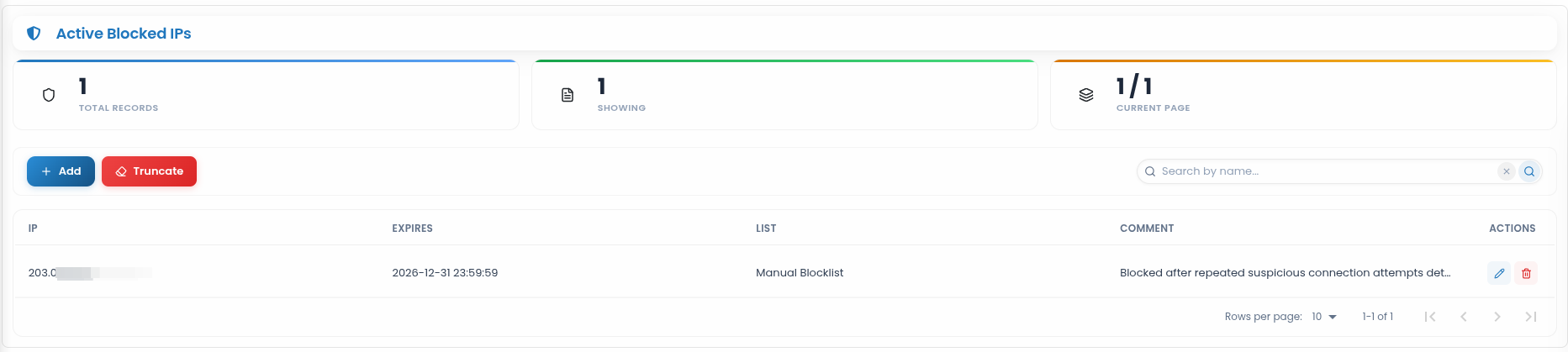
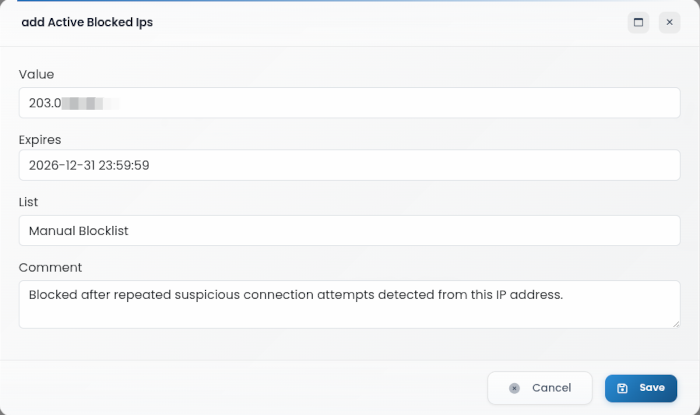
The Active Blocked IPs section is used to manage IP addresses that are currently blocked by the system. New entries can be added, along with details such as expiration time, associated block list, and comments for reference. This helps maintain control over restricted IP addresses and provides context for each block.
Active Blocked Domains
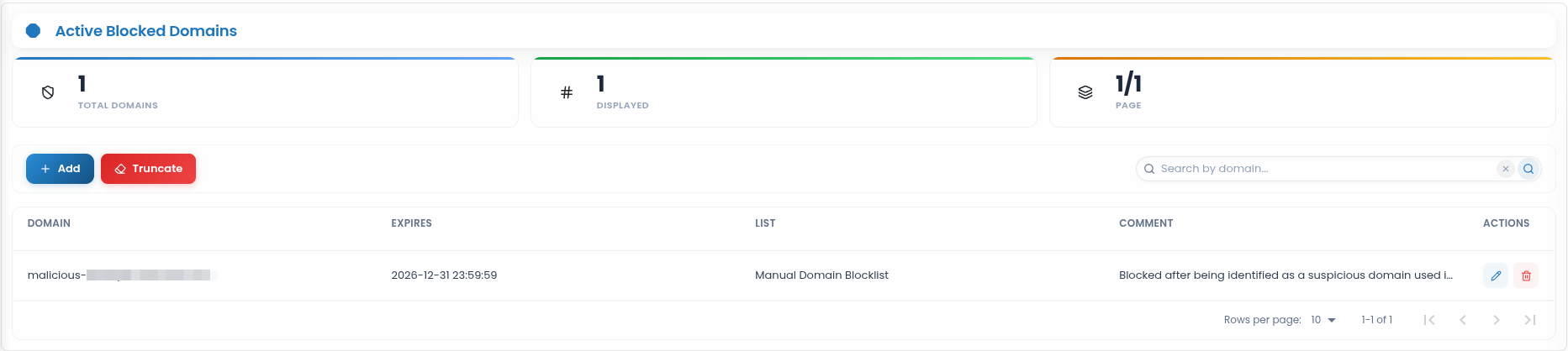
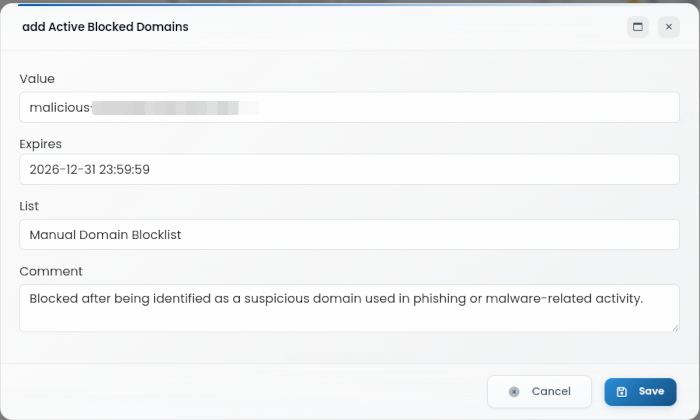
Active Blocked Domains - Manages domains that are currently blocked by CYBERQUEST. Each entry can include the blocked domain, expiration date, blocklist name, and a comment explaining why the domain was blocked.