Documentation
Users
Users
Users
Introduction
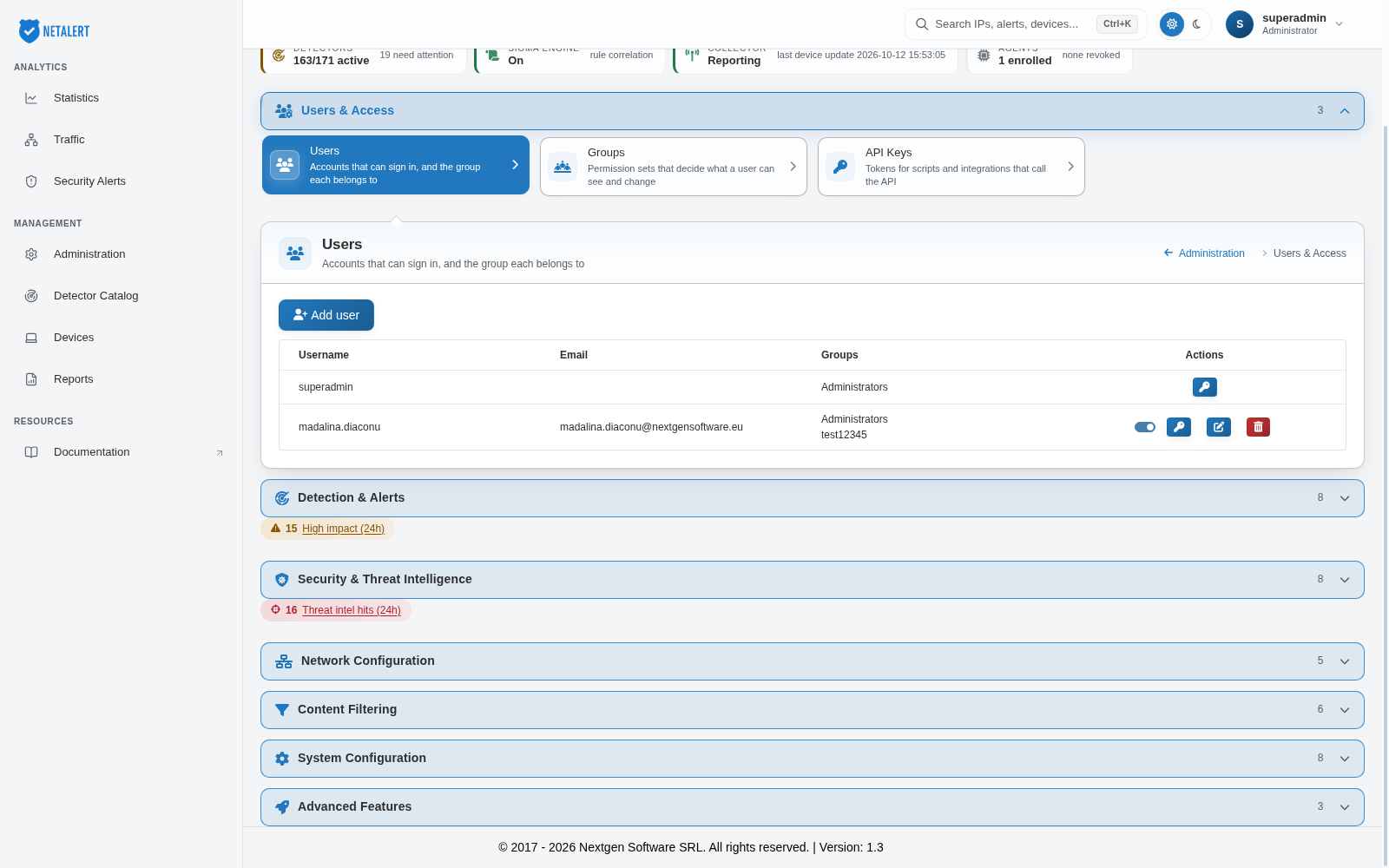
Navigate to Administration > Users & Access > Users. Click Administration in the Management section of the left sidebar, expand Users & Access, and select Users.
Use the Users page to create user accounts and assign them to groups. The table lists each account’s Username, Email and Groups, with the available Actions on the right.
How to create a username
To create a new user, click Add user and provide the following information: Username, Email, Password, Confirm Password and Groups. In the Groups field, select one or more existing groups from the list configured on the Groups page. These groups determine the user’s role and permissions within the system.
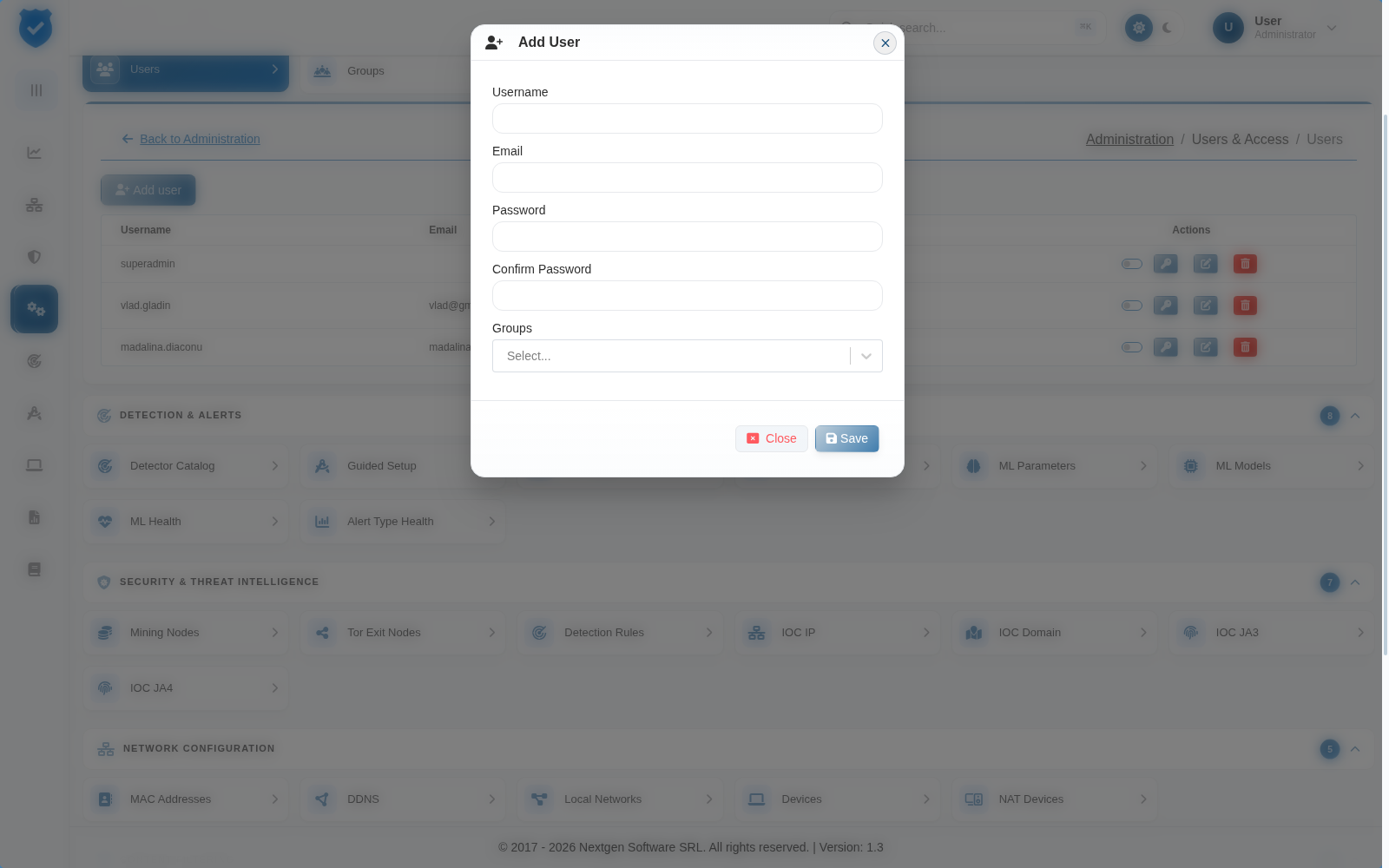
Click Save to create the account, or Close to discard it.
After creating a new user, the following management actions become available in the Actions column:
- Active switch – Enable or disable the account. A confirmation message reports the new state.
- Change password (key icon) – Set a new password; enter it in Password and Confirm Password.
- Edit – Modify the user’s username, email and groups.
- Delete – Remove the user account from the system entirely. You are asked to confirm first.
- Unlock – Shown only for an account that has been locked; restores the user’s ability to sign in.
Note: the superadmin account cannot be disabled, edited or deleted. Its only action is Change password.
NETALERT always keeps at least one active master administrator account: deleting the last one is refused with Cannot delete the last master admin account, and deactivating it with Cannot deactivate the last active master admin account.
Password requirements
Passwords are subject to a complexity policy, applied both when an account is created and whenever a password is changed. A password must:
- be at least 6 characters long, and
- contain at least one uppercase letter, and
- contain at least one lowercase letter, and
- contain at least one number, and
- contain at least one special character.
All five conditions must be met. A password that fails any of them is rejected with a message naming the condition that was not satisfied.
The policy is enforced by the server as well as by the browser, so it applies to accounts created through the API in exactly the same way as those created through the web interface.
Go back to the Administration index.