Documentation
Sigma Rules
Sigma Rules
Sigma is the open, vendor-neutral format in which the detection community publishes signatures, for example in the public SigmaHQ repository. The Sigma Rules page holds the Sigma rules that NETALERT runs against its own traffic data, so a published rule can be used without writing a dedicated detector for it.
The APT scanner evaluates every active, accepted rule against the traffic indexed over a recent time window. When a rule matches, an alert named Sigma Rule Match - <rule title> is raised, carrying the rule’s identity, level and ATT&CK tags. These alerts appear in Alerts like any other.
Which rules can run
Sigma rules are designed to detect suspicious activity across different types of log sources. NETALERT supports Sigma detection rules that can be evaluated against the network traffic data collected, decoded, and indexed by the platform.
| Category | Sigma log sources accepted |
|---|---|
dns | category dns_query or dns; Zeek dns |
http | category proxy or webserver; Zeek http |
conn | category firewall or network_connection; Zeek conn |
tls | Zeek ssl or x509 |
kerberos | Zeek kerberos |
A rule is also refused when it uses a construct the engine cannot evaluate, such as a
timeframe, a bare keyword list, 1 of / all of applied to a named search, or a field that has
no mapping for its category. Each rule is checked when it is added or imported, so a rule that
could never fire is marked as rejected with the reason, rather than appearing healthy and staying
silent. Rules written for endpoint or cloud logs, such as process creation or Okta events, are
always rejected.
SAU
Managing Sigma rules
Navigate to Administration > Security & Threat Intelligence > Sigma Rules.
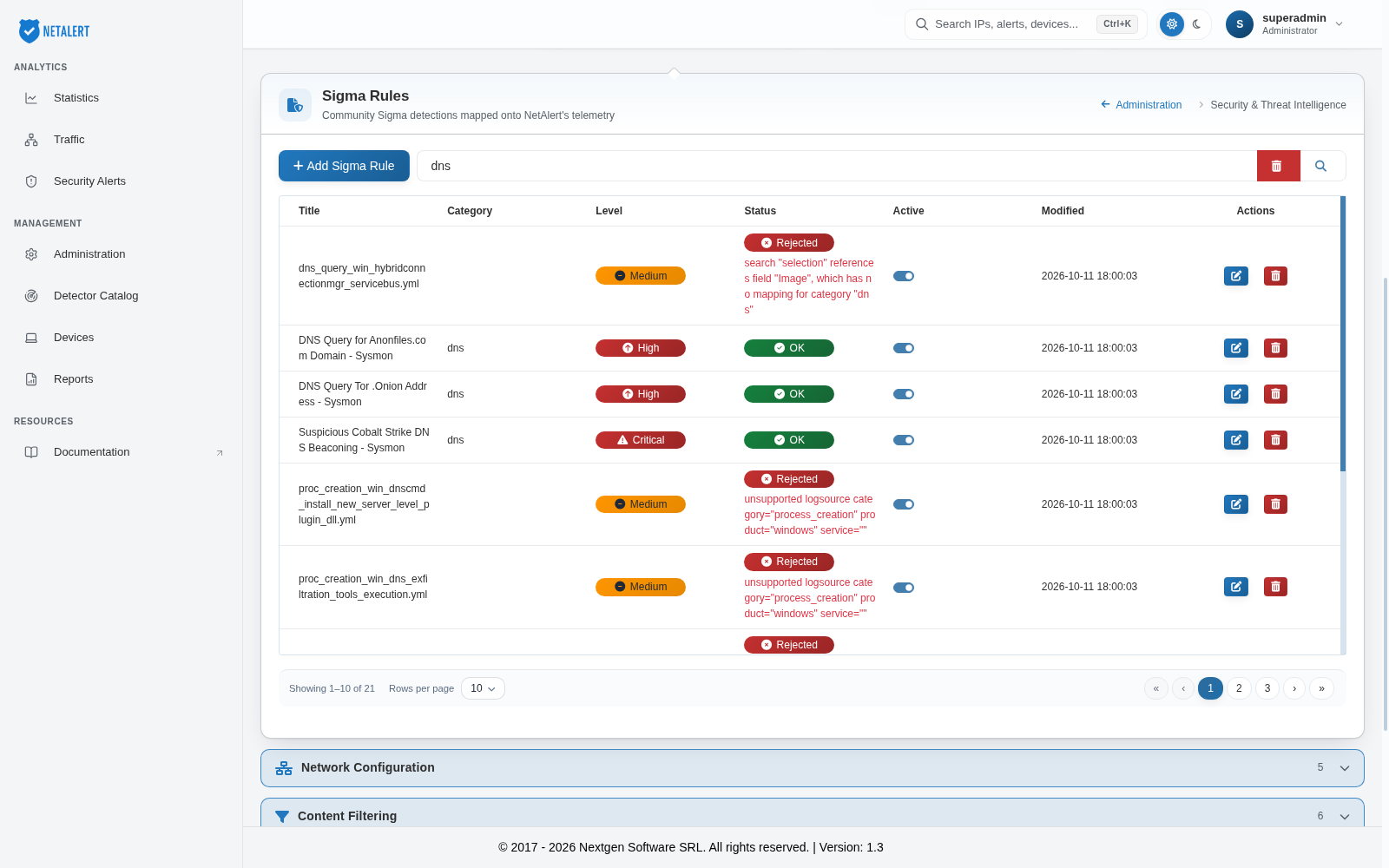
The table shows the following columns:
- Title – The rule title. For a rejected rule, the file name of the rule is shown instead.
- Category – The traffic category the rule was mapped to (
dns,http,conn,tlsorkerberos). Empty for a rejected rule. - Level – The level declared in the rule: Low, Medium, High or Critical. A rule that declares no level, and every rejected rule, is shown as Medium.
- Status – OK for a rule the engine can run, or Rejected with the reason shown underneath.
- Active – Switch a rule on or off without deleting it.
- Modified – When the rule was last added or changed.
The following actions are available:
- Add Sigma Rule – Paste a rule in Sigma YAML format into the editor and select Save. The title, level and category are read from the rule itself. A rule that the engine cannot run is not saved; the reason is shown under the editor so that you can correct the rule.
- Edit – Change the YAML of an existing rule. Saving a corrected rule clears a previous rejection.
- Delete – Remove the rule.
- Search – Filter the list by title, category, level or status. For example, search for
rejectedto list the rules that cannot run.
Only rules with the status OK and the Active switch on are evaluated. A rejected rule never runs, whatever the state of its switch.
Importing a rule set
To load many rules at once, for example a release of the SigmaHQ repository, add a
Rule Feed of the type Sigma Rules (tar.gz/zip
archive of .yml rules). Every .yml or .yaml file in the archive is checked and added to this
page, either as OK or as Rejected with its reason. Expect most of a general-purpose corpus to be
rejected, because most published rules target endpoint logs rather than network traffic.
Enabling the Sigma engine
The Sigma engine is controlled separately from the rules. Its settings are on the Sigma Rule Match entry of the Detector Catalog, and are also listed under Legacy scanner thresholds in APT Settings:
- Engine (
Sigma_Enabled) – Turns the engine on or off. The Detector Catalog shows how many rules are currently importable next to this switch. - Lookback window (
Sigma_LookbackMinutes) – How many minutes of traffic each pass scans, from 5 to 1440. The default is 60. - Max candidates per rule (
Sigma_MaxCandidates) – The maximum number of candidate events one rule’s query can return per pass, from 100 to 10000. The default is 2000.
Each pass runs one OpenSearch query per active rule, so the load grows with the number of active rules. With a large rule set imported, deactivate the rules you do not need. The current state of the engine is shown in the Sigma engine tile at the top of the Administration page.
A broadly written community rule raises alerts on whatever it is broad enough to match, so review the first alerts from a newly activated rule before relying on it.