Documentation
NAT Devices
NAT Devices
The NAT Devices function provides visibility into devices operating behind a Network Address Translation (NAT) system. Use this feature to track and manage internal devices that share a common public IP address.
Functional overview
- Device Identification – Lists all internal devices detected behind a NAT.
- Public and Private IP Mapping – Displays the correlation between private/internal IPs and the shared public IP.
- Traffic Monitoring – Provides insights into the communication patterns of NAT devices, helping to detect anomalies or potential security risks.
- Security and Compliance – Aids in identifying unauthorized devices or potential security threats within the network.
Management actions
Navigate to Administration > Network Configuration > NAT Devices. You can perform the following actions within the NAT Devices interface:
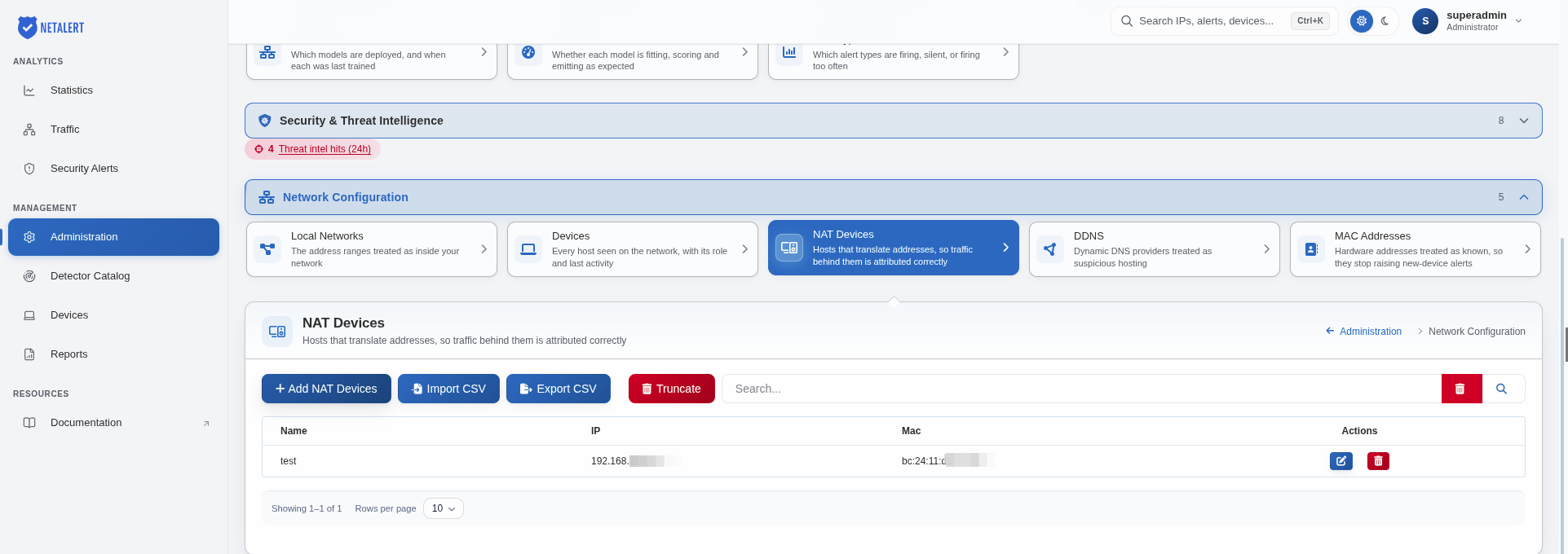
- Add NAT Devices – Manually add a new NAT device to the list, specifying relevant details like IP addresses and MAC Address.
- Import CSV – Bulk upload a list of NAT devices from a CSV file, streamlining data entry.
- Export CSV – Download the current NAT devices list in CSV format for backup or analysis.
- Truncate – Clear all entries from the NAT Devices list, resetting the data.
- Edit – Modify device details or update configurations.
- Delete – Remove a device entry from the NAT list.
Adding a new NAT device
The NAT Devices interface lets you manage network address translation (NAT) devices by maintaining a list of identified devices, their assigned IPs, and MAC addresses. Adding a NAT device ensures better tracking of network activity, security monitoring, and traffic analysis.
To add a new NAT device, follow these steps:
1.Navigate to Administration > Network Configuration > NAT Devices from the main menu.
2.Click the Add NAT Devices button.
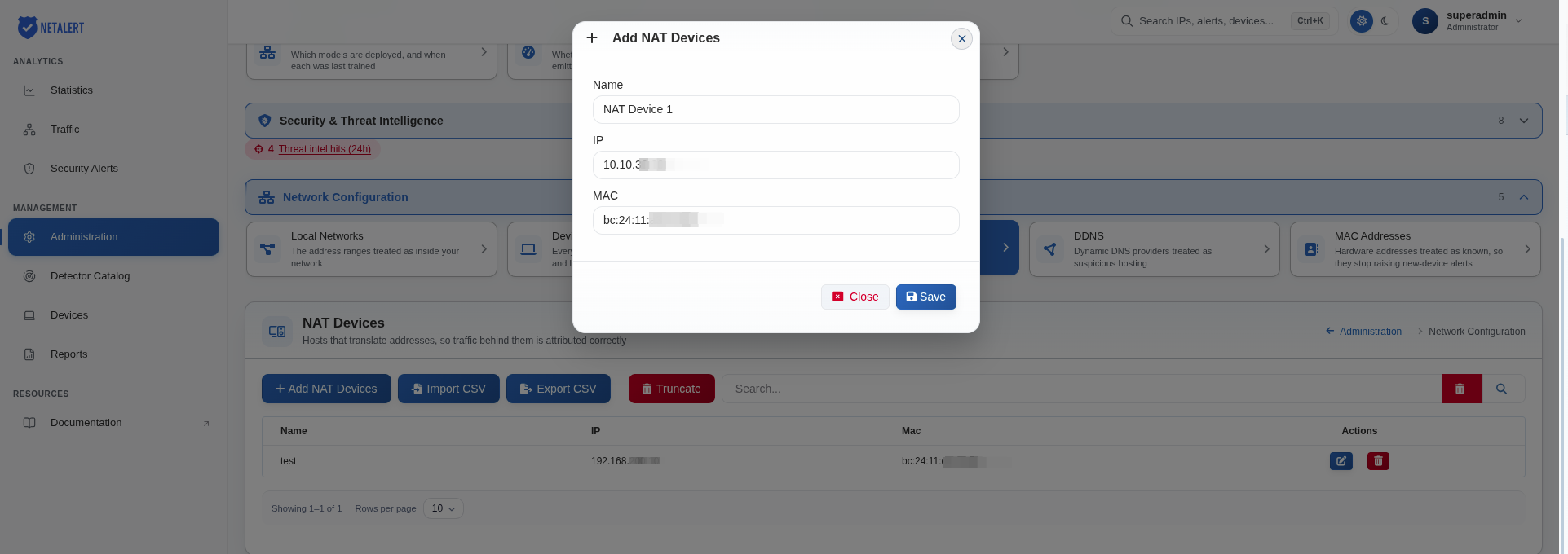
3.Enter the required details, including:
Name – A descriptive name to identify the NAT device.
IP – The IP address assigned to the device within the network.
MAC – The unique hardware address of the device for identification.
Click Save to apply the changes.