Documentation
Devices
Devices
Devices overview
NETALERT detects the devices on the monitored network and keeps them in the Device Inventory. The inventory ranks devices by their recent alert activity, so the noisiest device is listed first, and gives each device a profile with its security posture and traffic.
To open the inventory, click Devices in the Management group of the left-side menu, or navigate to Administration > Network Configuration > Devices. Selecting a device in the quick search (Ctrl+K) also opens the inventory, searched for that device.
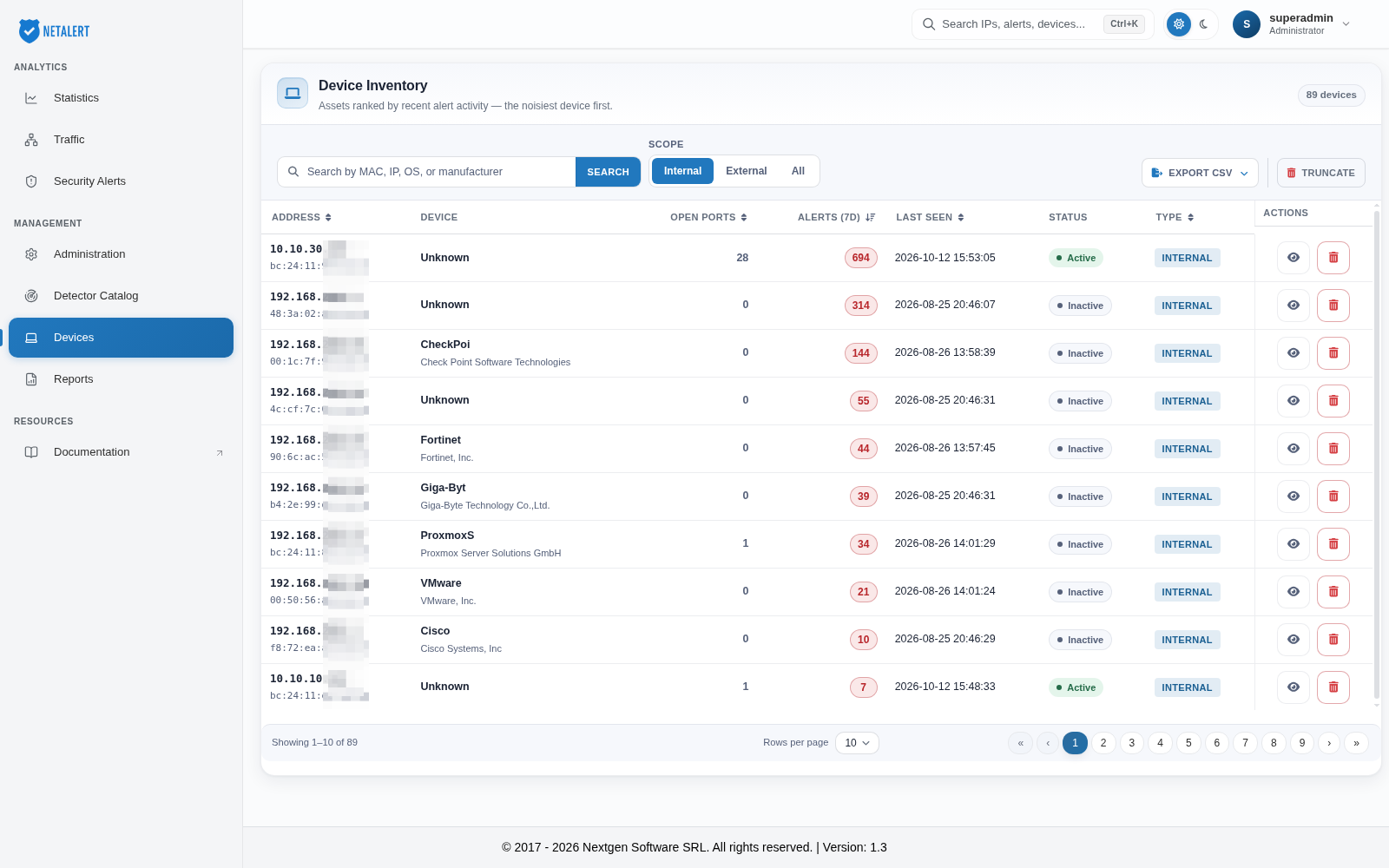
The number of devices matching the current view is shown in the top right corner of the panel.
Device list
Each row describes one device:
| Column | Description |
|---|---|
| Address | The device’s IP address, with its MAC address beneath it when the two differ |
| Device | The detected operating system, or the manufacturer when no operating system was identified, with the manufacturer’s description beneath it. Unknown means neither could be identified |
| Open Ports | The number of open ports observed on the device. A dash means the collector has not reported any |
| Alerts (7d) | The number of alerts involving the device’s IP address in the last 7 days. Click the number to open Security Alerts filtered on that address over the same 7 days |
| Last Seen | When the device was last observed |
| Status | Active or Inactive |
| Type | INTERNAL or EXTERNAL |
| Actions | View device profile (eye icon) and Delete device (trash icon) |
The list is sorted by Alerts (7d), highest first. Click the Address, Open Ports, Alerts (7d), Last Seen or Type column header to sort by that column; click it again to reverse the order.
Use Rows per page (10, 15, 25, 50 or 100) and the page buttons in the bar beneath the table to move through the list.
Search and filtering
- Search - type a MAC address, IP address, operating system or manufacturer and press Enter or click Search. Click the × in the field to clear the search.
- Scope - show Internal devices (the default), External devices, or All devices.
Exporting device lists
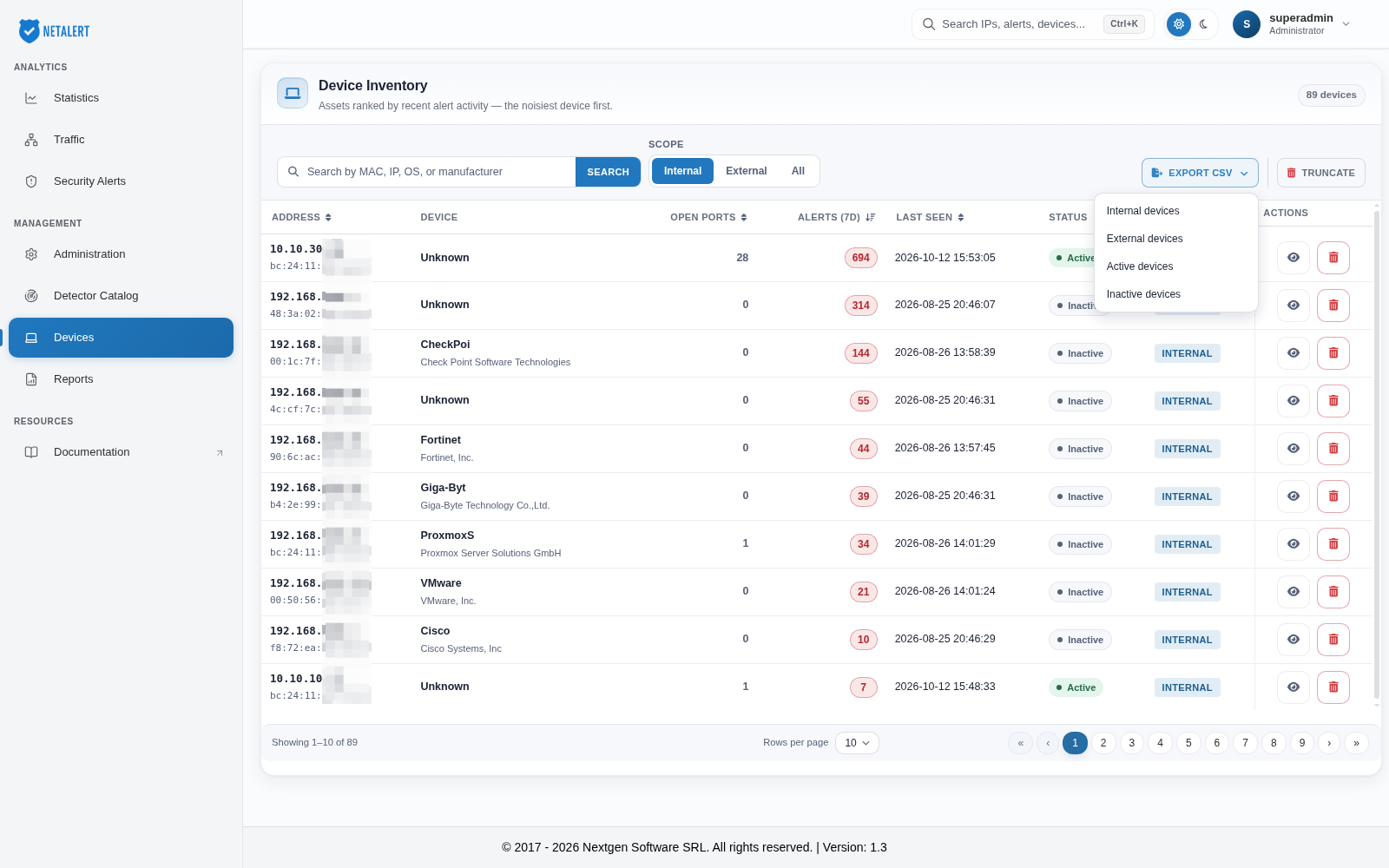
Click Export CSV and choose which devices to export:
- Internal devices - only devices on the internal network.
- External devices - only devices classified as external.
- Active devices - only active devices.
- Inactive devices - only devices that are no longer active.
Deleting devices
- Click the trash icon on a row to remove that device, together with its observed ports, applications and users, from the inventory. Traffic history is not affected.
- Click Truncate to remove the entire inventory. Truncate ignores the current search and scope and removes every device. This cannot be undone.
Both actions ask for confirmation first.
Device profile
Click the eye icon on a row to open the Device Profile. The figures in the profile cover the last 7 days.
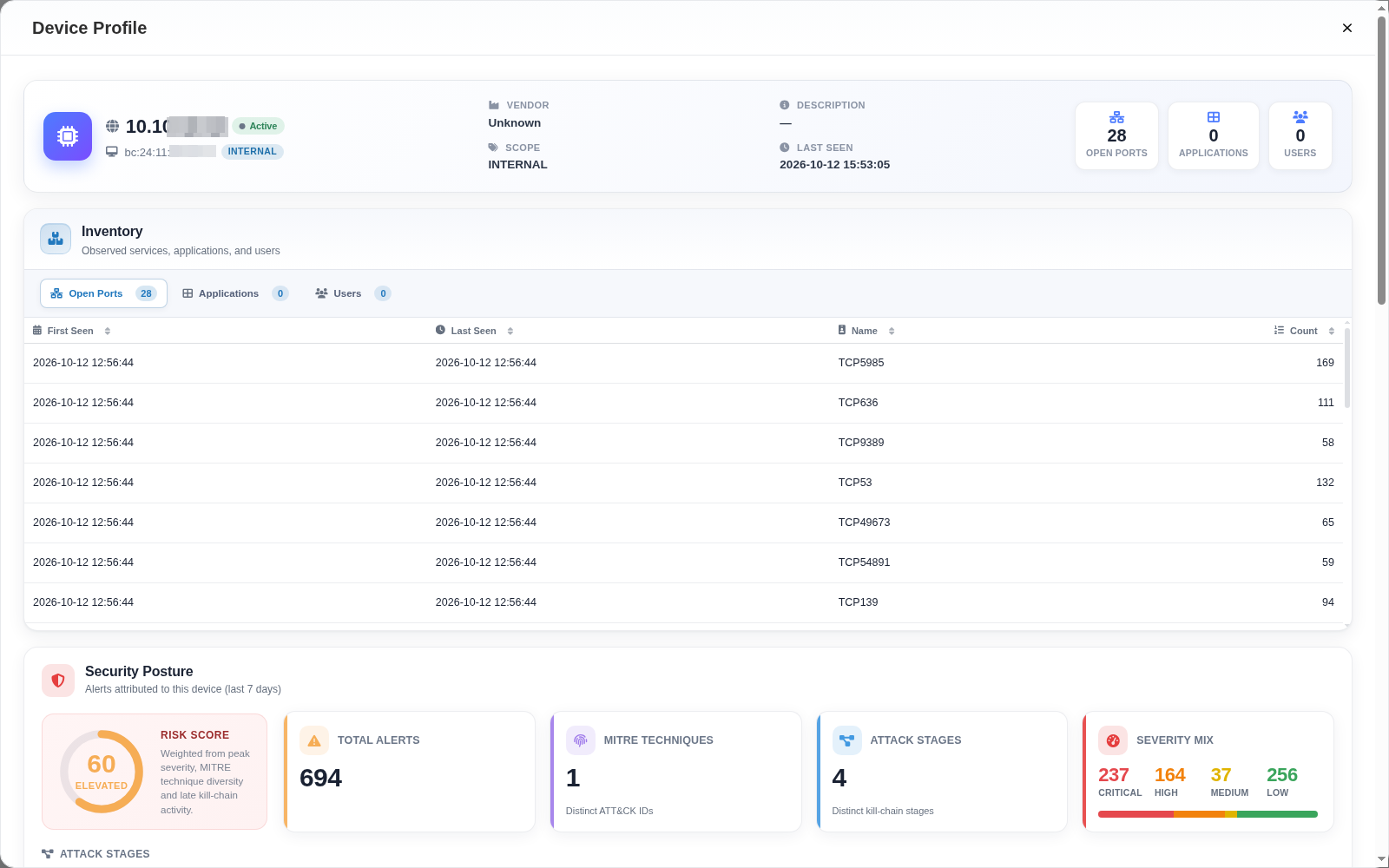
The header shows the device’s IP address and MAC address, whether it is Active or Idle, its Vendor, Description, Scope and Last Seen time, and counts of its Open Ports, Applications and Users.
Inventory
The Inventory section lists what has been observed on the device, in three tabs. Each entry shows when it was first and last seen, its name, and how many times it was observed.
- Open Ports - the open network ports detected on the device, for example
TCP53. Use this list to find services that should not be exposed. A device with port 22 (SSH) open, for example, runs a remote access service that needs monitoring. - Applications - the applications accessed from the device. An unexpected application, such as peer-to-peer file sharing, can indicate a policy violation or a data leak.
- Users - the usernames used from the device to authenticate on HTTP services. An unknown username logging in to an internal web application warrants further investigation.
Security posture
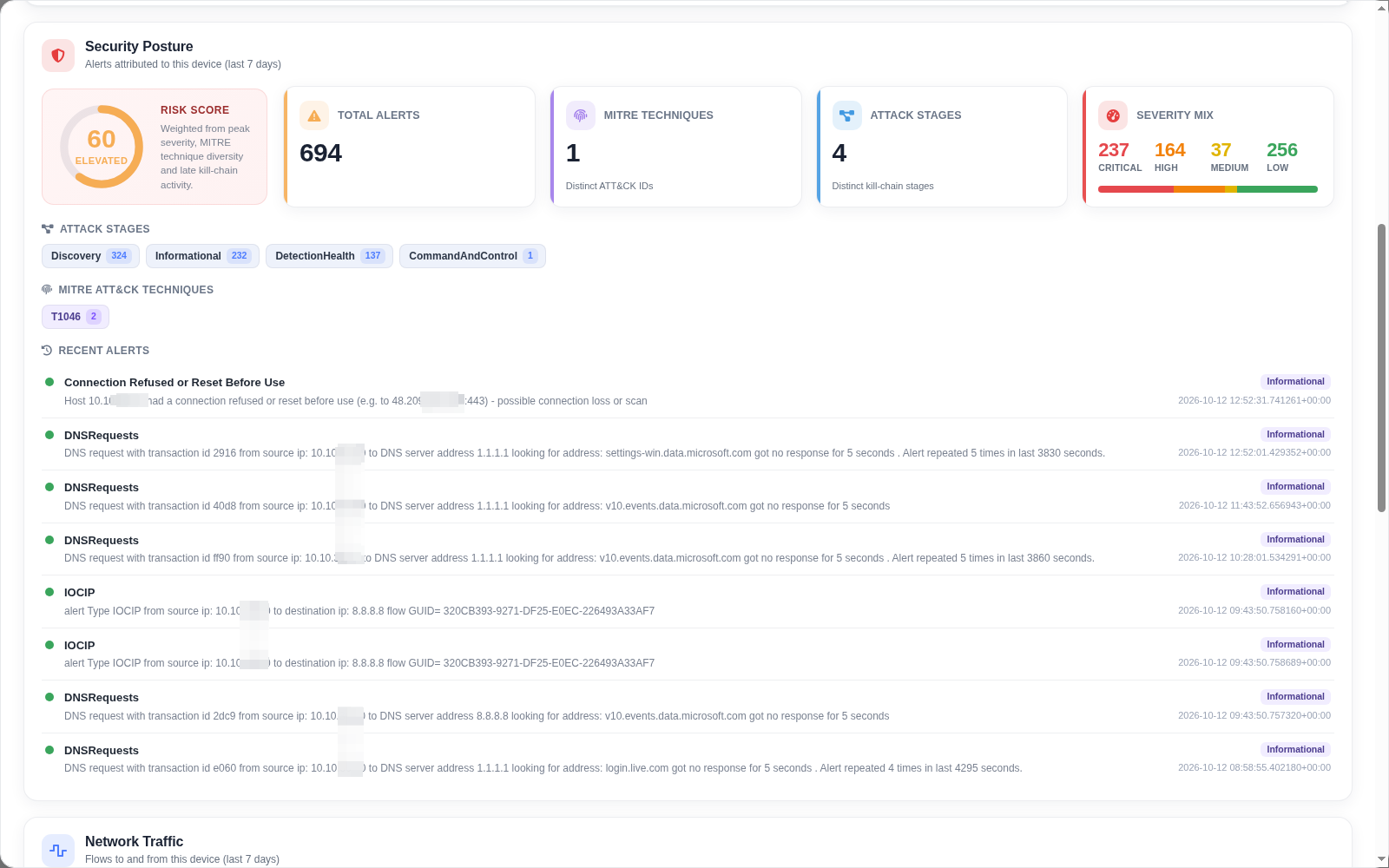
The Security Posture section summarises the alerts attributed to the device:
- Risk Score - a score from 0 to 100, weighted from the peak alert severity (50%), the number of distinct MITRE ATT&CK techniques (30%) and the presence of late kill-chain stages such as lateral movement, command and control or exfiltration (20%). The score is banded as Minimal, Low, Moderate, Elevated or Critical.
- Total Alerts, MITRE Techniques (distinct ATT&CK IDs), Attack Stages (distinct kill-chain stages) and Severity Mix (the alerts split into Critical, High, Medium and Low).
- Attack Stages and MITRE ATT&CK Techniques - the stages and techniques observed, each with its alert count.
- Recent Alerts - the latest alerts for the device, with their description, attack stage and time.
Network traffic
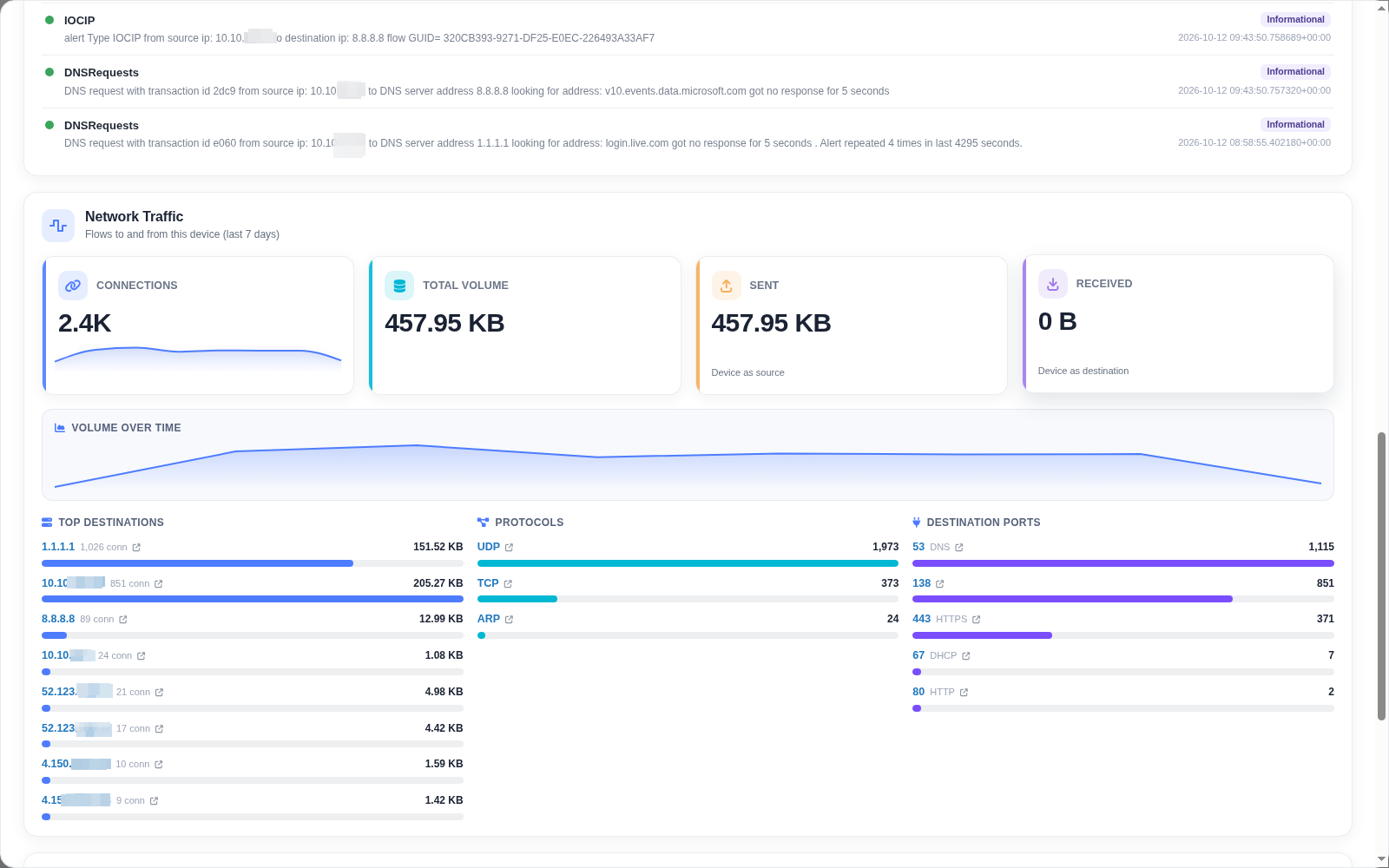
The Network Traffic section shows the flows to and from the device: Connections, Total Volume, Sent (device as source) and Received (device as destination), a Volume Over Time chart, and the device’s Top Destinations, Protocols and Destination Ports.
Click a destination, protocol or port to open Traffic filtered on that value, limited to this device’s flows and the same 7-day window.
TLS fingerprints and domains
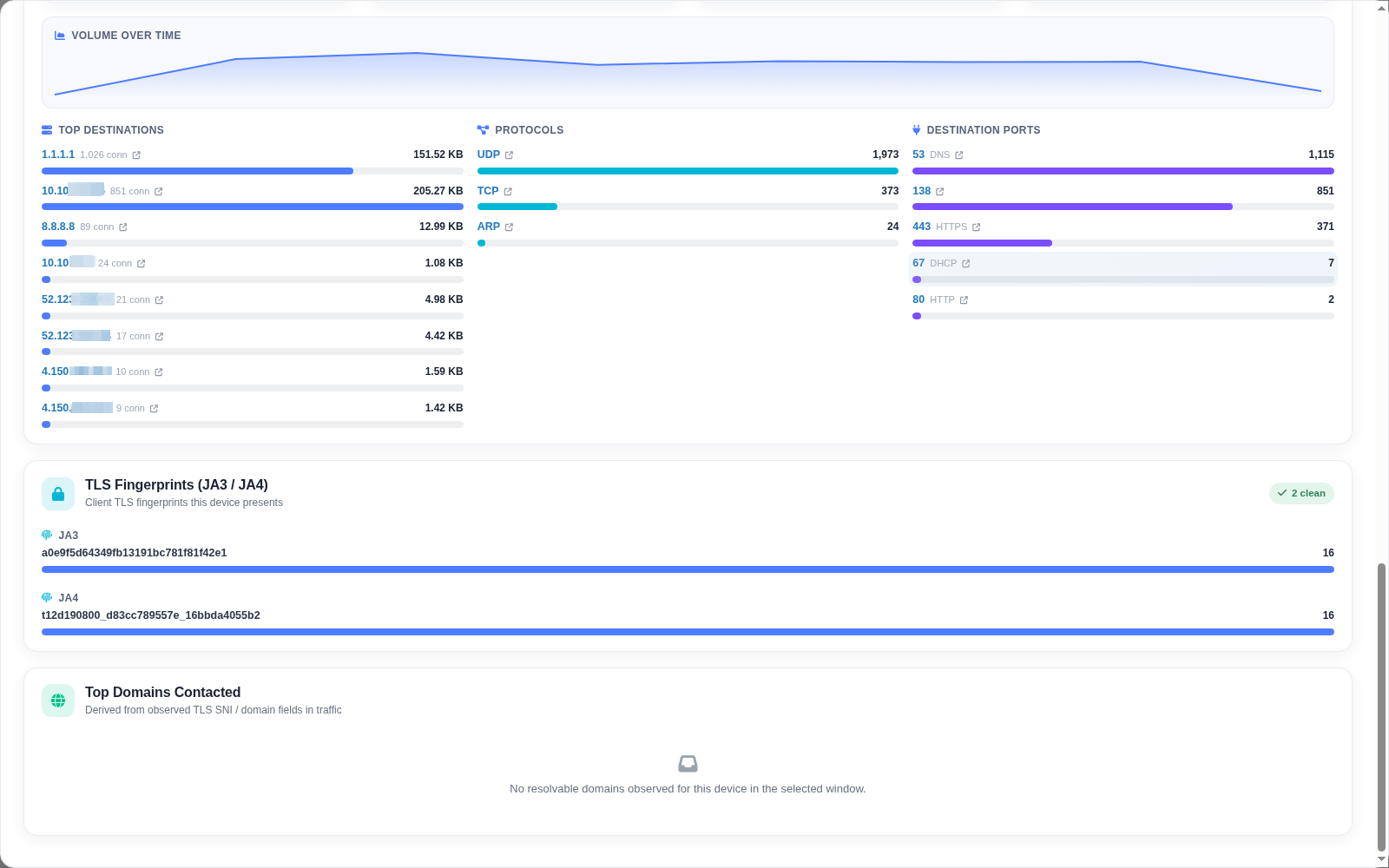
- TLS Fingerprints (JA3 / JA4) - the TLS client fingerprints the device presents, with how often each was seen. Fingerprints listed as indicators of compromise on the IOC JA3 and IOC JA4 pages are marked as known-bad, and the section header shows how many are flagged, or that all are clean.
- Top Domains Contacted - the domains the device looked up, derived from TLS SNI and domain fields in its traffic. Click a domain to open Traffic filtered on it, limited to this device.
Close the profile with the × button.
Go back to the Administration index.