Documentation
Agent Management
Enroll and manage lightcollector flow agents
lightcollector is a lightweight flow agent for sites that NETALERT does not capture directly. It runs as a single binary on a Linux host at the remote site, receives the flow records that local routers, switches and firewalls export (NetFlow v5/v9 and jFlow on UDP 2055, IPFIX on UDP 4739, sFlow on UDP 6343), and forwards them over HTTPS to the flow gateway, which hands them to DataSense for analysis. Flows that arrive this way are processed like any other exported flow source.
The Agent Management page lists every agent enrolled with this appliance, shows when flows from each one last arrived, and generates the one-line command that installs and enrolls a new agent.
Prerequisites
Enrollment relies on a flow gateway that is configured for this appliance. The installer downloads the agent binary from the gateway through this appliance, and each enrolled agent publishes its flows to the gateway, so the gateway address must be set in the WebServer environment before an agent can be deployed:
LightcollectorGatewayURL– the gateway base URL that this appliance uses. It must be an absolutehttps://URL.LightcollectorAgentPublishURL– optional. The gateway address that agents publish to, when it differs from the address this appliance uses (for example, behind NAT or an ingress). If it is not set, agents publish toLightcollectorGatewayURL. The certificate presented at the publish address is pinned into each agent when it is enrolled.
Two further settings are needed for flows to arrive and for the Last flow column to update:
- The flow gateway authenticates to this appliance with an API key. Create it under
API Keys with the host name of
LightcollectorGatewayURLas its remote host. - DataSense must have
LightCollectorEnable=truein its environment to consume the flows that the gateway publishes to the RabbitMQ exchangeNetAlert.flows. It is off by default.
See Architecture for where these settings go.
If the gateway is not configured or cannot be reached, the installer stops before the enrollment token is used and prints the reason, so the same command can be run again once the gateway is fixed.
The target host must run Linux with systemd, have curl installed, and be able to reach this
appliance over HTTPS.
Viewing the agent fleet
Navigate to Administration > System Configuration > Agent Management.
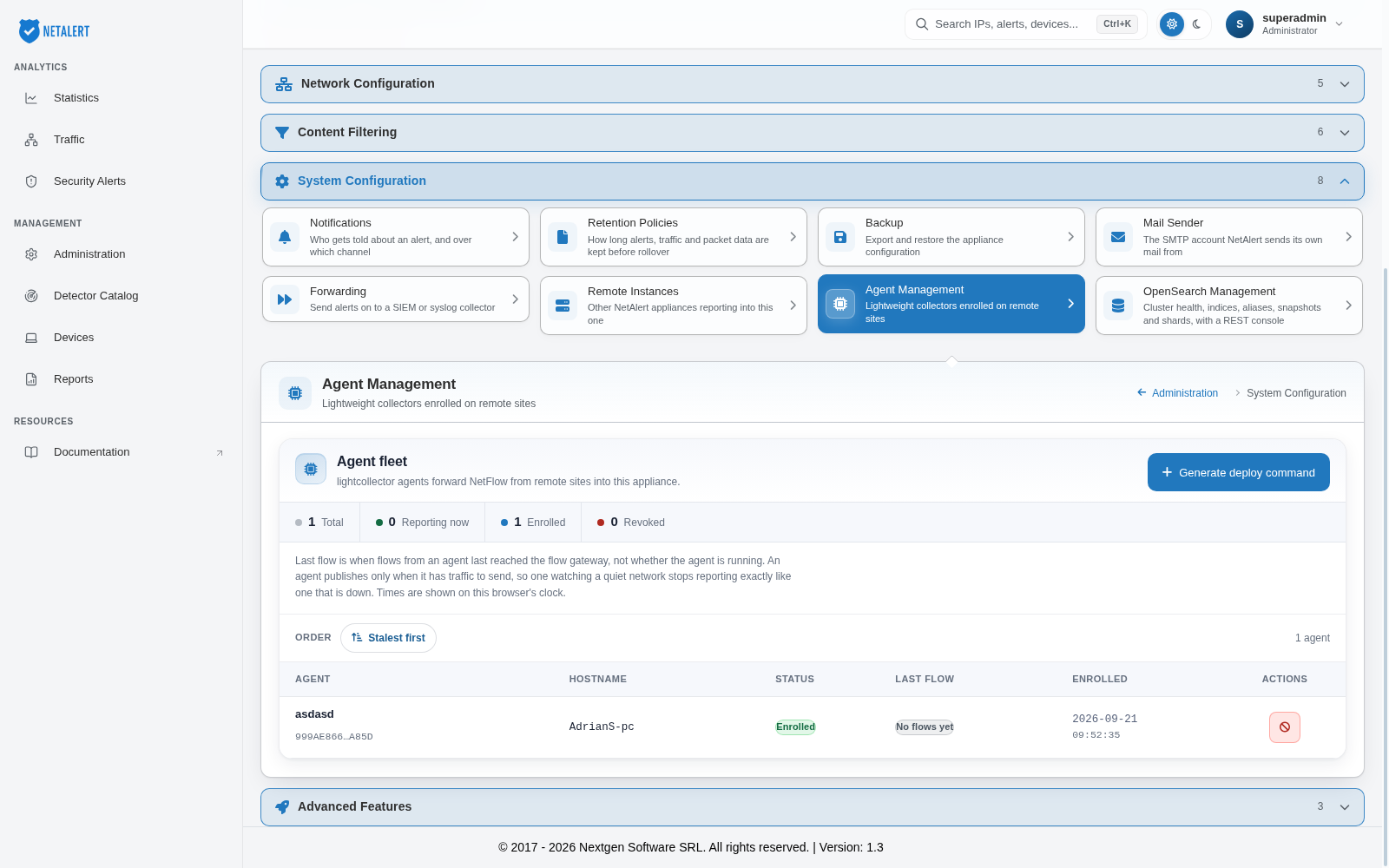
The summary above the table counts the agents that are Total, Reporting now (flows received in the last 5 minutes), Enrolled and Revoked. The table has the following columns:
- Agent – The label given at enrollment, or Unlabelled agent, with a shortened agent ID underneath. Select the ID to copy the full value to the clipboard, for example to match a row against the agent’s own log.
- Hostname – The host name the agent reported when it enrolled.
- Status – Enrolled or Revoked.
- Last flow – When flows from the agent last reached the flow gateway, with one of the following states: Under 5 min ago, Over 5 min ago, Over 1 hour ago, No flows yet (nothing has arrived since enrollment) or Revoked, not publishing.
- Enrolled – When the agent was enrolled.
- Actions – Revoke, and Delete for an agent that has already been revoked.
Times are shown in your browser’s time zone.
Last flow measures traffic, not the agent process. An agent sends data only when it has flows to forward, so an agent watching a quiet network ages out of Under 5 min ago in exactly the same way as one that has stopped. Check the agent host before concluding that an agent is down.
By default the table is ordered Stalest first: agents that have never sent flows come first, then those silent for over an hour, then those silent for over 5 minutes, then those that are reporting, and revoked agents last. Select Stalest first to reverse the order to Freshest first.
Deploying an agent
Select Generate deploy command.
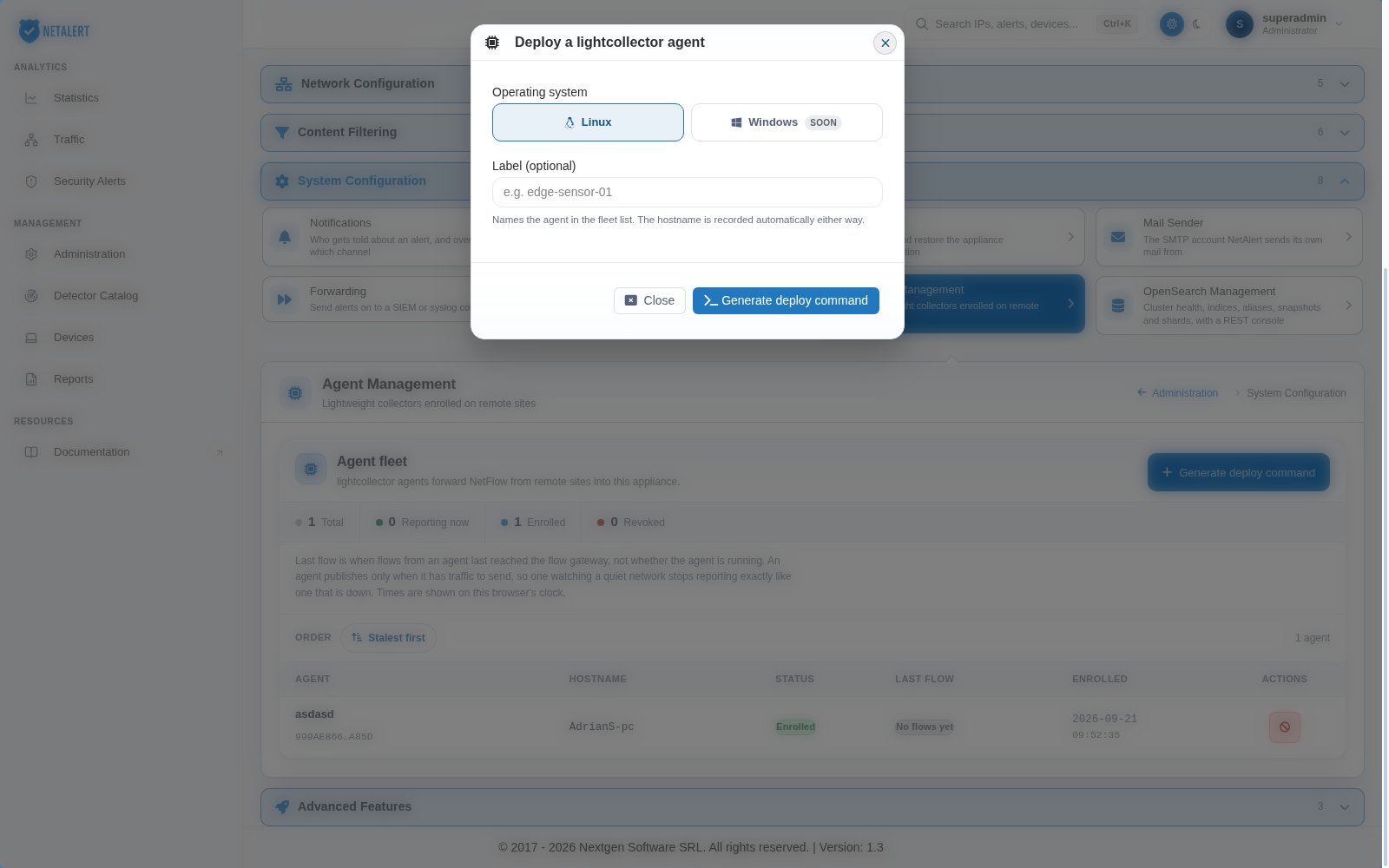
Leave Operating system set to Linux. Windows agents cannot be deployed from the console yet.
Optionally enter a Label to identify the agent in the fleet list, for example
edge-sensor-01. The host name is recorded automatically either way.Select Generate deploy command, then copy the command that appears.
Run the command on the target host. It has the following form:
curl -fsSLk "https://<appliance>/api/lc/enroll?token=<token>&os=linux" | sudo bash
The installer downloads the agent binary, completes enrollment, stores the agent’s credentials
and the gateway certificate under /etc/lightcollector/, installs the binary in
/opt/lightcollector/, and starts it as the lightcollector systemd service. The agent then
appears in the fleet list with the status No flows yet until the first flows arrive.
Revoking and deleting an agent
- Revoke – Stops accepting flows from the agent from the moment you confirm. The agent stays in the list with the status Revoked. Revocation cannot be undone: to bring the host back, enroll it again with a new deploy command.
- Delete – Removes a revoked agent from the list. Only revoked agents can be deleted, so deleting never affects flows from a working agent.
Revoking an agent does not uninstall it from the host. To remove the software, stop and disable
the lightcollector service on the host and delete /opt/lightcollector/ and
/etc/lightcollector/.
The Agents tile at the top of the Administration page shows how many agents are enrolled and how many are revoked.