Documentation
How to enable two-factor authentication (2FA) for a user account
With two-factor authentication (2FA), an additional layer of security is added to the account. In addition to the password, a time-based code generated by…
With two-factor authentication (2FA), an additional layer of security is added to the account. In addition to the password, a time-based code generated by Google Authenticator on a mobile device is required. Follow the steps below to activate 2FA.
Authentication
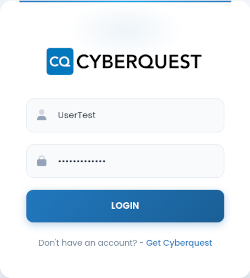
To access the web interface, open a browser and enter the application’s IP address or DNS name (for example, https://CyberquestIPAddress). The browser redirects to the CYBERQUEST authentication page:
_
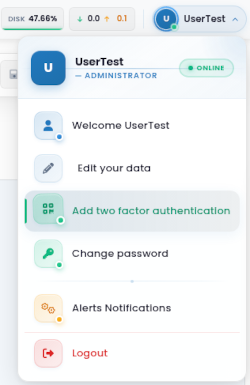
From the User Enable Area, click Add Two-Factor Authentication to open the configuration page.
Application Enrollment
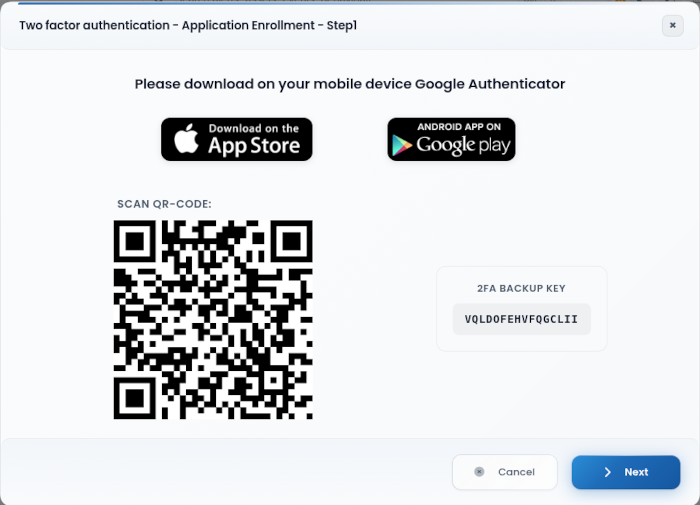
Scan the QR code or manually enter the backup key into Google Authenticator, then click Next.
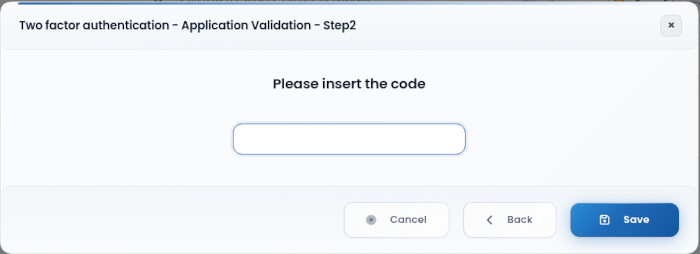
Application Validation
Enter the code generated by Google Authenticator and click Save to complete the setup.
Verification
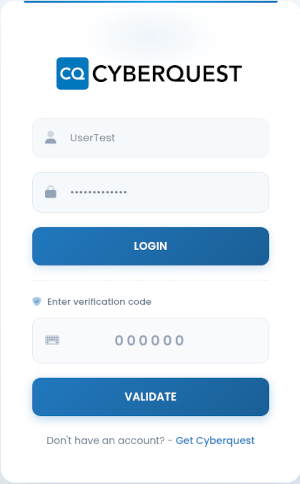
Sign in using the username and password, then enter the two-factor authentication (2FA) code and click Validate.